All it seems to take is one random video to completely throw off your YouTube recommendations. I’ve been using several methods to drastically improve my recommendations, even while watching videos that have nothing to do with my usual interests.
Edit Your Likes
Have your interests changed over time, but YouTube isn’t keeping up? Or maybe you have a habit of liking every video you watch, and now your feed is being taken over by videos you’re not really interested in.
Take some time to edit your likes. On a desktop browser, click Liked videos on the left. Click the three-dot menu beside any video you no longer like, and select Remove from Liked videos.
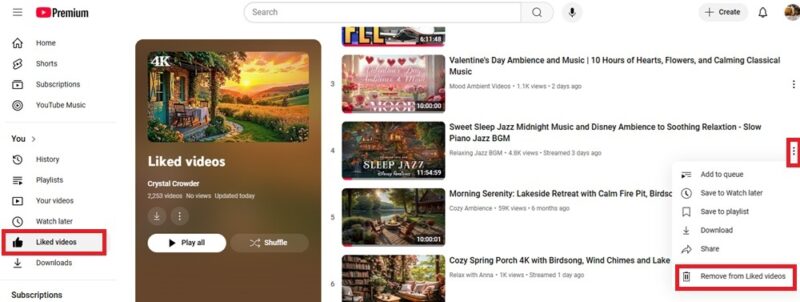
On a mobile, tap your profile pic, select Playlists, and open the Liked videos list. Tap the dots beside the video, and select Remove from Liked videos.
Also, limit likes to the videos you want to show up in your YouTube recommendations to better fine tune your feed.
Remove Videos From Watch History
Occasionally, I’ll watch a news story on YouTube, but that instantly fills my recommendations with news, no matter what else I watch. The easy fix is to just remove the video from my watch history. This tells YouTube this isn’t the type of content you want recommended.
Go to History on YouTube. Click the X beside any video to remove it.
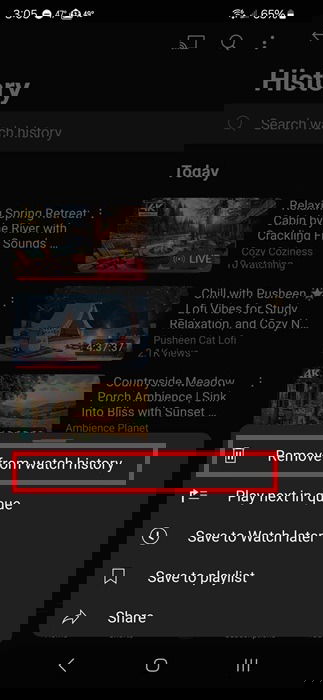
On mobile devices, tap your profile pic first, tap the dots beside any video you want to remove, and select Remove from watch history.
Mark Videos as Not Interested or Do Not Recommend
Never want to see certain types of content or specific channels again? Tell YouTube. Click the dots beside any video (without opening the video itself), and select either Not interested or Do not recommend channel.
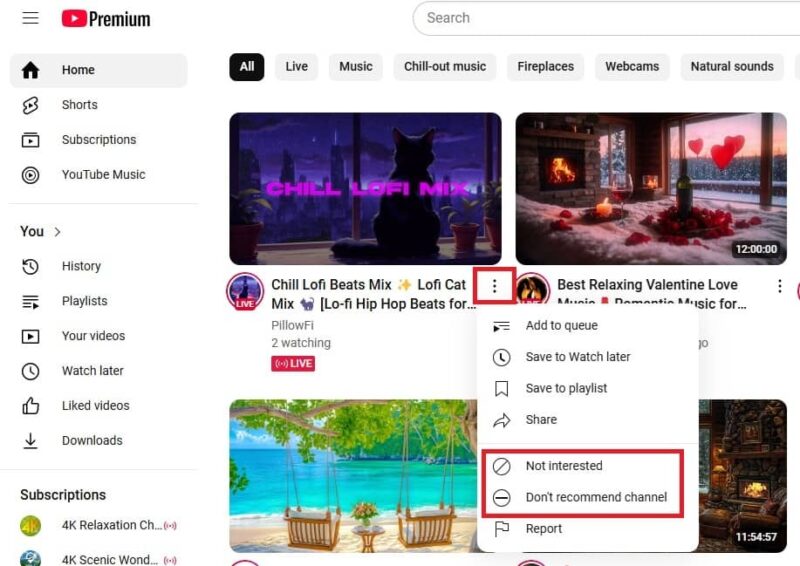
The first focuses on the type of content, while the second option keeps that channel and similar channels from being recommended in the future. It’s not a perfect fix, but I’d say this eliminates over half of my bad recommendations.
Pause Watch History
If you don’t want to have to remove a video later or want to watch random content for a while without it affecting your YouTube recommendations, pause your watch history. Nothing is saved, though everything you watch is still tracked by YouTube and Google as usual.
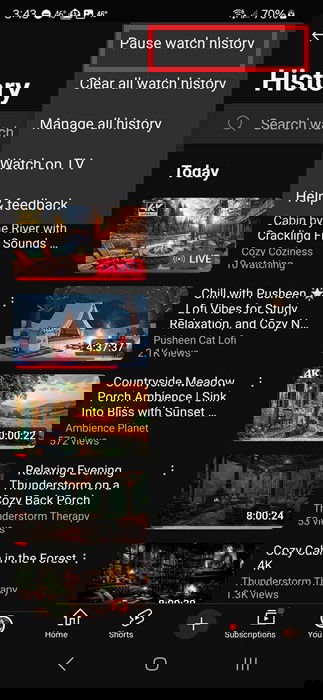
The process is similar for desktop and mobile. On desktop, click History in the left pane of YouTube. Select Pause watch history and confirm. Repeat the process to unpause.
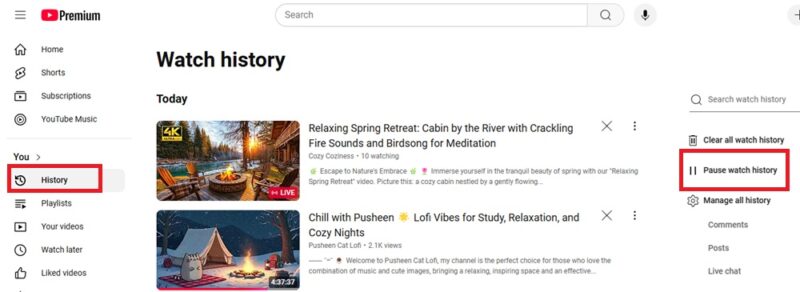
On mobile, tap your profile pic, and select View all beside History. Tap the three-dot menu in the top right, and select Pause watch history. Repeat the process to unpause.
Use Incognito Mode
A quick way to watch one or two videos without your YouTube recommendations going off the rails is to turn on Incognito Mode. This is a feature within the YouTube mobile app. For desktop, just open YouTube using your browser’s Incognito or Private mode.
In the app, tap your profile pic, then Turn on Incognito just below your account name. This opens a new window to search and use YouTube. Tap the incognito icon, and select Turn off Incognito to return to normal.
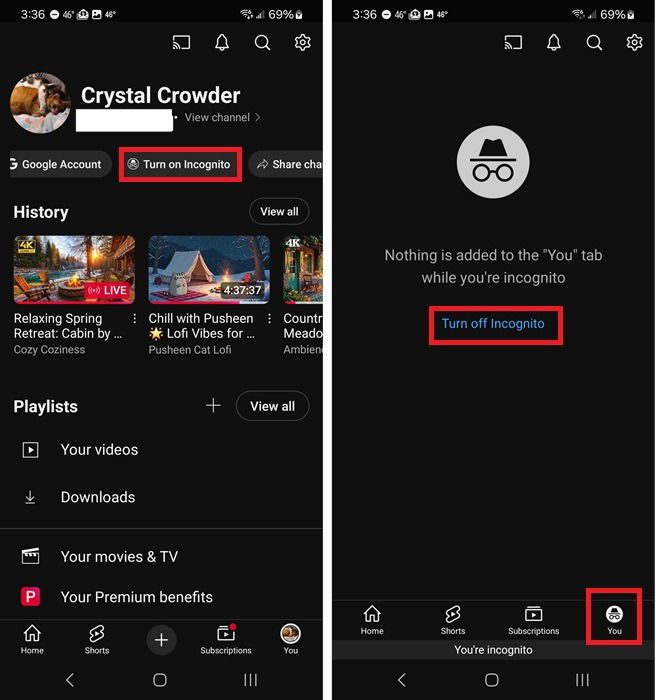
The only bad part is if you’re a YouTube Premium user, you’ll see ads again.
Delete Your YouTube History and Start Over
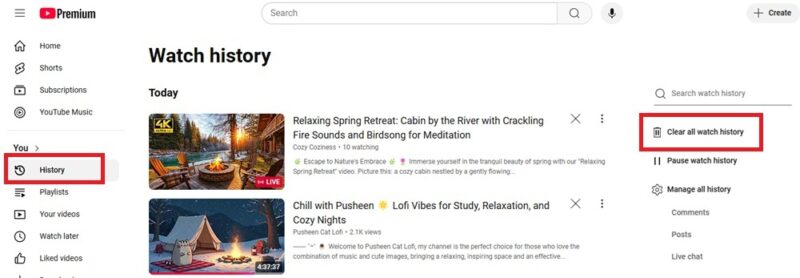
Too much history to ever get the recommendations you want? Delete it all and start over. Please note that this doesn’t delete any channel subscriptions or playlists. Though deleting subscriptions to channels you’re not interested in does help improve recommendations.
On desktop, click History in the left pane of YouTube. Select Clear all watch history and confirm.
On mobile, tap your profile pic, and select View all beside History. Tap the three-dot menu in the top right, and select Clear all watch history.
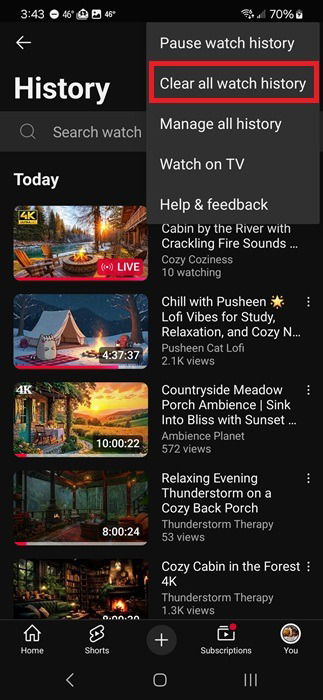
If you want to further manage your history, including auto-deleting history after a set period, select Manage all history.
Like Videos and Subscribe
Want to see more of what you like? YouTube shows you more content similar to videos you like and channels you subscribe to. Please be aware that subscribing is free to do on any channel. I often see users confusing this with joining a channel, which does cost money. Plus, liking and subscribing help boost a channel’s visibility.
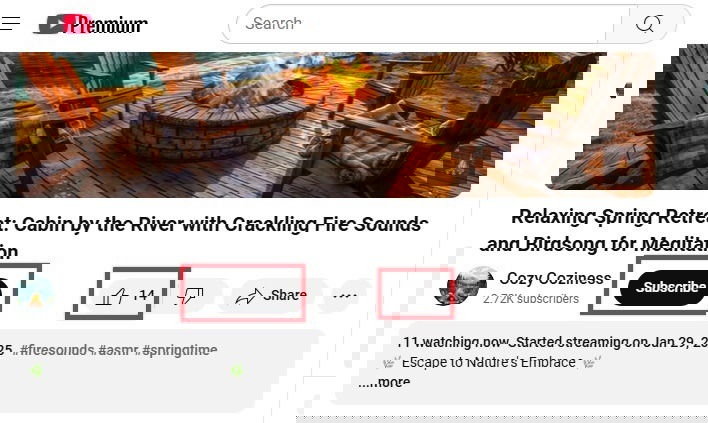
Also, if you really don’t like a video, click the thumbs down to dislike it.
Show Fewer Shorts
Prefer standard YouTube videos versus TikTok-style shorts? Tell YouTube you’re not interested.
On desktop, scroll through your feed until you see a section of YouTube Shorts. Click the three dots above the section of videos, and select Not interested.
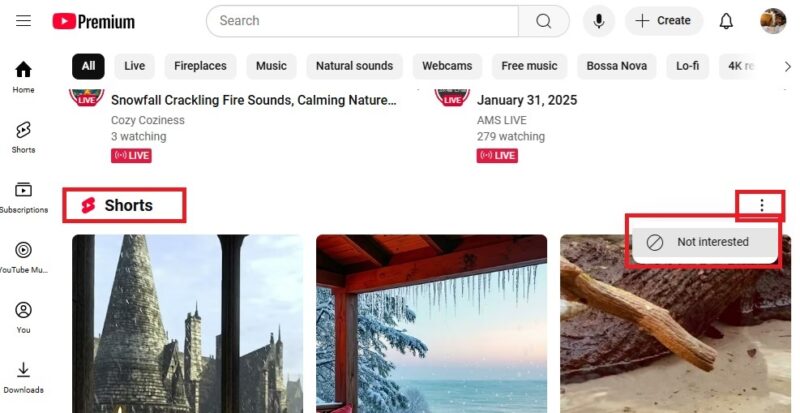
On mobile, scroll until you find Shorts recommended, click the three dots, and choose Show fewer shorts. I’ve already done this in my mobile app, so I can’t show you an example.
Respond to YouTube Questions
These are random. I’ve seen them on both desktop and mobile, but there’s no guarantee when they’ll appear or even what the question would be.
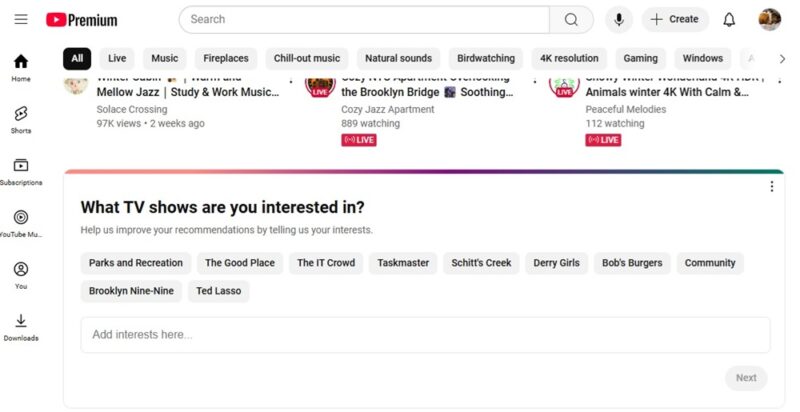
YouTube will randomly ask a question to help improve your recommendations. The most common one is to pick videos and channels from a list to show YouTube what you like and don’t like. The most recent one I had was about my favorite TV shows. You don’t have to answer them.
If you want to improve your overall YouTube experience, consider these Firefox add-ons and Chrome extensions.
Image credit: Pixabay