AI keeps popping up in all the major search engines. Google, DuckDuckGo, Brave, and more all have some form of AI built-in to their search features. Now, Microsoft launched Bing Copilot Search and it’s so much better than Google’s AI Overviews.
Super Easy to Turn Off
Not everyone wants AI summaries or any form of AI in their search results. While I don’t mind if a search engine adds in AI, I want an easy way to switch it off when I don’t want it.
Google makes turning it off a process versus just a quick and intuitive setting. With Copilot Search, perform any search, click the hamburger menu near the top right, expand Copilot Settings, and toggle off Copilot response on result page.
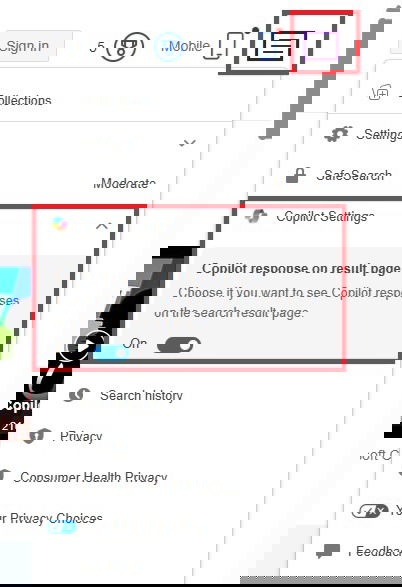
If you’re logged in, Bing retains your settings. If you’re not logged in, you’ll need to toggle the setting back off during your next browsing session if you’ve cleared your cookies.
Provides Groups of Answers
Most AI search summary I’ve tried in other search engines are similar – you get 2-3 paragraphs or a bullet list at the top along with a few resources. Copilot Search does things a bit differently.
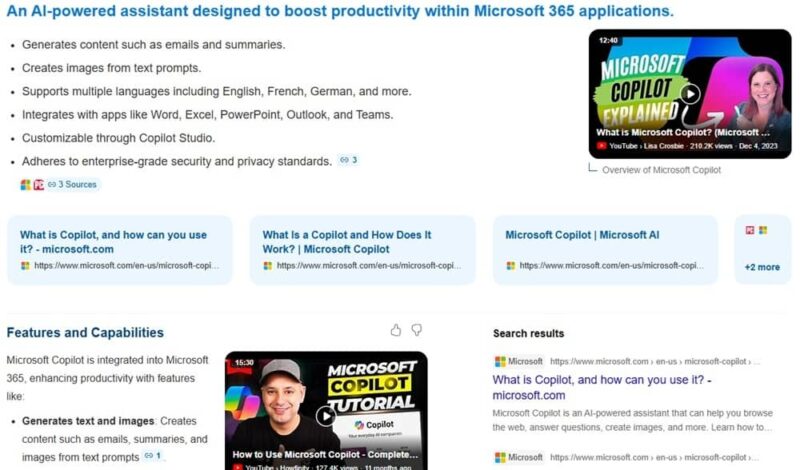
The entire first page is groups of AI answers. For example, I searched for “what is copilot?” I got four groups of answers, each with its own resources, including:
- An overview of Copilot
- Features and capabilities
- Availability and plans
- AI-Generated Answer – A longer summary that reads more like a short blog post
All the regular search results are listed to the right of and below the AI answers. Overall, I found the answers to be more comprehensive than Google’s AI with a more friendly layout. If you’re looking for answers at a glance, it’s much easier in Bing than Google.
The downside is Copilot kind of takes over the entire first page of search results. On the other hand, it does a good job of organizing content to make it easier to understand.
Continue Chatting With Copilot
Have you ever wished Google could help you follow up on the AI Overview? Me too. Instead, I have to perform an entire new search or bring up Google Gemini separately. I also have to log into my Google account to use Gemini. I don’t have to log in to use Copilot. Just know that any chats aren’t saved when you’re logged out.
With Copilot Search, you jump directly into a Copilot chat just by switching your search filter. Under your search query, you’ll find a list of search filters, such as Images, News, Maps, etc. But now, Bing’s added Copilot as the second filter. Click this filter and it brings up Copilot’s chat in a new tab with your query already in place.

Then, just continue asking questions. You even get suggested questions to help get you started.
View Sources Easier
I don’t trust AI to give me accurate answers every time, so I want to verify the results. Most AI built in to search engines includes at least a few sources to for verification. While Google AI Overviews do an okay job at showcasing sources with a tiny link icon that brings up a box with the sources, Bing puts the sources front and center.
To verify any source, just hover your mouse over the link icon in the AI-generated results. In the first group of answers, there are even large source boxes with the name of the source and title of the page.
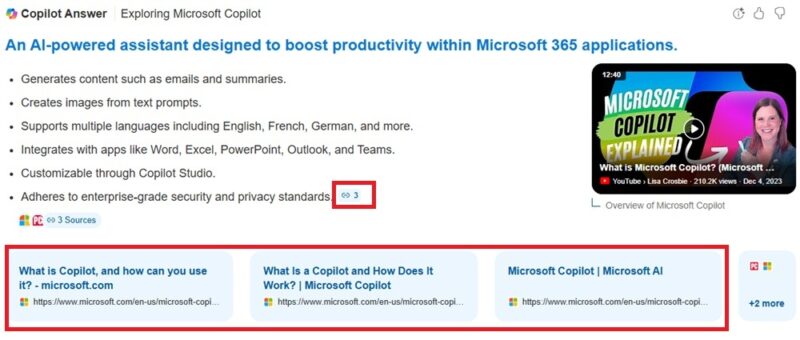
Surprisingly, this all works just as well on mobile devices. Of course, you can’t see quite as many sources on screen at the same time as you would on a desktop, but all the same sources are listed.
Get Rewards
This one isn’t tied directly to Copilot Search, but if you’re using AI search results, why not get rewarded for them, right? Google doesn’t offer search rewards. Bing does.
All you have to do is create a Microsoft account and log in to Bing. Click the Reward icon beside your profile name near the top right of the page. From here, manage all your current reward points, see other tasks to earn points, and redeem for rewards.
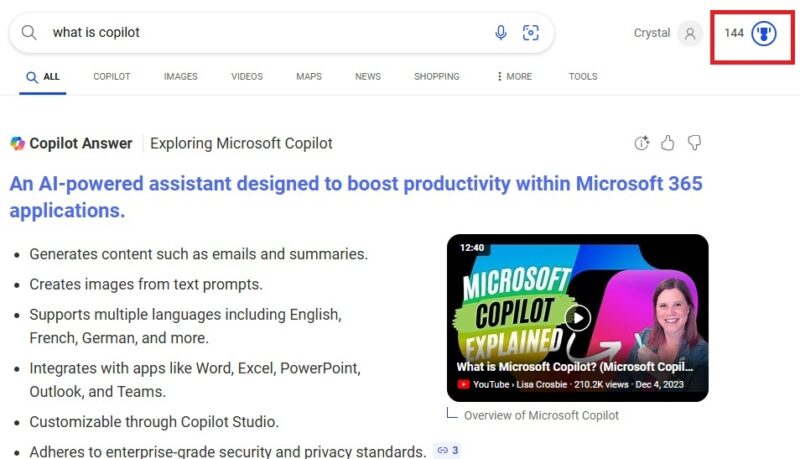
Every search gives you points. So, all those AI summaries you’re viewing give you a small reward. You get all the benefits of AI search while building up points for gift cards. With Google, you just get summaries and sponsored results.
The Microsoft Rewards program works in any browser. Just make sure you’re using Bing to search. You’re still free to switch back and forth between Bing and Google, or any other Google search alternatives, based on your needs. Now, if Bing just offered Google’s Circle to Search feature on mobile, it might be perfect.