Apple Maps has long been exclusive to iOS, but that’s changing. Android users can now try out Apple’s navigation app, albeit with some limitations. Here’s what you need to know, and how to try it out for yourself.
Good to know: here’s how you can measure distance between two points on Google Maps.
Apple Launches Maps on Android Devices
Apple has been quietly developing a web-based version of Apple Maps for some time. The beta version launched last summer and became accessible through desktop and tablet browsers, including Safari, Chrome, Edge, and Firefox. But if you tried loading it on an Android phone, you were out of luck – the site simply wouldn’t run on mobile.
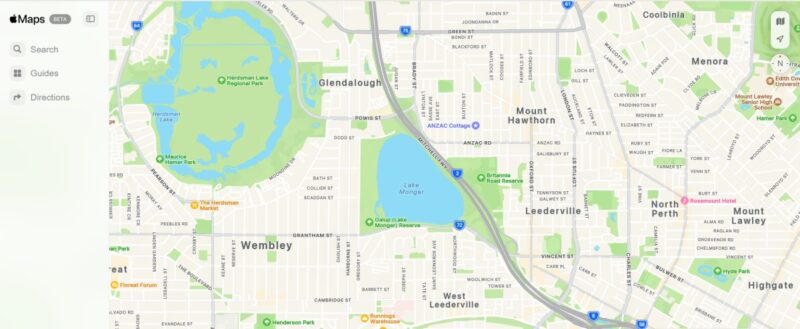
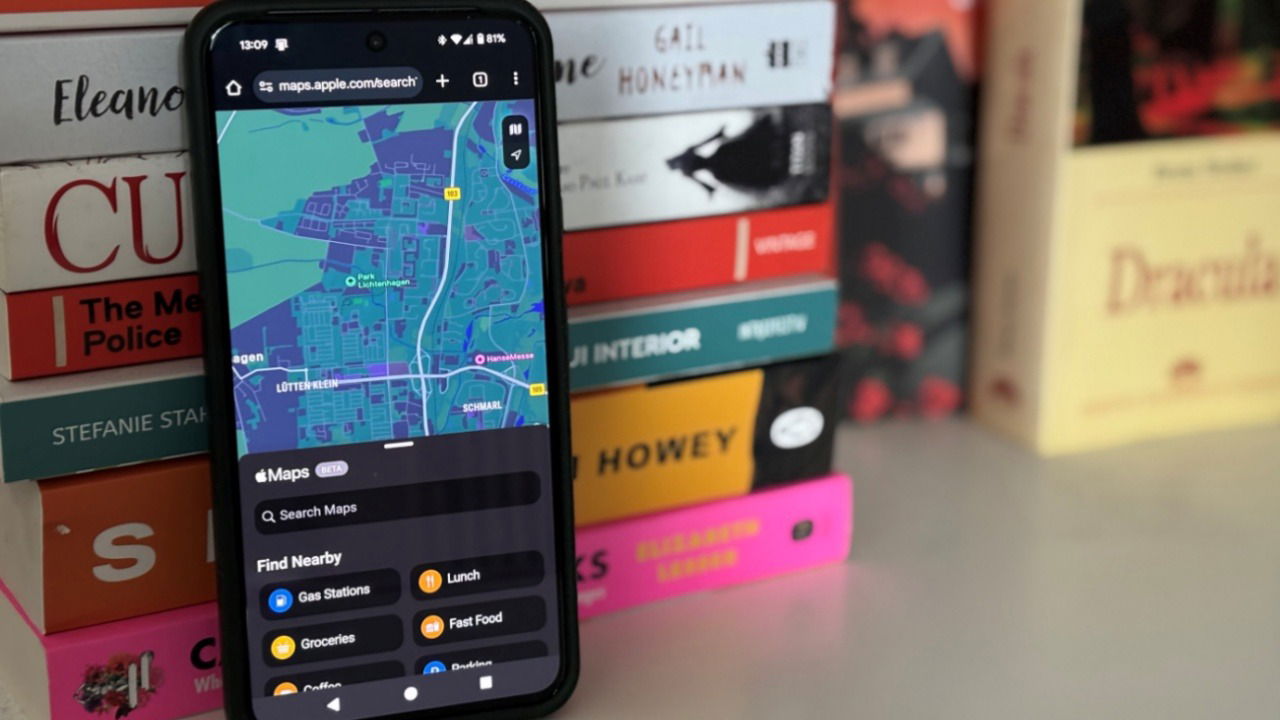
Well, that’s all changed now! Apple has recently removed the beta tag from its web version of Maps, and opened the doors to Android users in the process too. Currently, if you fire up your mobile browser, you can finally use Apple Maps on your Android phone.
And herein lies the catch: Apple still hasn’t launched a fully-fledged Apple Maps for Android. Maybe that’ll happen down the road, but at the moment, the browser version is now the go-to option for Android users curious to see how it stacks up.
Meanwhile, iOS users looking for an alternative to the built-in Apple Maps have long had access to Google Maps. In fact, the integration between iOS and Google Maps is expected to deepen soon, with Apple set to introduce the ability for users to set Google Maps as their default navigation app on iPhones and iPads.
Tip: learn how to drop pins in Google Maps, for more accurate directions.
How to Access Apple Maps in Your Android Browser
To access Apple Maps on your Android device, open your mobile browser. Navigate to this page: maps.apple.com. The maps page should load instantly. You might need to grant a few permissions to do so.
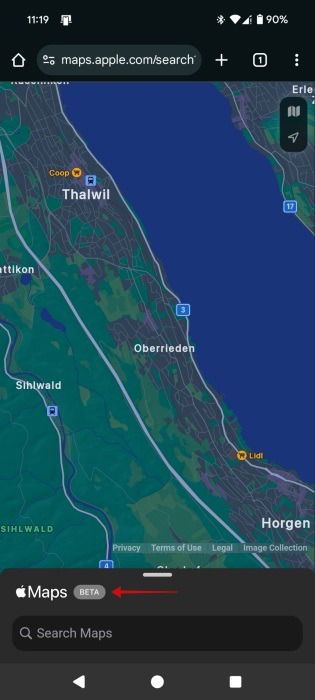
You will still see a beta label displayed below the maps window, but the URL itself no longer reflects that status – it has changed from the former beta.maps.apple.com to a simplified version without the “beta” tag.
What Can Apple Maps on Android Do
After Apple Maps finishes loading in your browser, you can explore the map using gestures that are probably already familiar to you from using other map apps. However, at this point, the current web implementation of Apple Maps on Android offers only basic set of features.
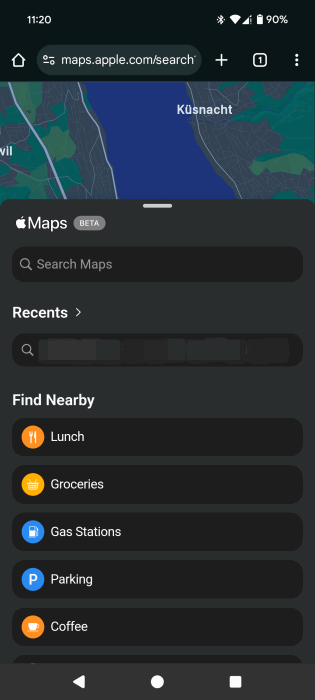
By swiping up from the bottom, you can search for places nearby such as Groceries, Parking, Fast Food, Bus Stops and more.
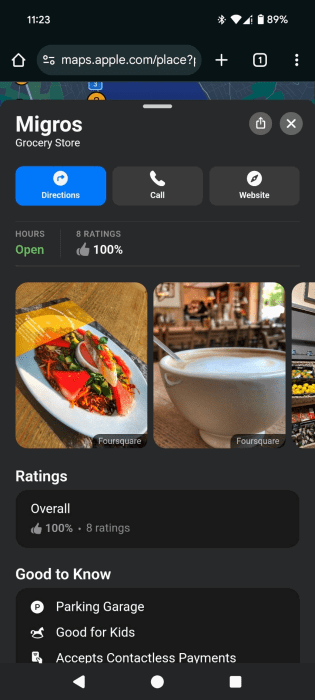
Like on Google Maps, tapping on a location brings up additional information including open hours, ratings, pictures, call info, as well as easy access to its website URL.
Of course, you can also search for specific places using the search bar. As expected, you can also ask Apple Maps to provide directions for you when viewing a certain place.
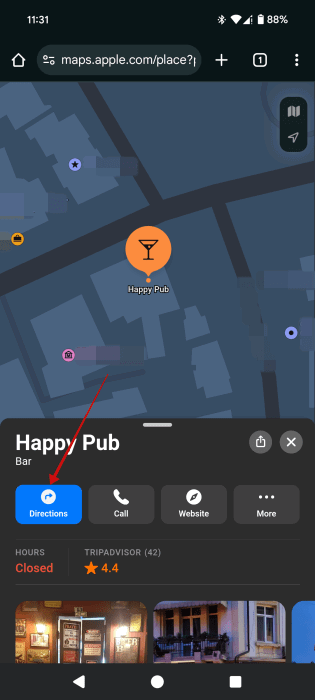
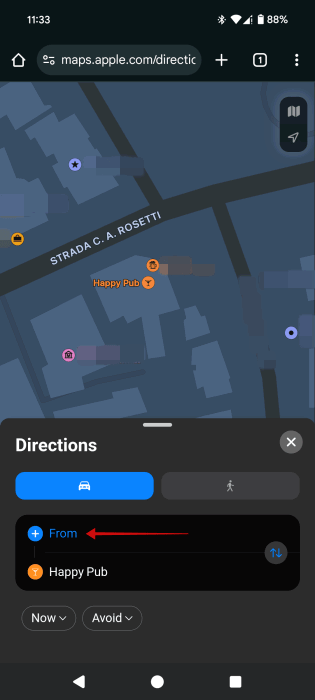
The service allows you to select either walking or driving routes. Press on the From field to define your point of departure.
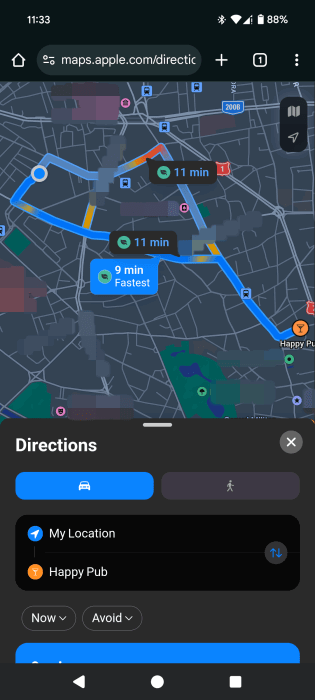
The web version of Apple Maps will now generate your directions.
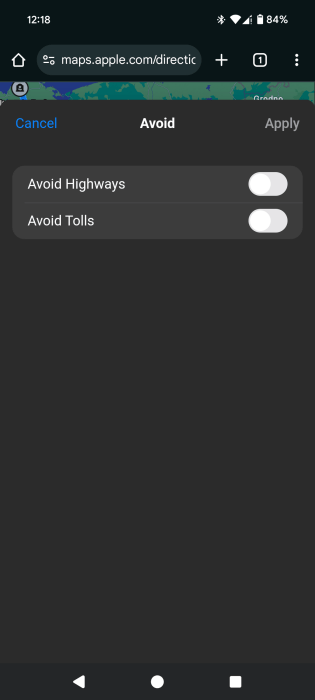
Don’t want to deal with highways or tolls? You can tell Apple Maps to steer clear of those when planning your route.
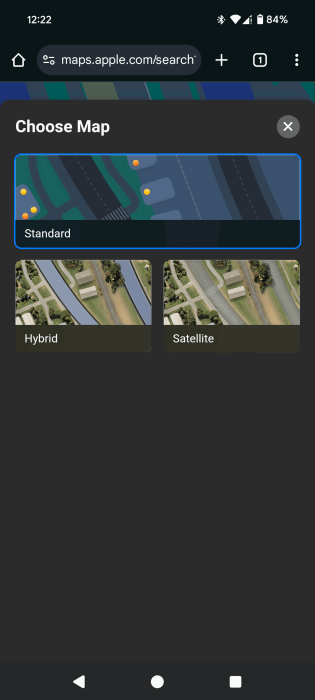
Finally, Apple Maps on the web on Android device supports different maps view including Hybrid and Satellite.
However, there are quite a few things that Apple Maps is still missing. For instance, you can’t log in with your Apple ID, so if you have routes or places on other iOS devices, you won’t be able to access them on your Android device. Additionally, Apple Maps on Android does not support transit directions in some places, or other more advanced features such as 3D buildings.
Anyway, in case you like what you see and want a more native-like experience of Apple Maps on Android, do this. In Chrome, press the three dots in the upper right corner and select Add to Home screen.
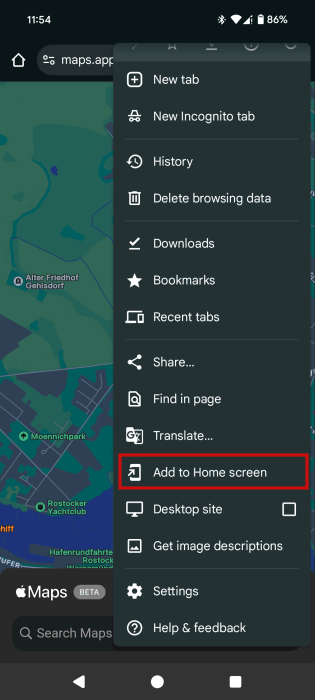
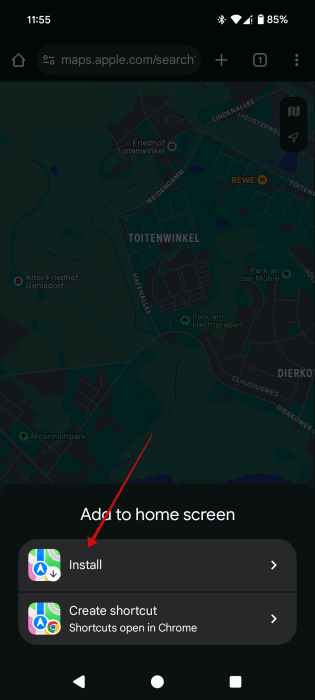
Select Install at the bottom and once again in the pop-up. Allow Android to complete the process.
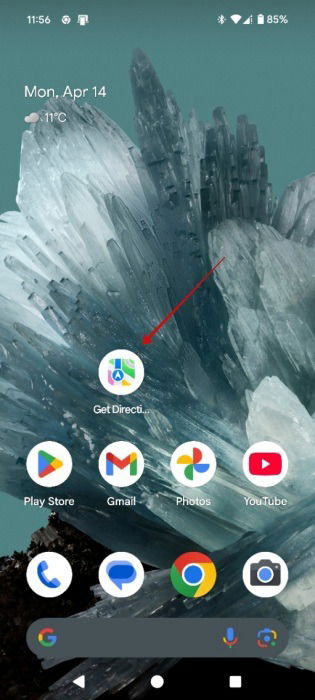
When it’s done, you should see the Apple Maps web icon on your home screen. Now you can access it whenever you need, without opening the browser and inputting the address again.
FYI: see how DuckDuckGo compares against Google and Bing.
An Alternative to Accessing Apple Maps on Android
Those who have been using the DuckDuckGo browser on their Android phone probably know this, but the Chrome alternative taps into Apple Maps to provide directions.
It’s simple, just search for a place using DuckDuckGo and press the Directions button to view how to get there.
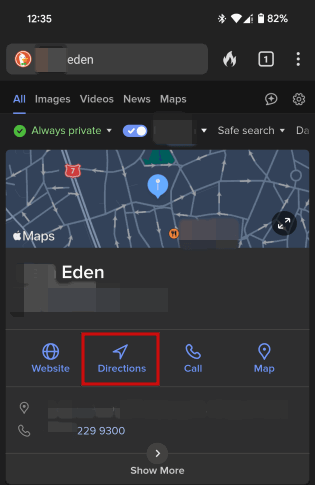
Of course, the experience is quite limited, but you can access driving as well as walking direction. It’s also possible to still switch between regular map view and satellite imagery.
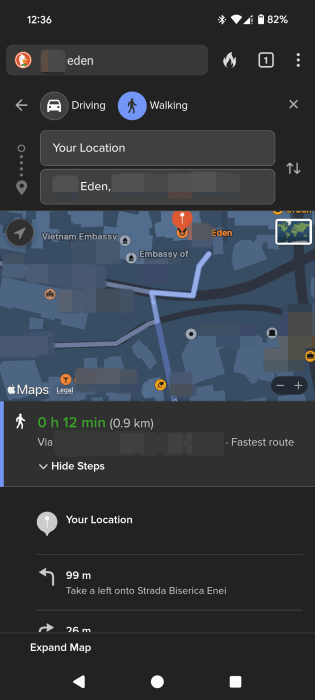
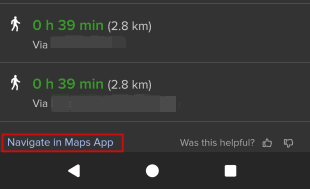
Naturally, pressing on Open in Maps button will result in your Android asking you to select one of the installed map apps on your device, including Google Maps.
While Apple Maps on Android is still quite limited, you can so far experience the app’s full power only on iOS devices. If you have an iPhone or iPad, perhaps you’d also like to get up to speed on how to drop a pin on Apple Maps. Or if you’re thinking of switching to Google Maps instead, see how you can use it to find a halfway point.