What we like
- Vivid display
- Multiple connection options
- Use attached or detached
- Multi-platform compatibility
What we don’t like
- Short cables
- Didn’t attach to 17.3-inch laptop
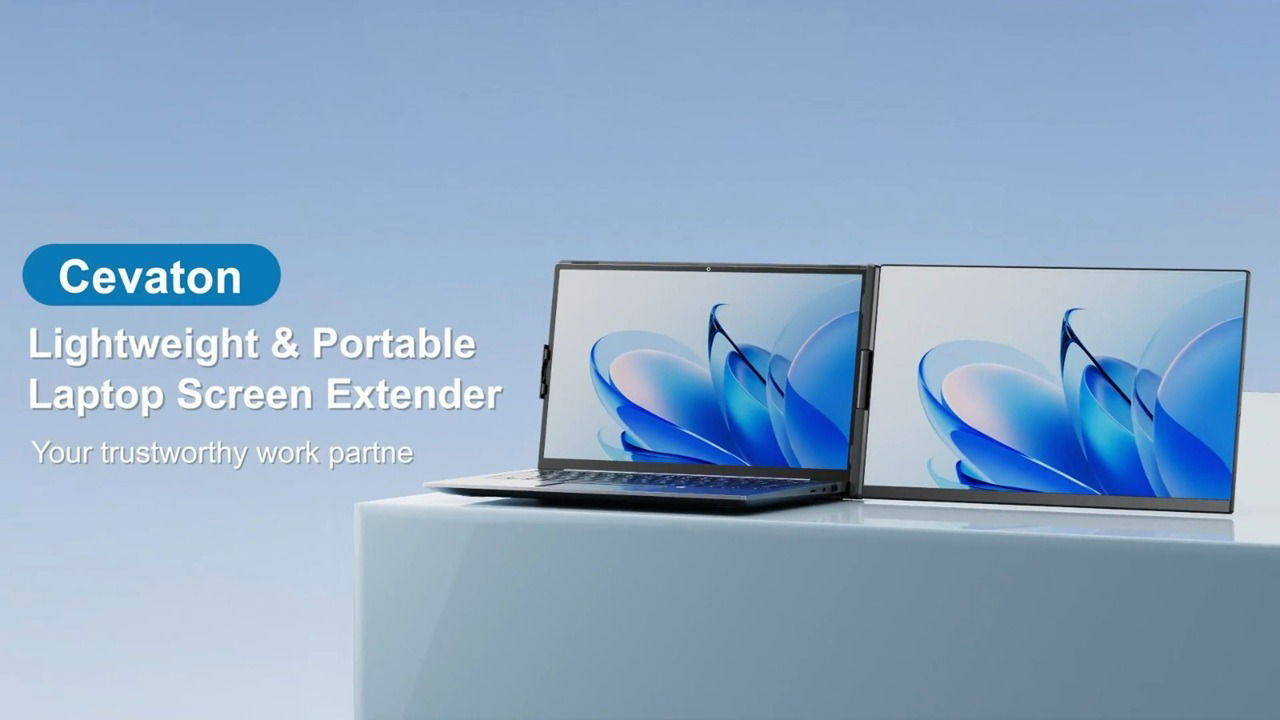
Usually, a second laptop screen means setting up a second monitor beside your laptop in the standard landscape position. However, the Cevaton Laptop Screen Extender P5 gives you multiple ways to customize your secondary screen for the perfect setup. I recently had the pleasure of trying this out for myself.
Second Laptop Screen in a Few Steps
When I use a second monitor with my laptop, I want it to set up as quickly as the laptop itself. Since I don’t always use my laptop in the same location, I need a screen that’s easy to put away and set back up in just a few steps.
The Cevaton Laptop Screen Extender P5 only takes a minute to connect. Even the very first use, that involves learning how to connect the screen for the first time, only took three to four minutes. The Cevaton P5 has a 15.6-inch display and is designed to fit laptop screens from 13 to 17.3 inches. I have a 17.3-inch laptop screen and was a little disappointed to discover it didn’t quite fit. It was about a quarter of an inch too tight.
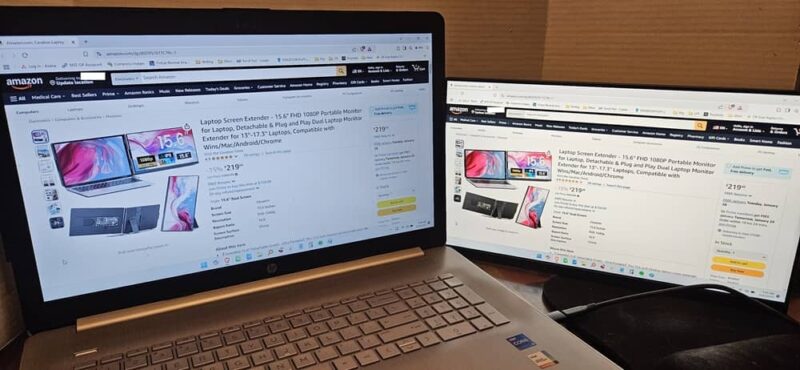
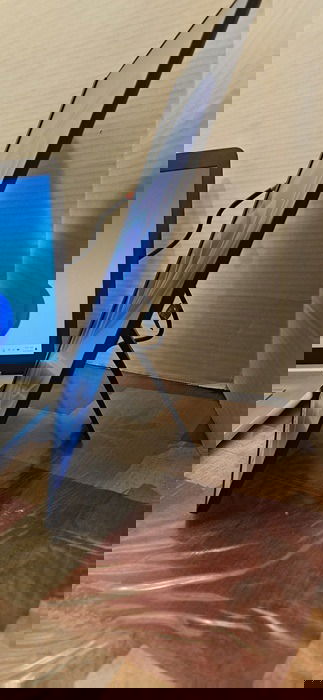
However, it did fit well on a 15.6-inch screen. The panel that attaches to the back of your laptop screen extends, and a spring hinge opens to provide a snug fit against the screen. The monitor itself has an adjustable stand that also rotates. This keeps the weight of the second screen off your laptop, though you don’t have to use the stand when attached to your laptop. The P5 weighs less than three pounds, so it’s not heavy.
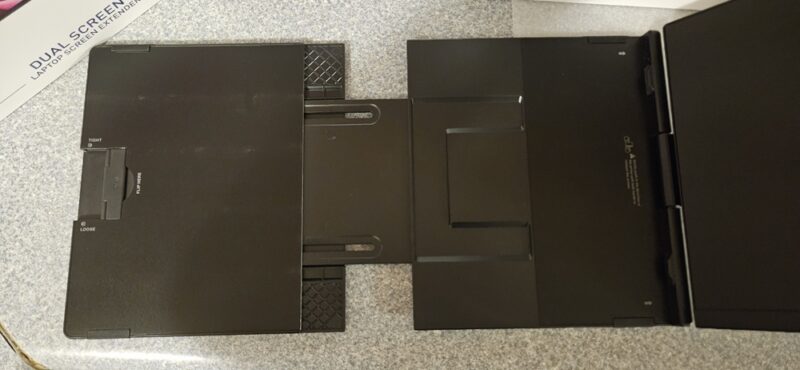
Even with my 17.3-inch laptop, I was still able to fit the screen extender pretty well, especially with the kickstand in the back.
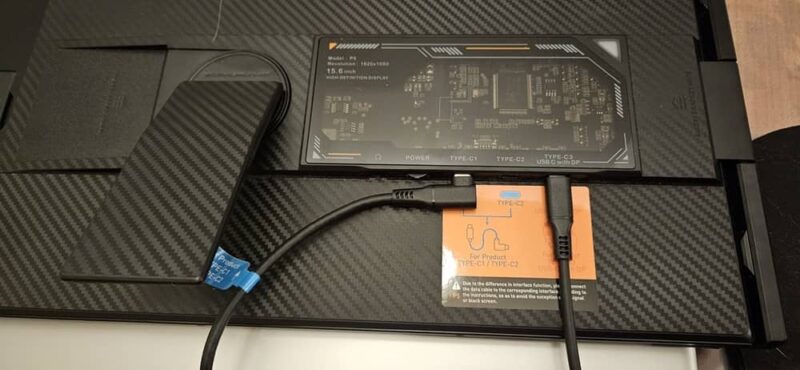
To attach it, all I have to do is unfold the screen, connect the panel to the back of my laptop, attach the cable, and start using it. It’s that simple.
Multiple Ways to Connect
I love that the Cevaton Laptop Screen Extender P5 offers multiple ways to connect to it. The P5 comes with three cables:
- Full featured USB-C to USB-C
- HDMI to USB-C
- USB-A to USB-C
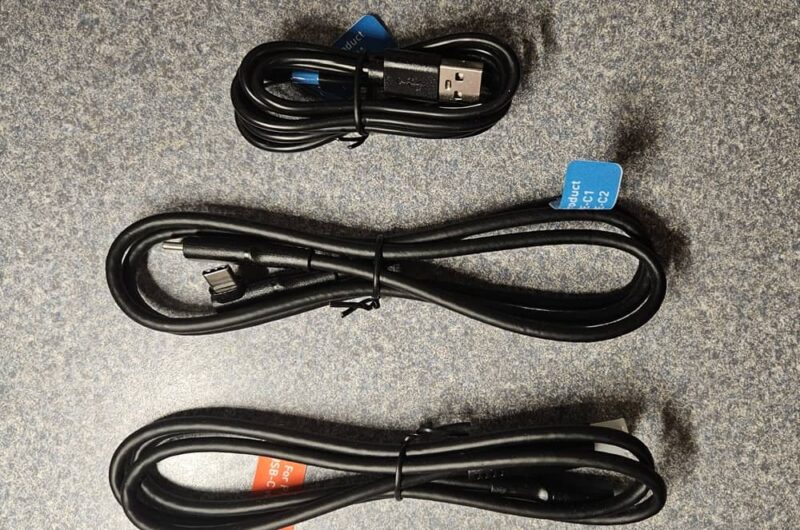
If your laptop has a full-featured USB-C port that supports video and power, that’s the only cable you’ll need to use. For me, I had to use both the HDMI/USB-C and USB-A/USB-C cables. Please take a look at what connections you have on your laptop before buying this to ensure it’s compatible.
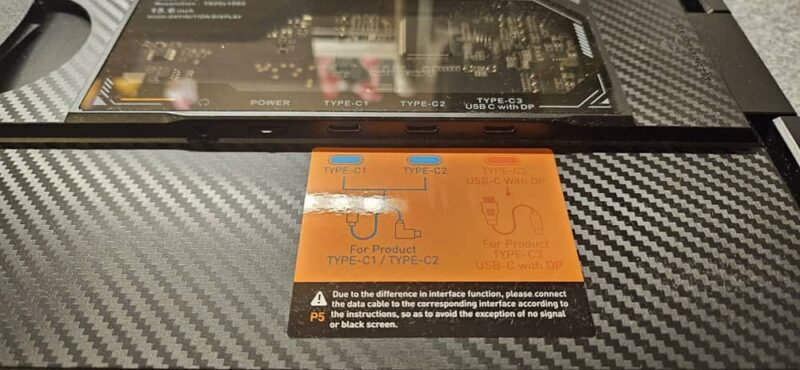
I do wish the cables were a bit longer. I prefer my screen on the right side of my laptop, but my ports are on the left. The cables were almost too short. However, they stay connected well on the back of the monitor, and the ports on the monitor are well labeled to make connecting to the correct port much easier.
Customizing My Setup
Many laptop screen extenders only work one way. They have to connect to the back of your laptop screen and only extend to one side.
The Cevaton Laptop Screen Extender P5 lets me use the screen on either side of my laptop. Plus, I can remove the extender panel and use the screen like a standard second monitor. It’s a tad snug, so pull the screen and panel apart carefully. Lay them flat and slide apart based on the arrows. Just slide them back together when you need the extender panel again.
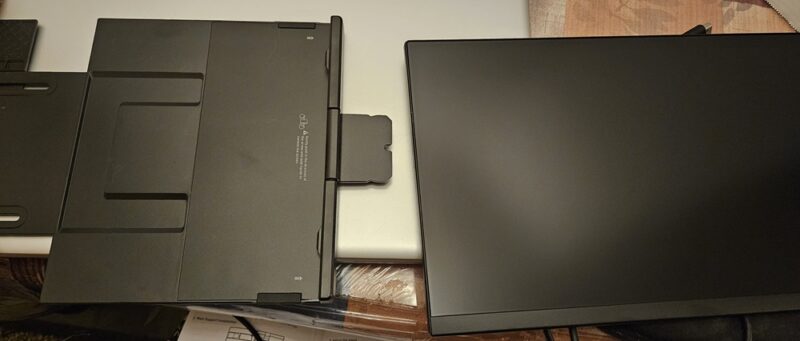
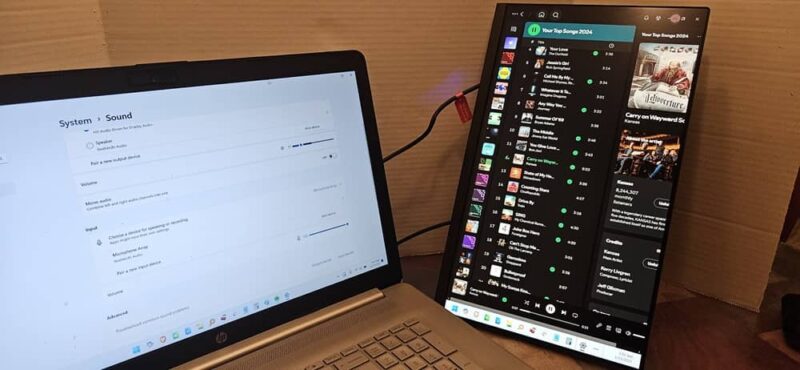
Thanks to the rotating stand on the back of the screen, I’m able to use the P5 in landscape and portrait mode. Honestly, this is my favorite part of the Cevaton P5. I can customize my setup based on my needs, and it only takes a minute or two to change things out.
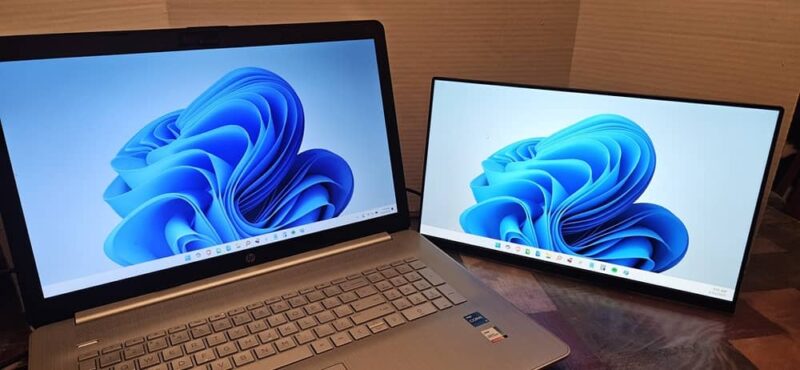
Of course, this is where longer cables would really help, but I can always pick up longer cables if necessary.
The Cevaton P5 even has a built-in speaker. Admittedly, it’s not a high-end speaker, but it gets pretty loud and works well when you don’t want to connect a separate speaker. My laptop actually switched to the P5’s speaker by default. I tried it with Spotify, and it was on par with standard laptop speakers, with a little less bass. There’s even a headphone port on the monitor.
Not Just for Laptops
Since this doesn’t have to connect to the back of your laptop, it also works well with mobile devices. The instruction book even shows how to do it.
You’ll need a power adapter, and your mobile device needs a USB-C port. I connected the USB-C to USB-C to my phone, and the USB-C to USB-A to my power adapter. It worked perfectly with my Samsung Galaxy phone.
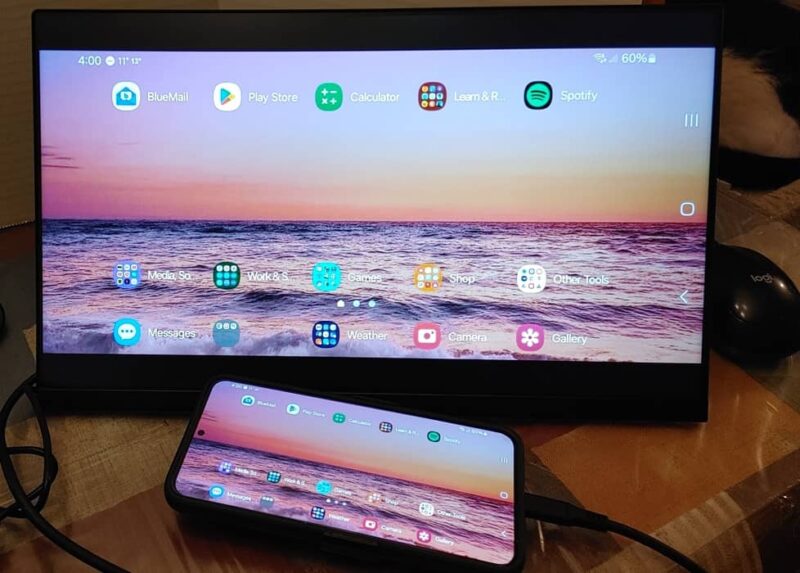
Please be aware that this isn’t a touch screen, so you’ll still need to control everything with your phone. But if you just want a larger screen to watch YouTube or stream shows/movies, it works well.
Vivid Display
No matter how easy it is to connect and use a second display, none of that matters if the display itself is dull and grainy. The Cevaton Laptop Screen Extender P5 offers a vivid display with crisp colors. The 1080P FHD IPS display provides up to 300 nits of brightness, and you can adjust the brightness using the slider on the back.
It actually looked slightly better than my laptop screen, especially when using it with YouTube, Netflix, and Hulu.
Convenient for Travel
The screen itself is just 5mm thick, so it’ll easily fit into a laptop case if you have a little extra room. Since the extender panel folds over the screen when the two are attached, the screen stays protected.
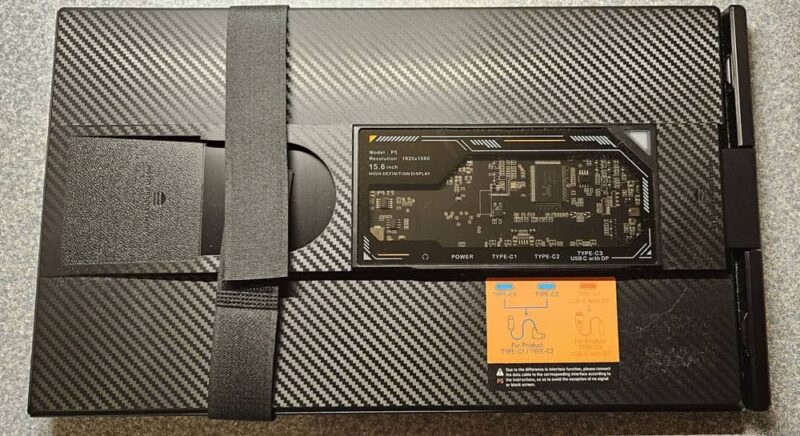
If you want to use it detached, I’d suggest placing the screen in a protective pocket. I’d love if the Cevaton Laptop Screen Extender P5 came with a protective cover to make storage and travel easier, but a thin laptop sleeve is pretty cheap and works well for this purpose.
The Versatile Screen Extender You’re Not Using Yet
If you’ve been looking for a screen extender, this one meets nearly every need. It’s even compatible with Windows, Mac, Chrome, and Android. Plus, there’s no complicated setup.
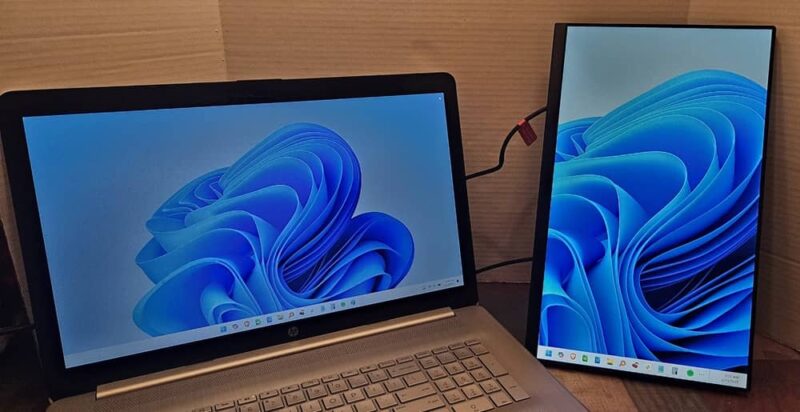
I will say you may have issues fitting it on a 17.3-inch laptop, but standalone mode works quite well in this case.
Give the Cevaton Laptop Screen Extender P5 a try for just $159.99, after applying the $100 savings.
Subscribe to our newsletter!
Our latest tutorials delivered straight to your inbox