While removing bloat from your PC is necessary, not all methods are reliable. Some developers and GitHub groups promote their Windows debloat scripts as a quick fix. However, when you start using them, you’ll find that they can do more harm than good. Here are the reasons why we do not recommend you to use Windows debloat scripts.
What is a Debloating Script
As the name suggests, a debloating script is a group of commands that helps remove the preinstalled apps (bloatware) from your PC.
On a Windows device, a debloating script should work with PowerShell, or other terminals such as Mintty, PuTTy, or Git Bash.
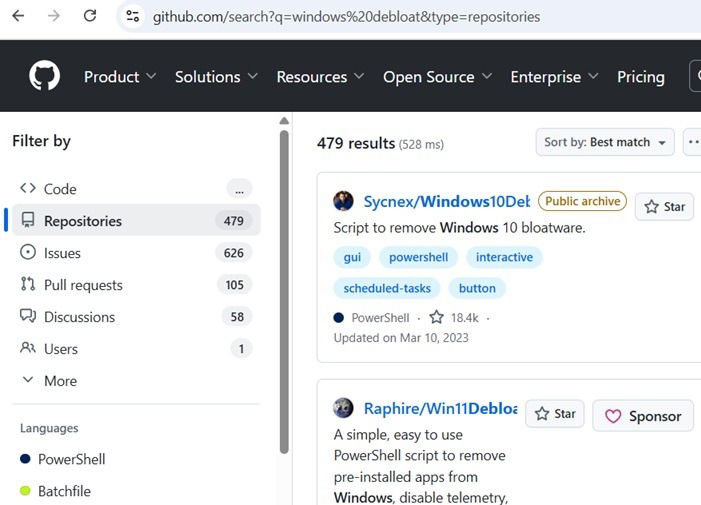
GitHub is the single largest source of Windows debloat scripts. With a simple search, I found 479 results for these programs. You can find many such debloat scripts on Reddit, Quora, tech blogs, and on the developer sites.
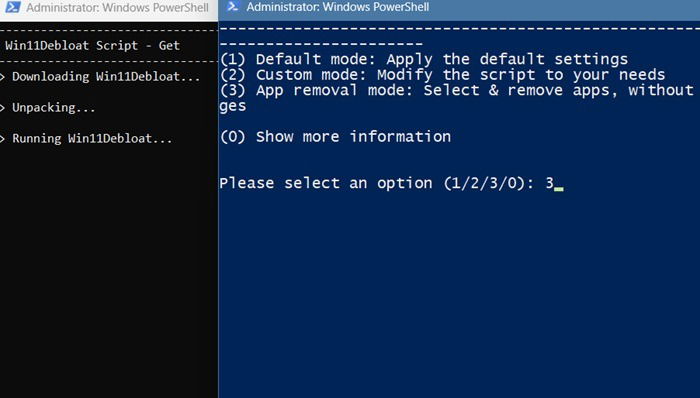
I tried one Windows debloat software, “Win11debloat.” The script claims to remove all the bloatware that comes preinstalled on Windows 11. There were two ways to get it running: download the script manually, or type a script block in PowerShell (administrator mode.) When I did the latter, a new window opened with an “app removal mode,” which I chose by typing 3.
Another new window opened, allowing me to manually check the bloat apps I wanted to remove from my Windows PC. (See the following section.) If you don’t want to spend too much time, you can simply select all of them. But that is something we would not recommend.
The purpose of debloat scripts is to automatically remove the apps the developers consider bloat. While this might clean your system of those programs, it can lead to a few issues, as outlined below.
1. Too Many False Positives
Not all preinstalled programs are bloat. Some of them are needed for your system to function properly. A Windows debloat script may appear fast and easy, but it can mistakenly identify false positives and remove the programs you want to retain.
For the above example with “Win11debloat.” the debloat script mistakenly identified some software I frequently use as bloat – Bing Translator, Bing Weather, Windows Tools, and Quick Assist.
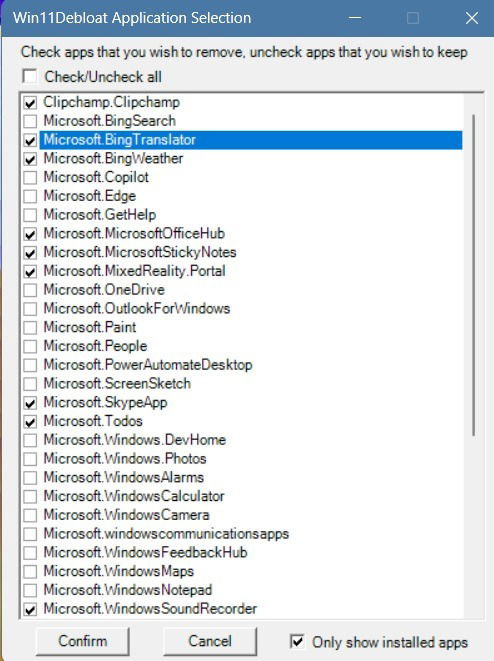
However, I did want to remove Skype and Zune Video, so I proceeded with confirming the uninstallation of those two. It caused my screen to flicker for a moment. Apart from that, there were no other issues.
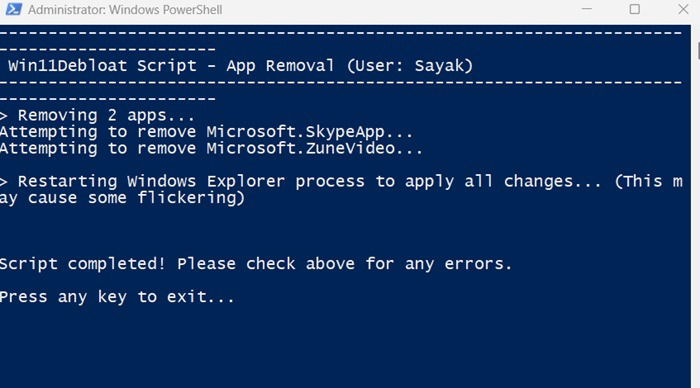
But had I followed the script’s recommendation and removed the Bing-related programs, Quick Assist, and Microsoft Tools (a folder containing Control Panel and WordPad), it could have led to many system issues on my working Windows PC.
Related: there are several less intrusive methods for removing bloat in Windows.
2. Debloat Scripts can Cause System Instability
Not all Windows debloat scripts are bad, and you may find an odd one which does the job well. “Win11debloat” is widely recommended for downsizing Windows as you can easily handpick what you want to remove. But if you use an unknown script, it can make your working device unstable.
When you try to run some of these scripts, Windows may issue different “Access denied” warnings. Removing bloat requires access to “System32”, a protected directory. After all, Microsoft Defender Antivirus has a job to prevent remote scripts from taking over System32 and its dependent files and folders.
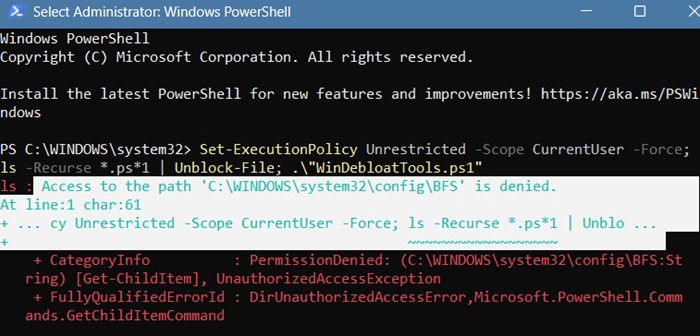
Defender has additional tamper-protection features to prevent System32 and other critical folders from being modified. So if you want a debloat script to work, you will have to remove all these permissions.
While you may succeed in removing the extra programs, the system can become unstable. Its obvious signs are hardware glitches, unresponsive apps, connectivity issues, screen flickering, and even device overheating.
3. Get Bundled Software and Extra Components in Exchange
Since the original sources of these Windows debloat scripts are not verifiable, there’s no way of telling if it won’t install extra components.
If that happens, it can cause software conflicts, as you may accidentally download many programs that you don’t need. These include bundled software which are delivered as optional features or tools. If the script is poorly written, there may not be even any way to opt out. The hidden components forming their own set of bloat defeats the purpose of using a debloat script.
One way to tell if the external script is causing issues on your device is if it asks you to reinstall Windows on your device. Plus, one script acts as a trigger to execute more commands in a continuous chain. By the time you’re finished with executing all the steps, you will have some extra software in your device.
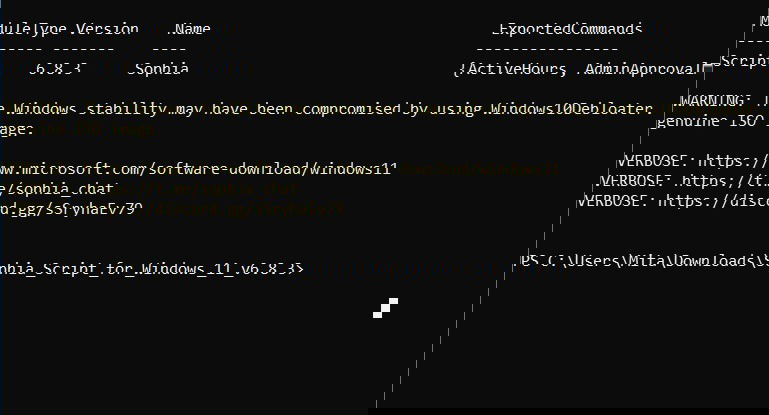
If you’ve started to notice several software conflicts, such as the common “the file is open in another program,” you might need to clean the Windows registry.
4. Windows Debloat Scripts Can Cause Update Errors in Future
Debloat scripts are a common source of update errors on your Windows device. This is something the developers won’t tell you, but the problem manifests in many areas:
- Critical system files missing: along with the “bloat” on some of these programs, you might find many critical files missing. Unless you do a clean install of Windows, your system might run into errors due to the missing files.
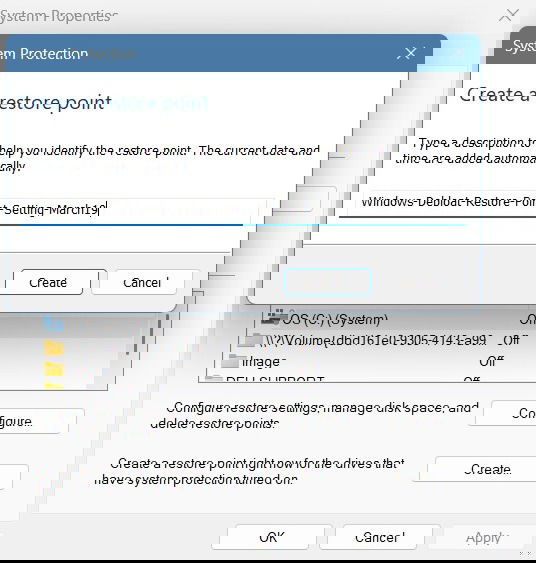
- Registry errors: a cumulative Windows 11 update requires slight registry modifications that happen in the background. All new app features require new, valid registry entries. So, it’s best to leave the registry alone, and not tamper with the registry without creating a System Restore point.
If you’ve run into too many errors while trying to update your device, go for a Windows reset using cloud which should fix the issues.
5. The Malware Threat
Of course, the biggest concern with using third-party scripts from unknown sources is that some of them can have malware variants as payload. If you have Windows Defender or a third-party antivirus enabled, the script might get blocked as we’ve seen in one of the above examples.
However, the way zero hour or zero-day threats operate, your antivirus provider may not have created a timely antidote to the newer threat variants. In other words, you’ll be just taking an unnecessary risk on your device for very little gain.
Best Ways to Deal With Windows Bloat
Other than Windows debloat scripts, there are many easier and more effective ways to deal with the accumulating bloat problem on Windows devices:
- Get rid of legacy programs: many legacy apps (Skype is one example of a Windows app that has been deprecated) continue to have presence on your Windows device, along with their dependent processes. Uninstalling these apps is easy and you should first target them before focusing on the bloat. Once you do it, Windows bloat’s impact will feel negligible.
- Create a lightweight custom Windows 11 ISO: if you’re starting from scratch, you can create a lightweight Windows 11 ISO using various tools. We have covered it in this guide, but we no longer recommend the post-installation debloating.
- Ignore the problem: most pre-installed software in Windows, especially Windows 11, takes up very less disk space. Even their running processes do not consume too much RAM or CPU on your device. It might actually be a good idea to leave the Windows 11 preinstalled software alone.
Along with debloat scripts, we do not recommend using most PC cleaning tools.
Image Credit: Imagen 3 (Gemini.) All screenshots by Sayak Boral.