Did you know that Android lets you control many functions through gestures? The best Android gestures make navigating your device easier than ever, including doing everything with just one hand.
1. One-Handed Mode
Somehow, phones went from small, compact devices to mini-tablets, so it’s not always easy to control everything with one hand. One of my go-to Android gestures is One-Handed Mode.
It’s not enabled by default on most devices. Go to Settings -> System -> Gestures. Depending on your device, it may also be under Settings -> Advanced Features -> One-handed mode.
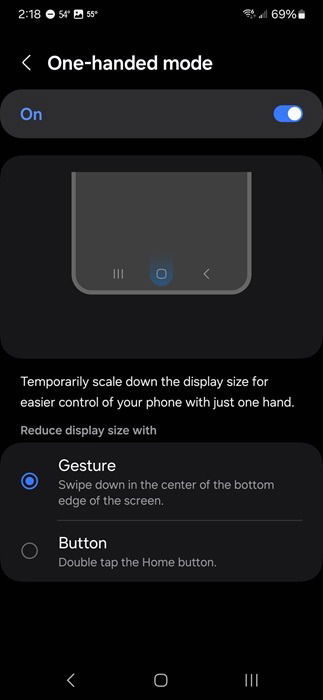
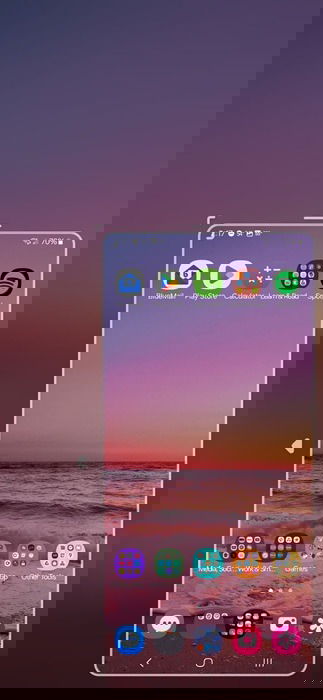
Toggle the feature on and ensure that it’s in Gesture mode. Swipe down on the home button to shrink the screen. Drag and drop it wherever it’s most comfortable for you. Double-tap in the empty area to restore the normal screen size.
2. Control Cursor With Spacebar
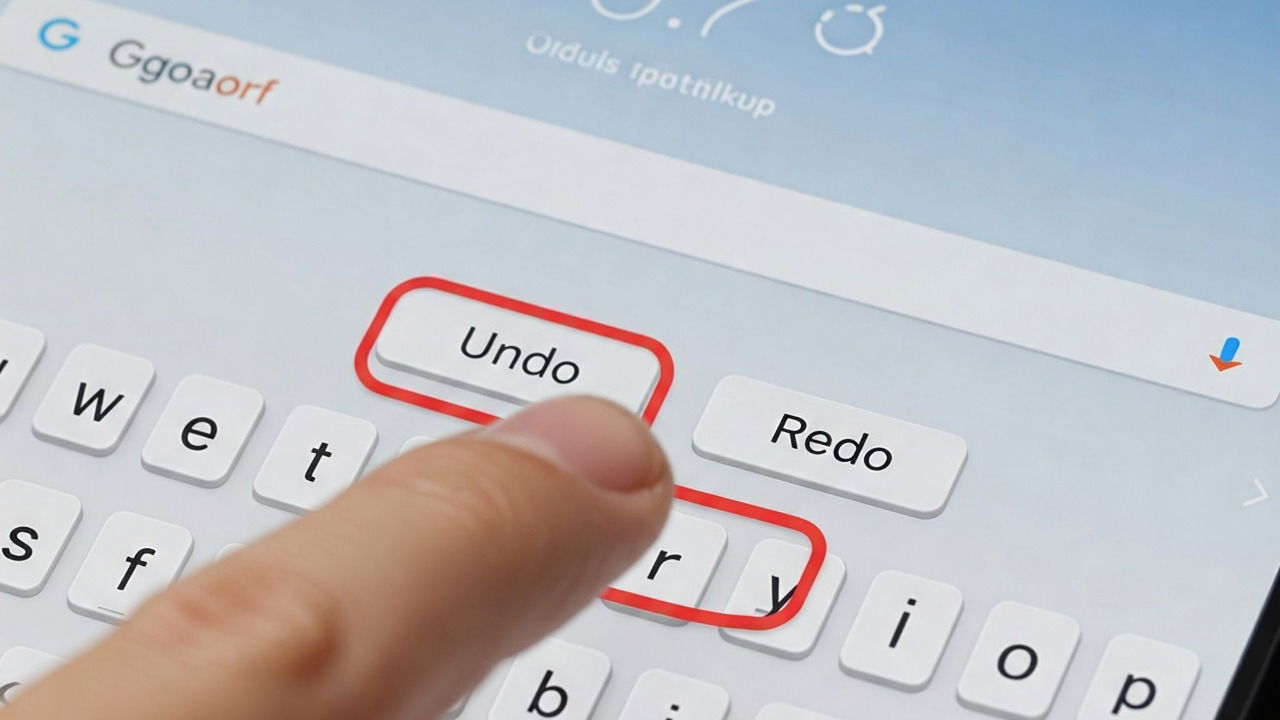
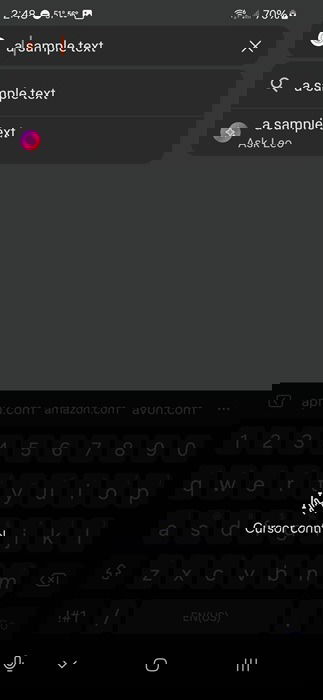
Trying to move the cursor on a phone seems impossible. By far, one of my best and most favorite Android gestures is moving the cursor with the spacebar. Instead of calling my phone everything but a phone, I can easily correct typing errors by holding and sliding my finger on the phone keyboard’s spacebar.
3. Screen Capture Gesture
I didn’t discover this Android gesture right away, but now that I know about it, I use it all the time. If you take screenshots often, try using the gesture method versus the side buttons or swiping down and selecting “ Take a screenshot” from the quick settings panel.
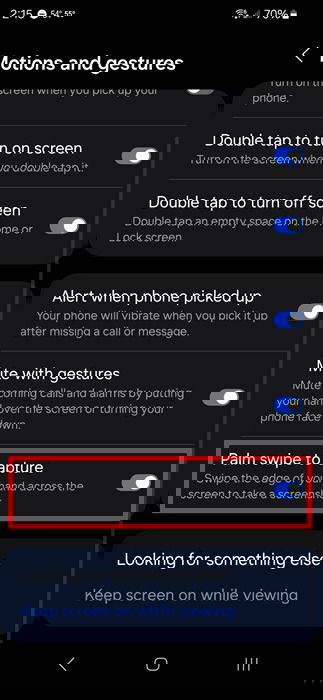
Swipe the edge of your palm across your screen to take a screenshot. It may take several tries before you get the timing just right, but once you do, trust me, it’s a game changer.
If it doesn’t work, go to Settings -> Advanced Features -> Motions and gestures and ensure that Palm swipe to capture is turned on. Depending on the device, it may also be under Settings -> System -> Gestures.
If you want to capture screenshots on apps that restrict it, try these methods.
4. Access Quick Settings Faster
Tired of having to swipe down twice from the top to access the Quick Settings menu? Use two fingers instead of one to swipe down from the top. One swipe and you have instant access to your favorite shortcuts.
While you’re in Quick Settings, hold on an option versus tapping it to be taken to extra settings and options for that specific option. For instance, if I hold on Location, it takes me to the Android settings for Location services. Please note that this doesn’t work on every Quick Settings option.
5. Open or Close Recently Used Apps
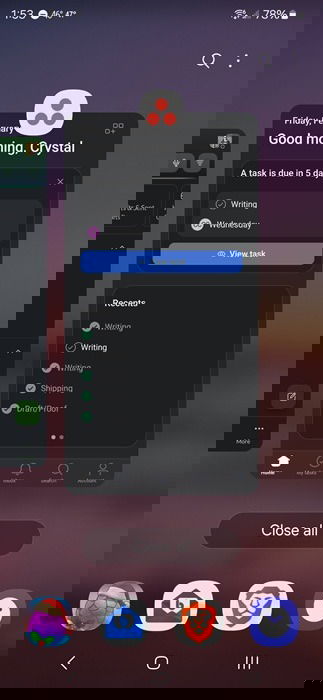
On some Android devices, simply swiping left or right across the bottom of your screen lets you quickly switch between recently opened apps. If this doesn’t work, tap the small square at the bottom right or the three line menu (depending on your device) to get a list of recently opened apps.
From here, swipe up on an app to clear it from the list, effectively closing it. Or, if you want to reopen an app, swipe down.
6. Remove Navigation Buttons
Don’t like having navigation buttons at the bottom of the screen? One of the best Android gestures replaces these buttons with swipes.
Go to Settings -> System -> Gestures, and select Gesture Navigation. Full instructions are listed once you turn this on.
For Samsung devices, go to Settings -> Display -> Navigation bar. Turn on Swipe gestures.
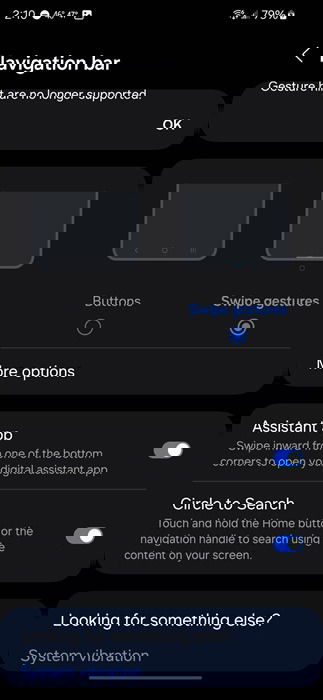
Swiping side to side lets you jump between previous apps. Swiping up from the bottom opens the home screen, and swiping up and holding, opens the multitasking view.
7. Circle to Search
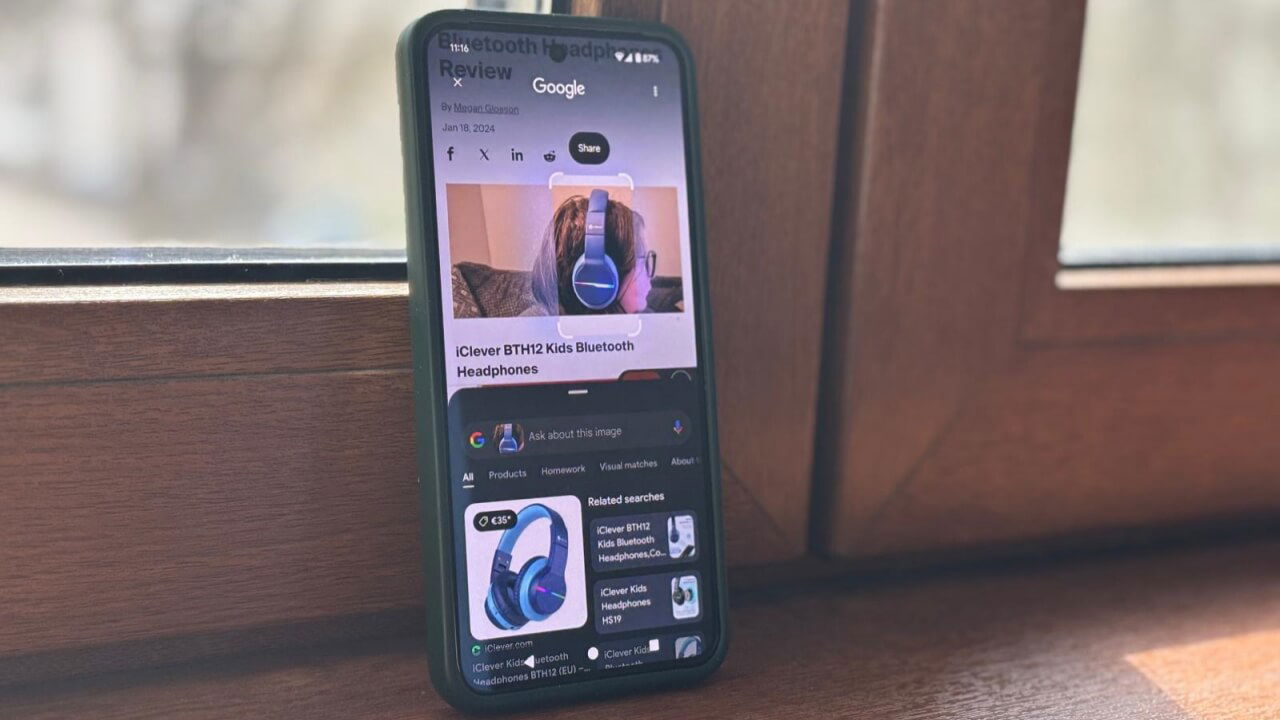
In the past, you had to take a screenshot or picture, then share it to your favorite search engine to search for more information. For me, one of the best Android gestures is the new circle to search. This was added in 2024 and lets you hold the home button (or navigation handle), then circle whatever you want to search for. Sadly, this isn’t available on all devices yet.
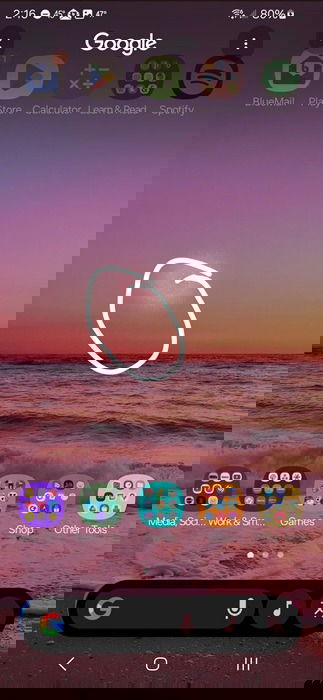
My favorite part is that you can add more details to refine the search. The downside is that it doesn’t work well to find the names of people, such as that actor or musician with a name you can’t remember.
You can also search for music by tapping the music note icon that pops up. Or, just use the search box to search as usual if you don’t have anything to circle.
8. Quick Google Assistant or Gemini Access
Depending on whether you’re using Google Assistant or Gemini, swiping up from either the left or right corner gives you instant access. This is a nice alternative to using the physical button, which can then be mapped to do something else.
The best part is that this works with whatever your default assistant is. Prefer Alexa or Samsung Bixby? Set it as your default, and the gesture works the same.
9. Quick App Shortcuts
Skip a few steps when using your favorite apps by long-pressing an app icon. This is one of the best Android gestures for productivity. Need to create a new document in Google Docs? Long-press and select New Doc. There’s no need to open the app, then create a new document. If your Google Drive is full, learn how to delete files quickly.
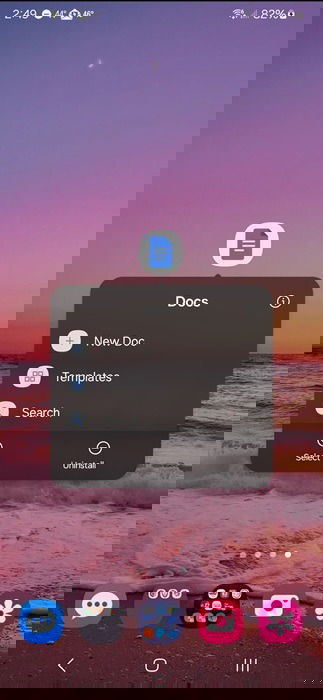
Many Android apps offer app shortcuts, but some don’t. For instance, the Microsoft Word app doesn’t offer anything other than selecting and uninstalling the app.
10. Swipe to Search
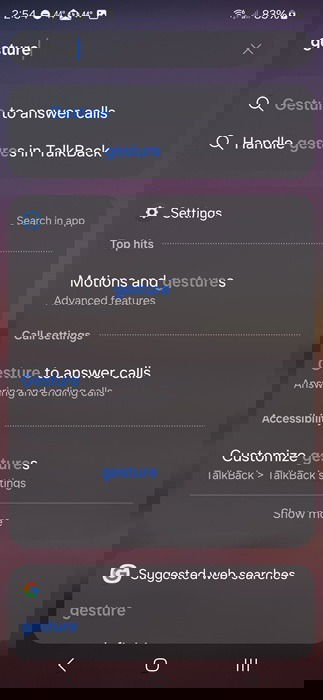
Swiping up on any main screen opens the multitasking view. At the top is a search bar. Use it to search for settings on your device, files, and for anything you want online. It’s the easiest way to search with a swipe.
Want to do even more with your phone now that you’ve mastered the best Android gestures? Learn how to add Chrome webpages directly to the home screen or add the Settings app to your home screen.
Image credit: Unsplash. All screenshots by Crystal Crowder.