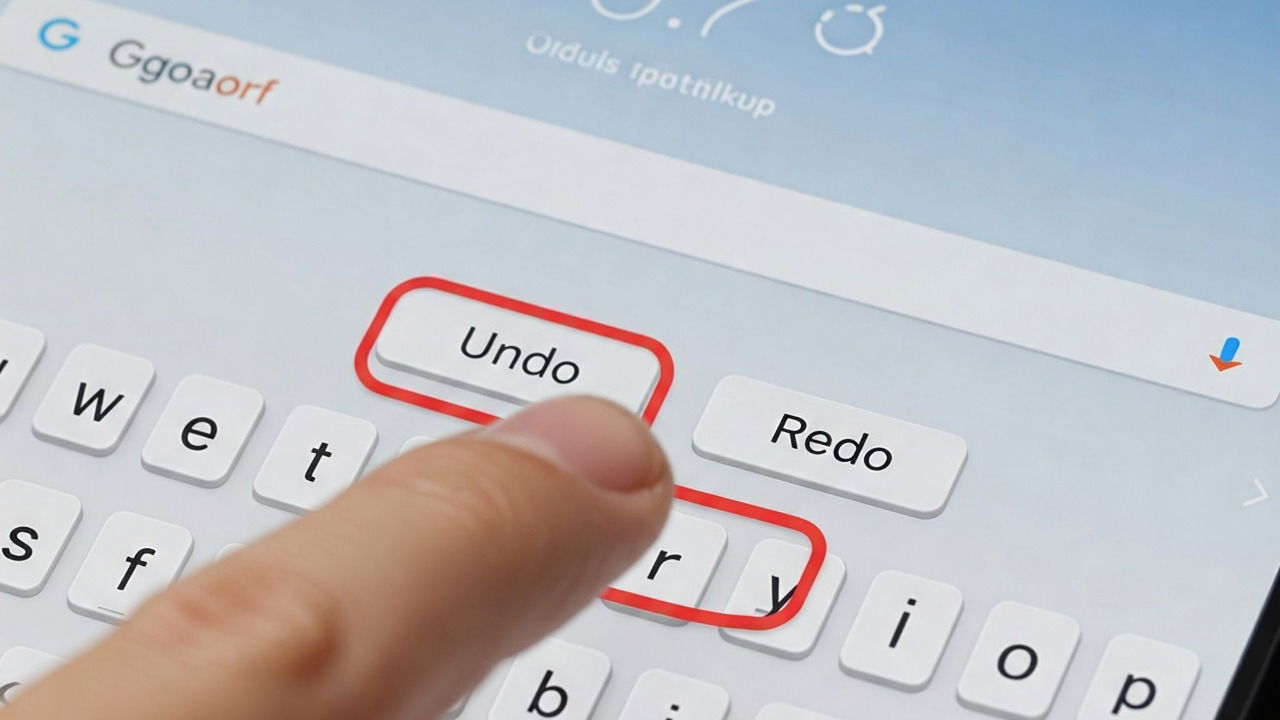
Many Android users are using the Google’s Gboard app since it is pre-installed on most Android smartphones. The good thing is that it comes with plenty of handy features like the swipe gestures, clipboard, autofill, and translations. To further improve the default Android keyboard, Google has added the Undo and Redo buttons, allowing you to correct your typing errors with just a click.
Set Up the Undo and Redo Button in Gboard
Note that the Undo and Redo buttons have been part of Gboard all along, however, users have to add the Japnese keyboard to be able to access them. Now that Google rolled out this feature to all keyboards, you can use it straight away.
Before starting, make sure you have updated your Gboard to the latest version.
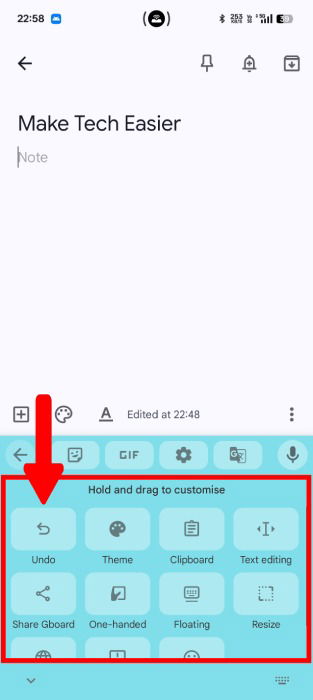
Open any app, such as Message or Notes, that allows you to use the keyboard. From your keyboard interface, tap the Grid menu icon from the Suggestion strip.
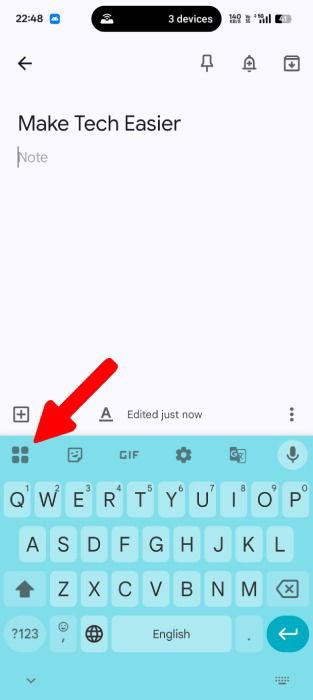
Gboard will display all keyboard functions that you can access and add to the toolbar. From those shortcuts, locate the Undo function and drag it into the Suggestion strip. Although you can directly use it from the Grid menu itself, having it readily available makes it easier to use.
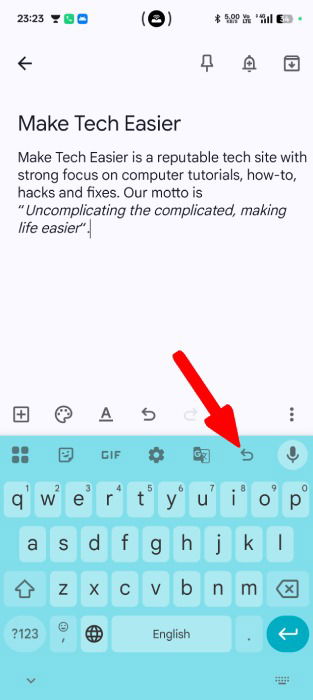
Now that you have the Undo button accessible, type something and click the Undo icon.
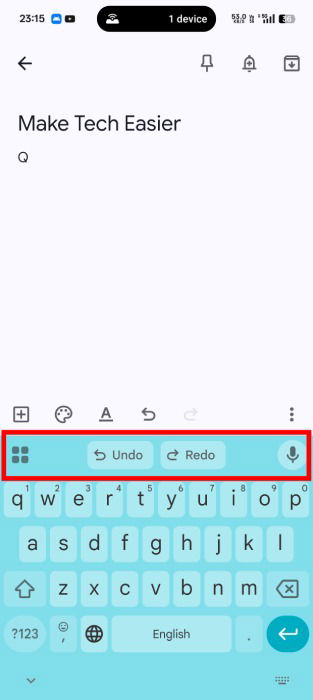
You will see two buttons, one for Undo and the other for Redo. Use these buttons accordingly.
How Do the Undo and Redo Buttons Work?
Since accidental text deletions or changes are quite common while typing on smartphones, the Undo and Redo buttons could come quite handy. Instead of retyping the entire text, you can just use a click to reverse changes. However, getting these buttons in the suggestion bar isn’t easy, especially when using Gboard’s other functionalities.
For instance, if you have just captured a screenshot, you may encounter an issue where the screenshot clipboard replaces the Undo button. Gboard will not automatically display the undo button, even if you have finished a sentence or use the backspace.
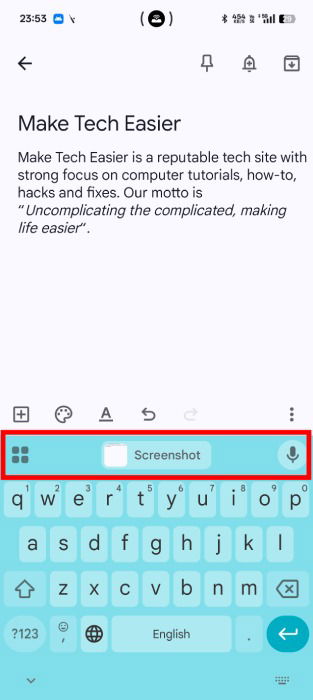
In such cases, just hit the Grid menu icon and tap the Undo button. This will display those two buttons, allowing you to use them.
Similar circumstances may appear when you have Next-word suggestions enabled. As you type, the keyboard will keep on suggesting the next word, leaving you no choice but to use the Redo and Undo functions from the four-square button.
Note that Gboard maintains a history of your current typing session, meaning you can still use the Undo button even if you switch to another app and return. However, if you end up clearing the application from the recent tasks, Gboard will reset the session and start you anew.
Additionally, once you have finished typing a sentence, hitting the undo button will not erase a group of words as it might in PC, instead, it will erase only a single character. To delete multiple words, you must press the button repeatedly, as you can’t press and hold it to perform the action.
If you encounter something unusual, consider referring to our guide on fixing Gboard errors.