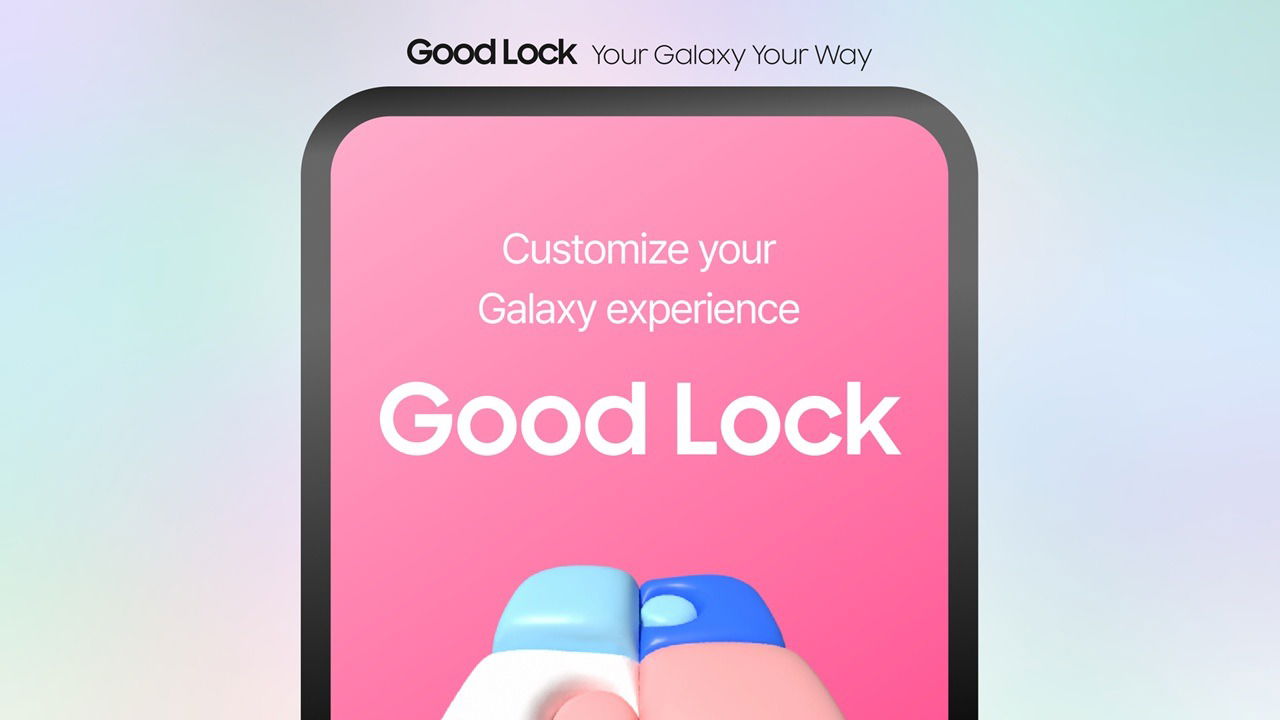
Samsung’s Good Lock app, a powerful customization toolkit for Galaxy devices, is now live on Google Play. Previously limited to select countries and exclusive to the Galaxy Store, it’s now available globally. Good Lock unlocks a wide range of enhanced customization features for Samsung Galaxy users, from versions One UI7 and above.
Get a Fully Personalized Galaxy With Good Lock on Google Play
Android users have plenty of customization options, from app launchers to custom gestures. Samsung Galaxy owners have their own ways to tweak the home screens. These include setting up app drawers, adding more apps to the dock, or adjusting the number of app grid rows.
But there’s a lot more you can do now. A newly launched app, Good Lock hit Google Play globally in April 2025 for One UI7 and higher. However, if your One UI version is below that, or some modules don’t work, you can continue to download the app from Galaxy Store.
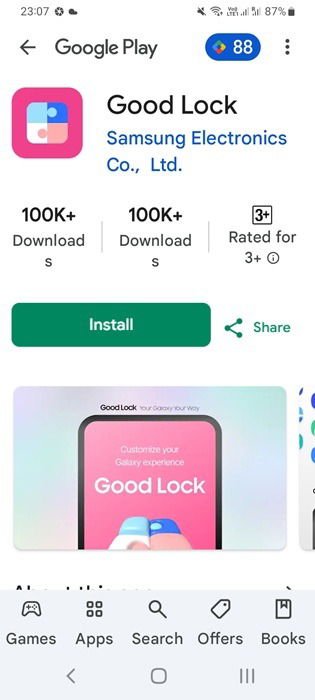
Good Lock app lets you customize your Samsung Galaxy with modules for the next level experience. The aim is to provide your device with quick access, cool looks, better functionality, and the personal touch you want.
Instead of a one-size-fits-all approach, each Good Lock module adapts to your device type – foldables, curved screens, Tab series, S Pens, and all the way from A to M series models.
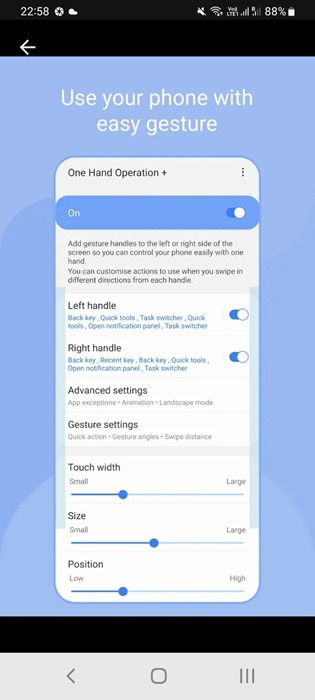
1. Manage Every Gesture with One Hand Operation+
The One Hand Operation+ module makes gesture navigation super smooth. A few quick swipes on the left or right edges of your Galaxy can trigger “back,” “home,” or system shortcuts. Swiping horizontally, vertically, or diagonally lets you scroll effortlessly, whether you’re in a busy subway or rushing against time. You can also set up long-press actions for extra control.
Note: If you’re not a Samsung Galaxy user, there are many native Android methods to add custom gestures to your navigation.
2. Personalize Your Homescreen With ClockFace
ClockFace adds an analog flair to your lock screen and always-on display. Its retro design allows you to sync watch faces with your wallpaper choice. You can even add neon-themed designs for extra flash. However, keep in mind that if your Samsung Galaxy device lacks an AMOLED display, it may result in battery drain.
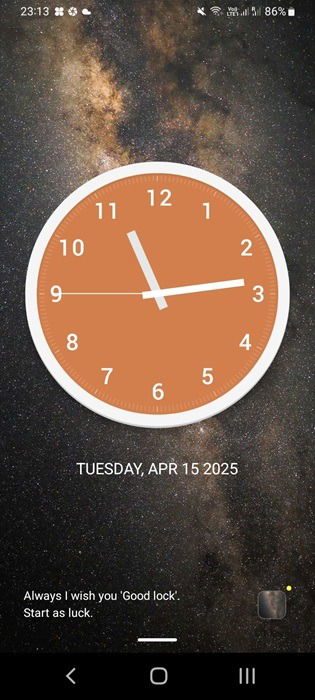
You can add as many widgets as you need on the home screen, change your wallpaper settings, and add different new themes.
3. Get a Next-Level UI With Theme Park and Home Up
Theme Park is Samsung Galaxy’s module to apply custom themes, color palettes, icon styles, keyboard styling, and wallpapers. Another related module, Home Up, allows you to modify app icon sizes and change the app grid sizes in a way that gives your device a unique identifier.
Related: changing app icon sizes on Android devices may require using third-party launchers or some tweak in your phone’s settings.
4. Multitask on Foldable Samsung Devices With MultiStar
If you have a foldable Samsung Galaxy phone or tablet, like the Galaxy Z Fold 6, you can do more with a Good Lock tool called MultiStar. For example, you can use a browser, watch a YouTube video, and work on a floating screen all at once. On Galaxy Tab devices, this tool lets you use split-screen mode easily.
Other Good Lock modules that are worth a mention include:
- LockStar: with this module, you can make your lock screen more useful by showing apps and notifications right on it. This means you don’t have to unlock your phone to check an important email or reply to a text.
- Sound Assistant: is the volume of your Android device too low? With the Sound Assistant module, you can now enjoy precise incremental controls of the device volume.