The Google Circle to Search feature slipped by my radar initially. I had read about it, but somehow I forgot to give it a try – until recently. Now that I have, I can say it has totally changed how I search on my phone. This guide shares some of the amazing things it can do.
Good to know: learn how to stop Google from showing you personalized results.
Circle to Search Availability
Circle to Search was actually developed by Google in partnership with Samsung. It debuted on the Samsung Galaxy S24 series earlier this year. As of this writing, it is only available in selected Samsung Galaxy models and Google Pixel.
I’m using Circle to Search on my Google Pixel 8 phone throughout this guide.
How to Activate Circle to Search on Your Phone
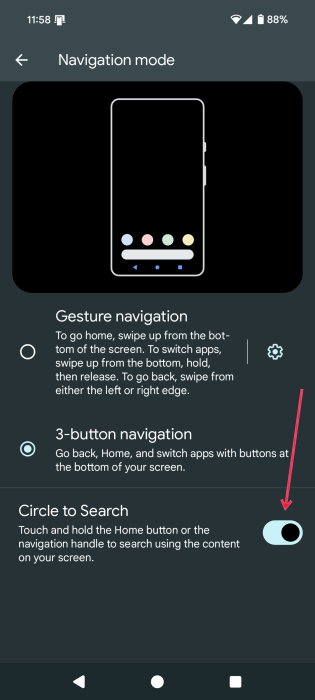
You need to first activate Circle to Search. Open the Settings app on your phone and navigate to Display & touch -> Navigation mode.
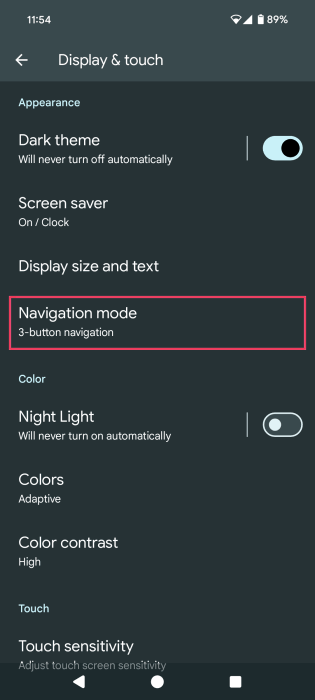
Make sure the toggle next to Circle to Search near the bottom is turned on.
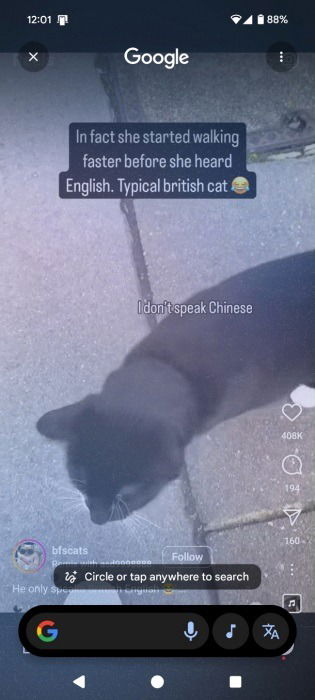
When you touch and hold the Home button on the navigation handle, it will switch over to Circle to Search mode.
Helpful Ways to Use Circle to Search
Circle to Search is super easy and intuitive to use. Once activated, use your finger to circle objects or other points of interest on your display to find out more about them. Below are some of the best ways to use the feature.
Easily track down items online
Since I spend a significant portion of my day looking at images or videos on my smartphone – whether reading news, scrolling through memes, or checking my social media feeds, I constantly find things that grab my attention. Whether it’s a cute dress or a funky pair of sunglasses, I often stumble upon things I’d love to buy but don’t know where to find them online.
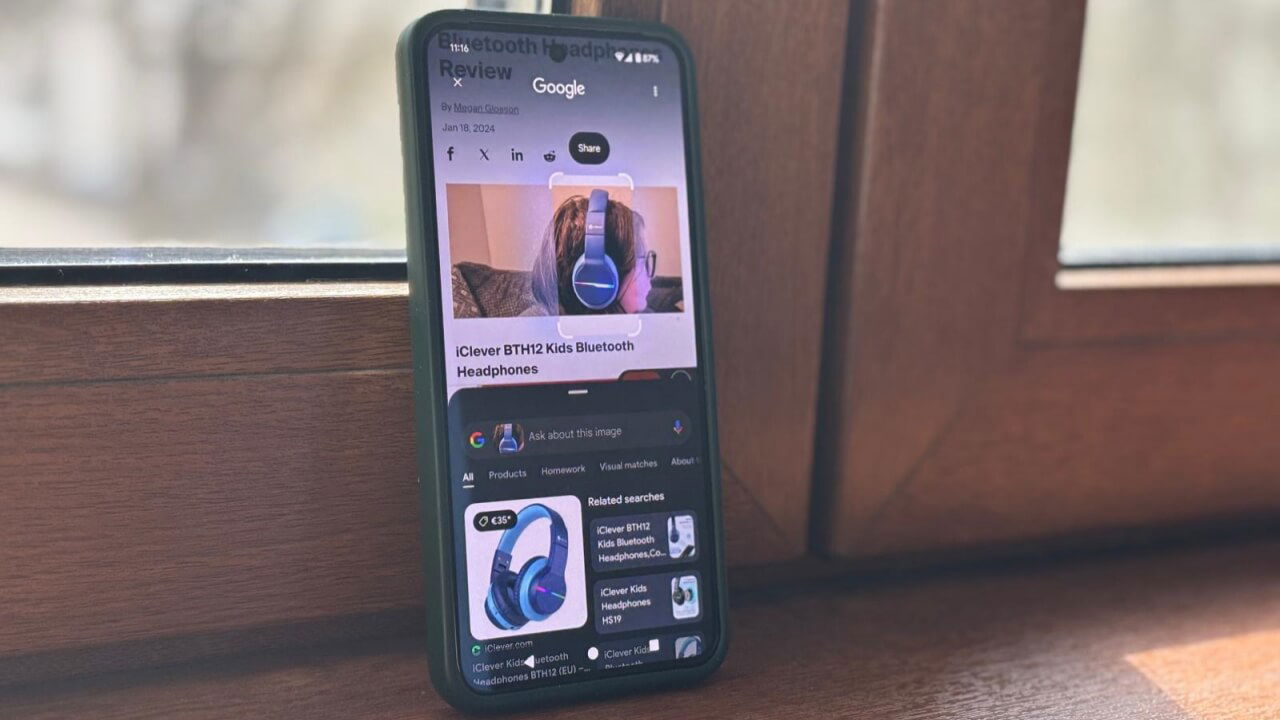
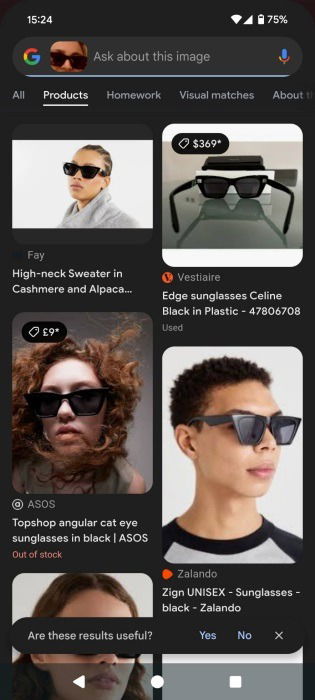
For this, I zoomed in on the item in the image or video, then circle it on the screen. Google will immediately show me matching items that I can purchase.

You can switch to the Products tab to only see items that are available for purchase.
Finding books faster
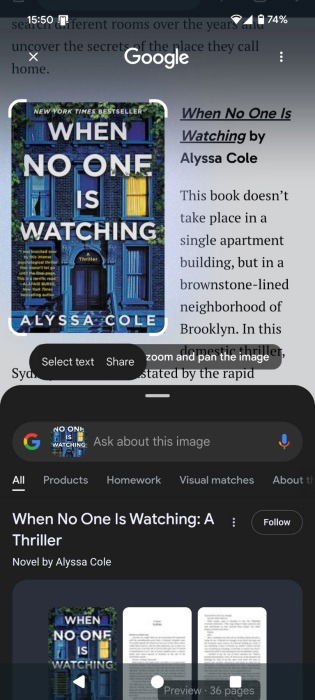
Being an avid reader, I frequently check book lists for my next read. With Circle to Search, I can highlight the book cover or title, and Google instantly shows me where to buy it or read more reviews. It’s so incredibly convenient!
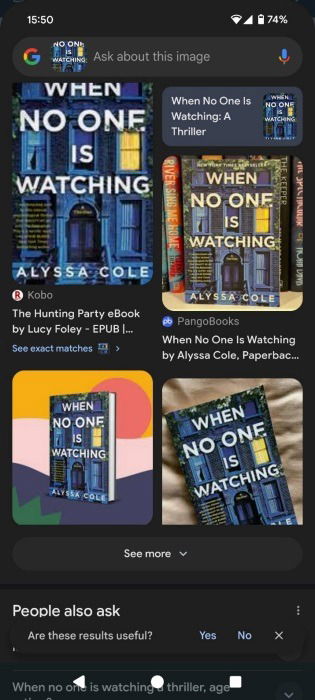
Quickly looking up terms
Sometimes when I’m reading online, I stumble upon words or expressions I am not familiar with. This can happen whether I am reading in my native language or a foreign one.
Now, I just switch to Circle to Search and mark the term in question.
The dictionary definition will appear below. If the term is in a different language than your device’s default, you’ll see links to online dictionaries. You can also tap the Translate button that appears when you highlight a word.
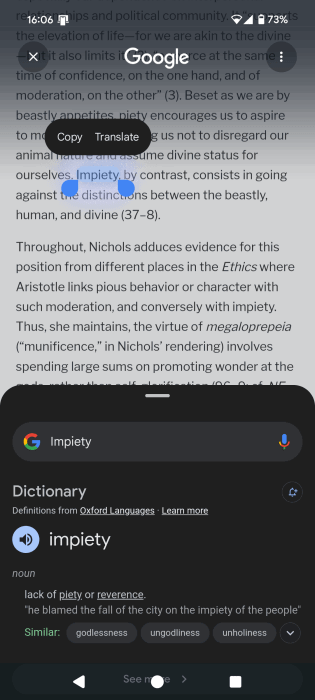
I love the fact that you’re not limited to one term. You can highlight multiple words that are visible on the same screen.
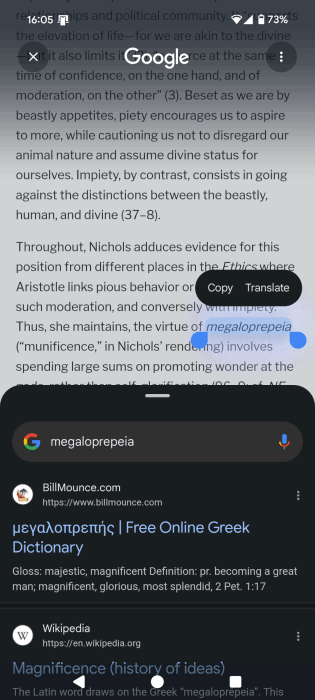
Identifying landmarks
Sometimes I come across images of stunning buildings or sculptures. Of course, I get curious about their locations and consider adding them to my travel wishlist.
Google’s Circle to Search is amazing at identifying landmarks. I don’t have to read the whole article to find out where an image has been taken. With this feature, I can get the answer in less than 10 seconds.

I can also learn more about the landmark by pressing one of the links that Circle to Search throws up.
Adding context to searches
A big strong suit of Circle to Search is that it allows you to add context to your queries by adding follow-up questions.
For instance, I searched for a dress, then added my question in the Ask about this image search bar. You can even use voice if you prefer.
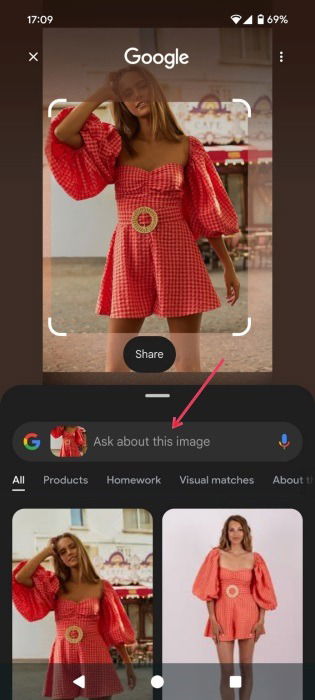
I asked whether I could “get this in green,” as green is one of my favorite colors. Google displayed similar results.

Note: in select countries, you can ask even more complex questions. For instance, on an image of a Chaso cake, you can ask, “Why are these so popular?” and you’ll get an AI-powered overview of why these desserts are currently trending.
Comparing things
Circle to Search makes it incredibly convenient to compare things without leaving my current app. If my friends and I are discussing possible meeting places in a WhatsApp chat, I can highlight suggestions and get relevant details without ever leaving the conversation.
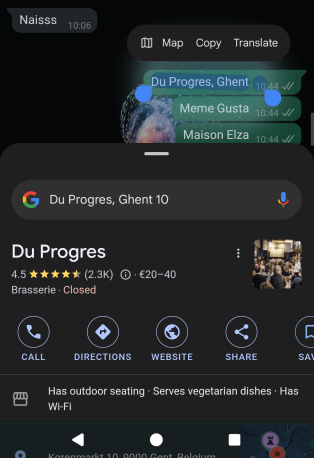
For example, if you highlight the name of a restaurant, you can quickly view its address and opening hours, and browse its menu and venue photos, switch to the next option, and so on.
Identifying songs
Surprisingly, Circle to Search isn’t just for visuals – it can also identify music. Activate it, then tap the music note button below to allow it to identify the sounds playing around you.

If you have a melody stuck in your head but the name escapes you, you can also try humming, whistling, or singing and let the tool do the rest.
Circle to Search is perfect for quick, real-time queries, but if you prefer the traditional classic Google search method, check out these tips for more accurate results. On the other hand, if you want to try something a little different, take a look at our list of the best Google search alternatives.