With the evolving landscape of large language models (LLMs), users now have a wide range of models to choose from, allowing easy access to vast data. Although Google’s Gemini is the default digital assistant on most Android devices, alternatives like ChatGPT or Perplexity can replace it. This guide shows how to change the default digital assistant in Android.
Changing the Default AI Assistant on Android
Before beginning to swap Google Gemini for other assistants, it is important to note that Gemini is deeply integrated with the Google Ecosystem, and it works seamlessly with its other products, like Google Maps, Notes, Gmail, and Calendar.
However, other Android AI assistants can set reminders, manage tasks, and do similar jobs as Google Gemini too. In fact, some alternatives offer additional functionalities than Google Gemini. For instance, ChatGPT’s Temporary Chat feature acts like an Incognito mode, which is missing in Gemini. The same is true for Perplexity AI’s Spaces feature, which is a personalized knowledge hub.
To use an assistant app directly from Launcher or voice input service, you need to change the default digital assistant app. To do so, open the Settings app, and select Apps. Keep in mind that the steps to change the default may vary depending on manufacturers. This guide uses a OnePlus 11R as an example.
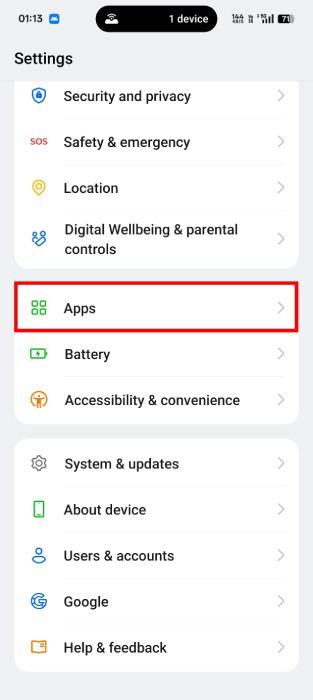
From the Apps settings, click on the Default Apps button.
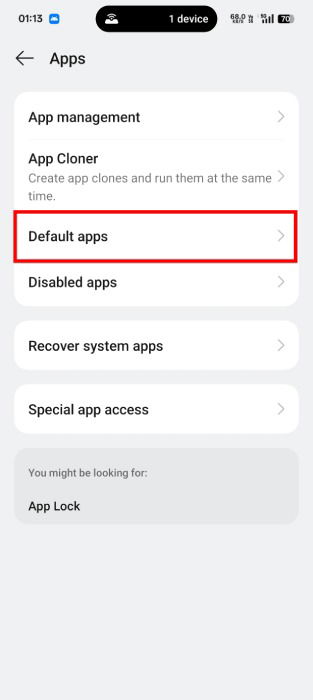
Under the Default Apps settings, click on Digital Assistant app.
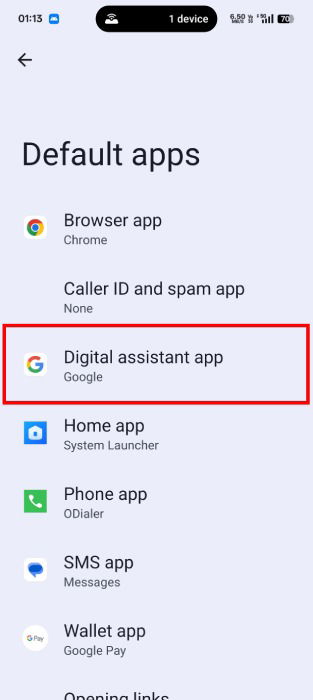
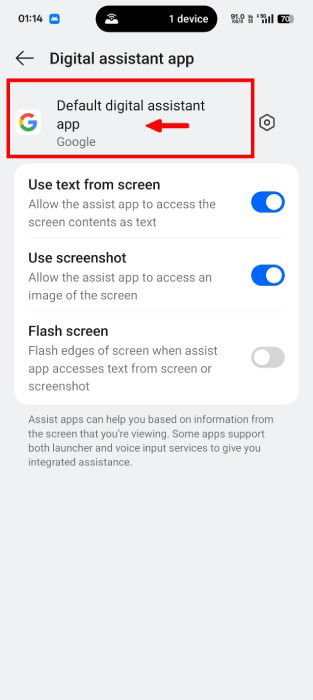
Tap Default digital assistant app. Make sure that you tap the text rather than the settings icon, which is intended for changing the digital assistant’s language and preferences settings.
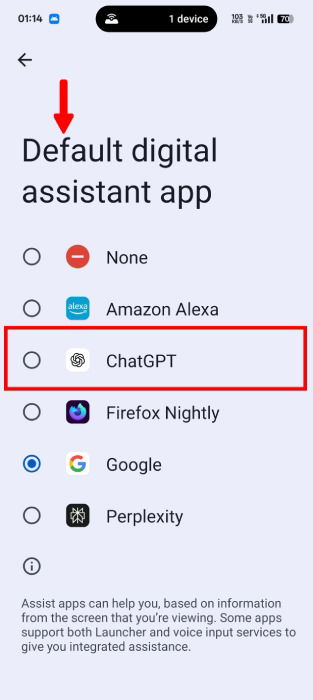
This page lists every digital assistant installed on your device. Choose a suitable app for you. In this case, I am proceeding with ChatGPT.
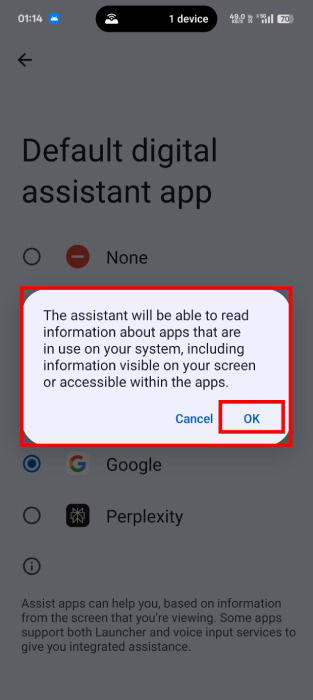
The system will display a short message, stating that the assistant app can read information on your screen and about the apps installed. Click on OK to confirm the change.
Accessing the Changed Digital Assistant App
After changing the default digital assistant, access it by diagonally swiping from one of the bottom corners of the screen.
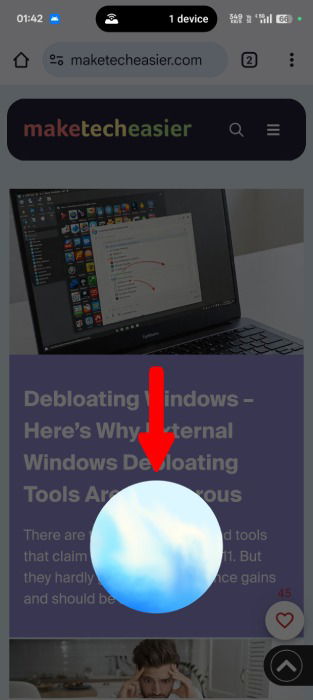
If you are using Gesture Navigation rather than three-button navigation, this diagonal swiping method may interfere with your workflow. If so, consider pressing and holding the Power button instead.
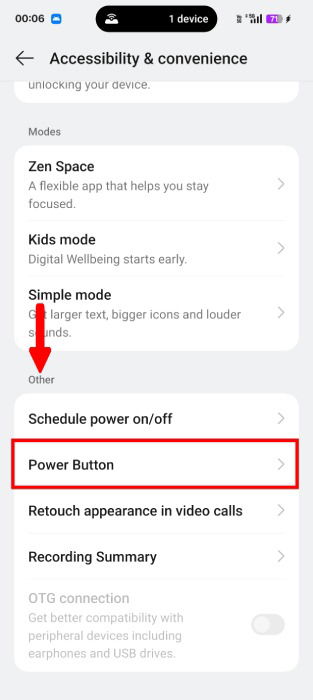
By default, the device may have disabled access to the digital assistant via the Power button. If so, pressing and holding the Power button may trigger the Power Menu. To change the Power button functionality, open the device’s Settings and select Accessibility & convenience.
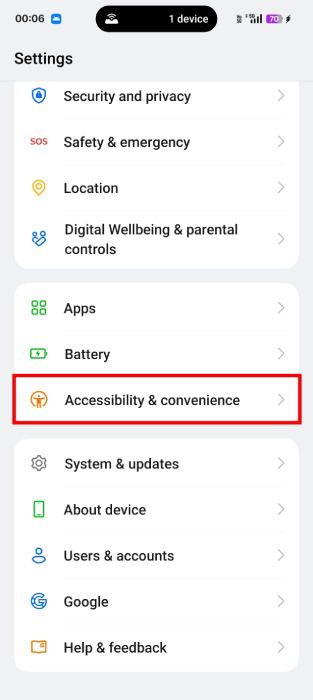
Scroll down to the Other section, and choose Power Button.
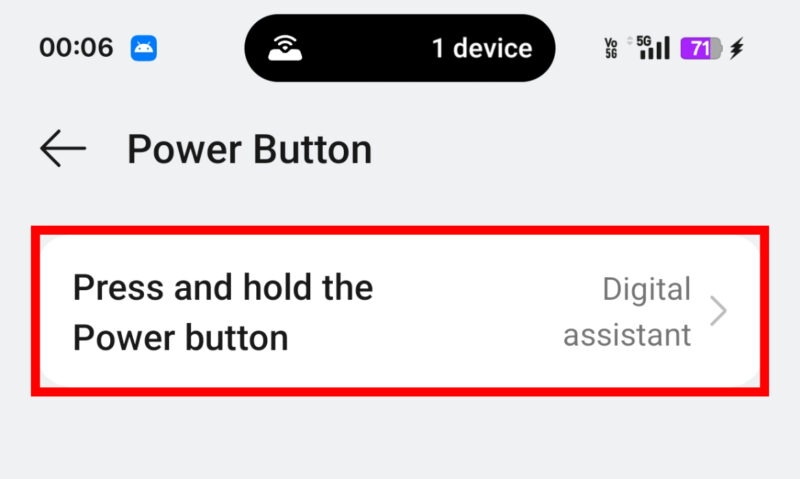
Under the Power Button settings, tap on Press and hold the Power Button.
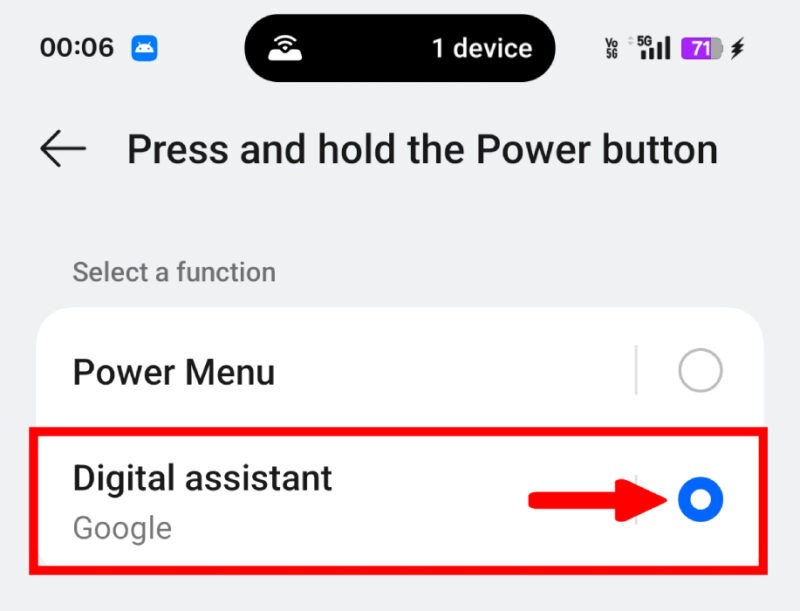
From this menu, you assign an activity for pressing and holding the Power button. To trigger the digital assistant via the Power button, choose the Digital Assistant option.
This guide has shown the easiest way to change the default digital assistant app in Android and access it using the Power button. However, by changing the digital assistant app, you may lose your heavy control over Google products, but other AI models and features, like ChatGPT may enhance your productivity and help you get better search results.
Image credit: Unsplash. All screenshots by Jay Kakade.