So, you’ve made the leap to a Google Pixel – awesome choice! Whether you are drawn by the awesome camera, clean Android vibe, or just looking for a fresh experience, you’re in for a treat with unique Google pixel features. However, these routines may feel odd at first, especially if you’re moving from a different brand, but they are worth mastering to improve your Pixel experience. Let’s explore some of these practical routines that might trip you up at first, but are worth knowing about to level up your phone game.
1. At a Glance Widget/ Google Search Bar
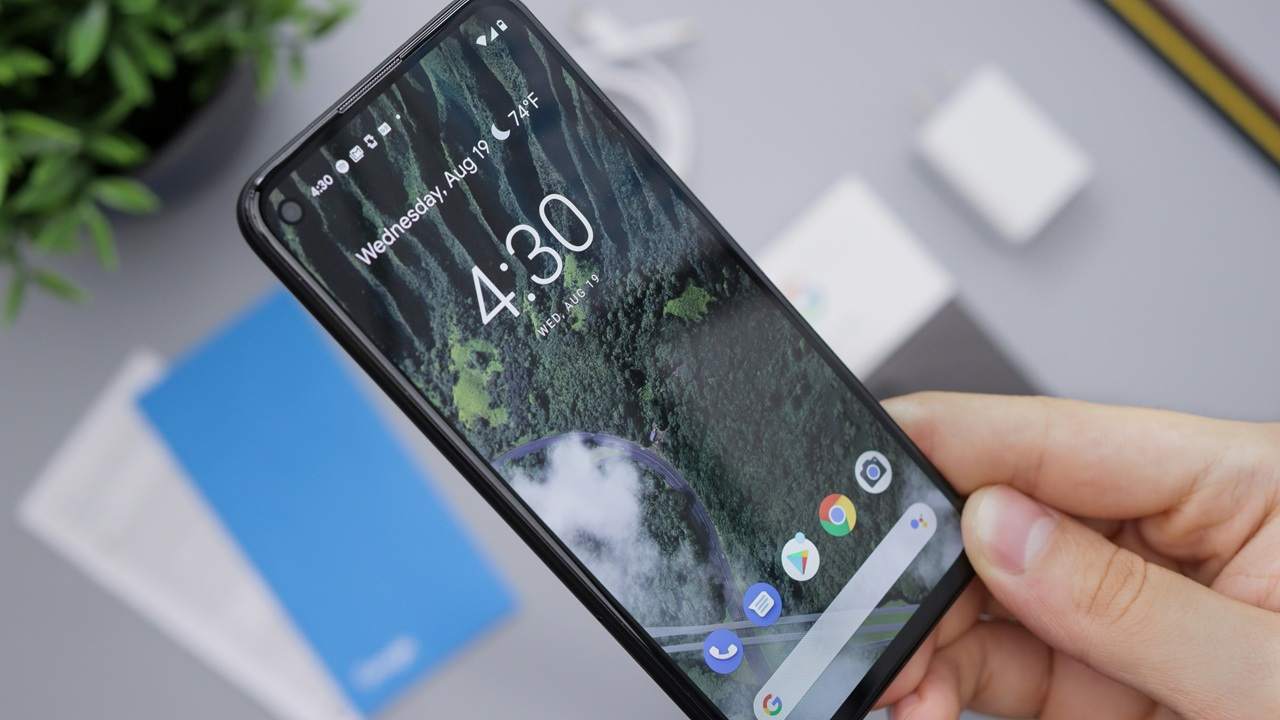
Right off the bat, you’re greeted with the At a Glance widget and the Google Search bar on your Pixel’s home screen. The widget displays weather updates, calendar events, and traffic updates, while the Search bar helps with quick queries or Google Assistant chats.
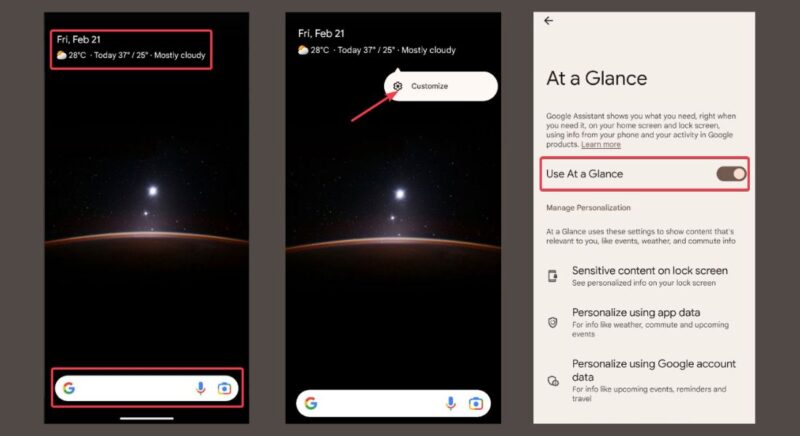
They are stuck there by default and can’t simply be swiped away. If you’re a minimalist who loves a clean home screen, this duo might feel like a lousy neighbor who won’t leave. You can’t just shoo it away without extra effort.
However, once you lean into it, At a Glance saves you from hopping apps to get basic info while the Search bar improves your access to search queries and Google Assistant. Leave them for a week and they grow on you.
2. Gesture Navigation
If you’re coming from a phone with physical buttons, you’re in for a rude awakening with the Pixel’s default gesture navigation. Swipe up to take you home, flick sideways to switch apps, swipe up and hold to show recent apps, and so on.
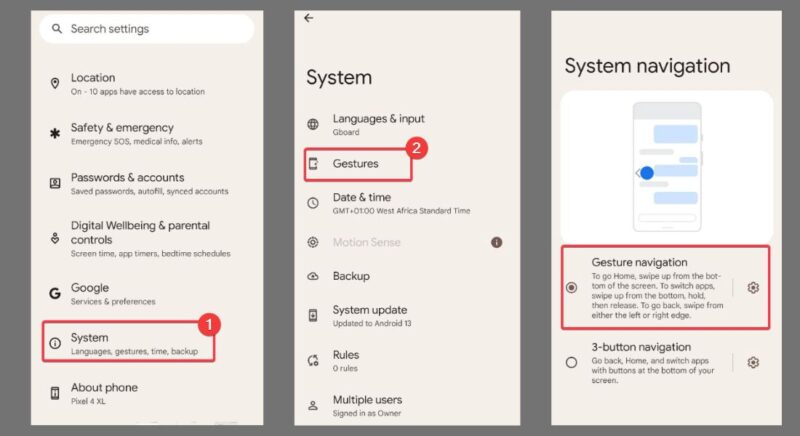
While this can take a learning curve – I fumbled it for a whole week before I got the hang of it, but once it clicks, it’s buttery smooth. It’s super-efficient and frees up screen space.
Once you get past the initial “What’s this swipe for?” phase, you’ll realize how fluid and fast the phone feels.
3. Inconsistent Fingerprint Sensor
This is one of the Google Pixel routines you have to look out for. Despite the sleek and modern design, the under-display fingerprint sensor in the 6 and 7 series isn’t the foolproof or speed demon you’d hope for.
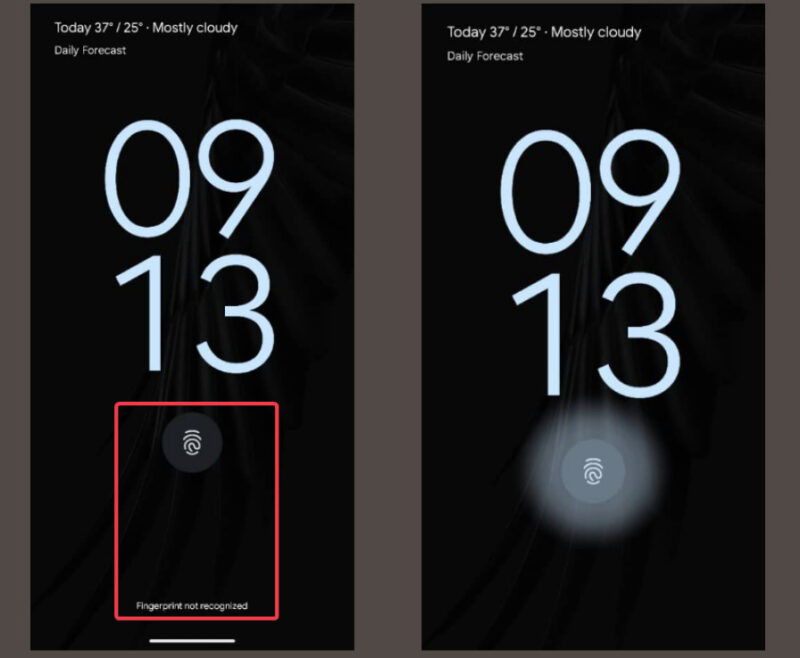
You might get a “try again” more often than usual if there’s a slight issue such as wet fingers, low light, or off-angle tap. This might feel like a letdown when compared to snappier sensors on other phone brands.
However, I’d advise you to stick with it since Google’s been dropping updates to refine it. Besides, it’s tied directly to Pixel’s Android security features. Although not perfect, it’s reliable enough once you adjust.
4. Adaptive Sound
Ever noticed your Pixel audio shifting on its own? That’s the Adaptive Sound at work; tweaking your audio volume to suit your environment. When you are in a quiet room, the sound softens and booms louder in a noisy environment.
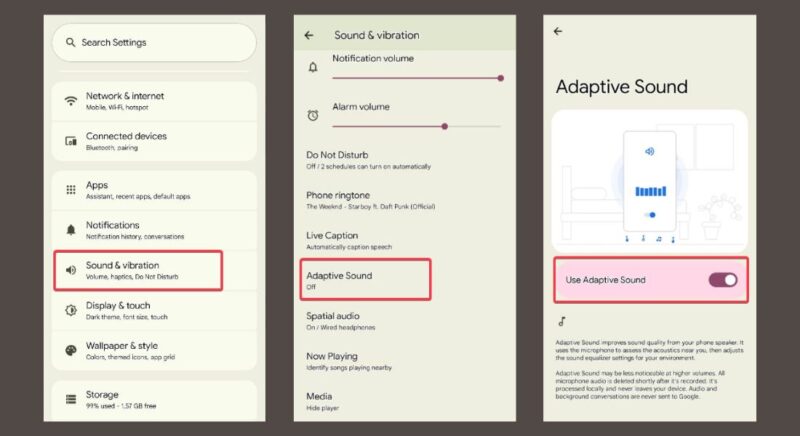
While this feature is amazing, it may be annoying if you’re used to a steady sound level. It may feel intrusive like your phone has got a mind on its own.
The upside to this is that once you adjust, it’s like having a personal sound engineer. No matter the location, you are guaranteed crisp and clear audio, making it one of those Google Pixel features that quietly delivers.
5. Auto-Brightness Quirks
Adaptive brightness is a great feature that adjusts the screen based on ambient light. It increases brightness in the sun and dims at night.
While this is great in theory, it’s not always spot on. Too dim a display outdoors or blinding brightness at midnight? You will probably tweak it manually more than you’d expect.
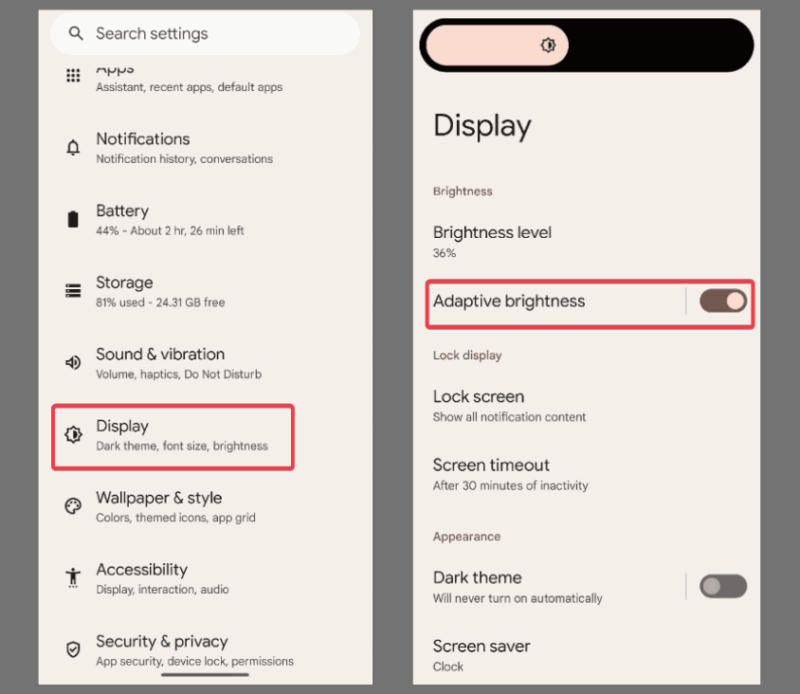
Despite this, I’d advise sticking it out as it learns your habits over time to better save your battery. Just leave it be and watch it adapt to a better smart screen. It’s a small hiccup in an otherwise smart design by Pixel to improve daily usage.
6. Call Screen
Imagine a scenario where your phone rings and Google Assistant picks to ask who’s calling and why while transcribing the caller’s response in real-time for you to determine if it’s worth your time. That’s what Call Screen does for you. It’s like your perfect spam-filtering system.
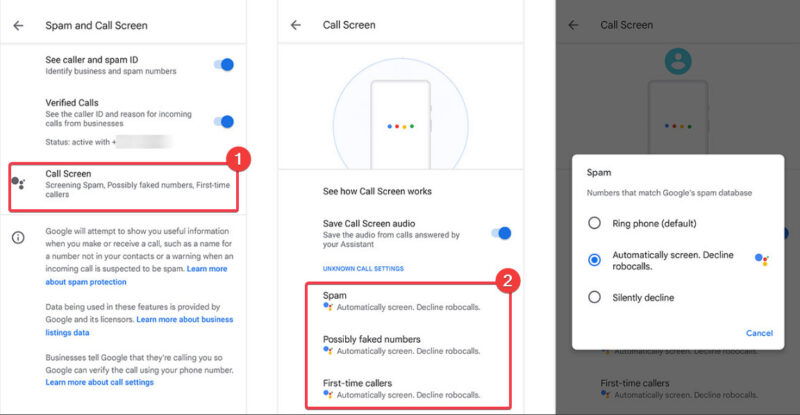
This might feel like an overkill if you’re the type that answers everything. Having to delegate this extra step to an assistant may feel like a hassle for you.
However, if you keep it, you’ll learn to love and grow fond of it. You can add this to the tips from stopping pop-ups on Android to turn your Pixel into a fortress.
7. Flip to Shhh
Another Pixel feature for quick getaways to boost productivity when activated. Need silence fast? Flip your Pixel face-down, and Flip to Shhh kicks in, turning on “Do Not Disturb” mode.
For all its good intentions, you can miss out on important notifications by accidentally turning DND mode on. Worse, you may even forget it is on since you never manually activated it.
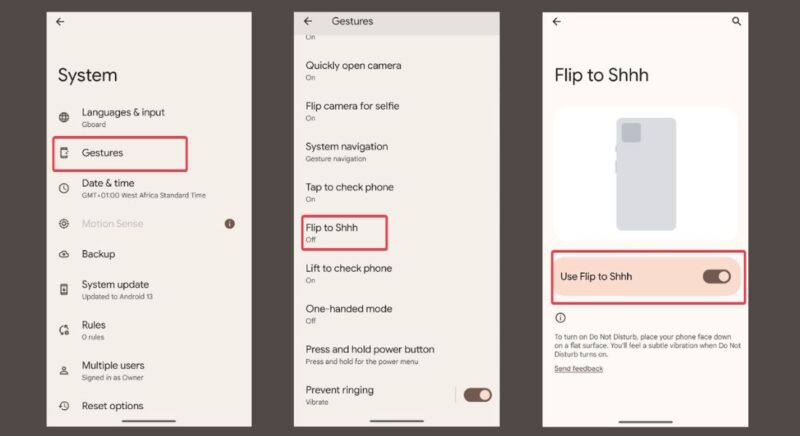
Once you get the hang of it, it’s a shortcut to a quiet you-time. It’s one of those Google Pixel features that feels effortless when you nail the habit.
8. Adaptive Battery
Pixel’s Adaptive Battery tracks your app usage and shares your power accordingly. It gives more power to the apps you use most and the others are limited. Hence, your battery life will be stretched.
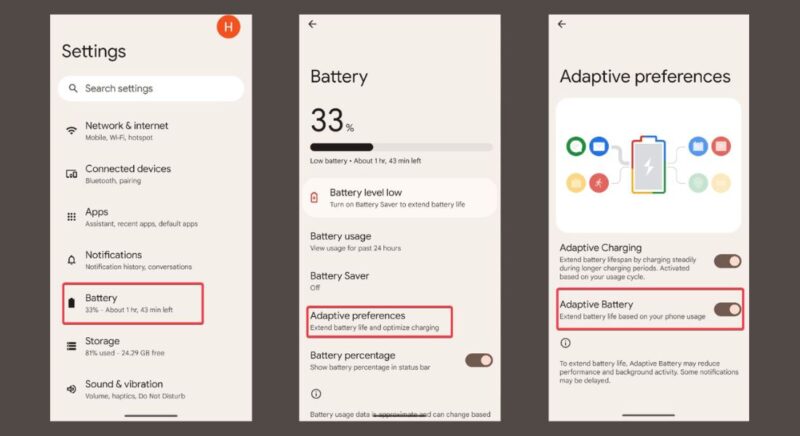
However, this may be annoying as your less-used apps may misbehave or close unexpectedly. And if you’re used to everything running full-tilt, this may be a shock.
Despite the early stress, you’ll soon adapt to it and come to love the battery-saving benefit. It keeps you powered up for longer.
9. Live Caption
As the name suggests, this Google Pixel feature pops up real-time captions for any audio or videos playing on your phone.
While this is sleek, popping up randomly especially when not needed, may feel like an intrusion. Besides, if you’re not in a noisy spot, it may feel like it’s crowding your screen space.
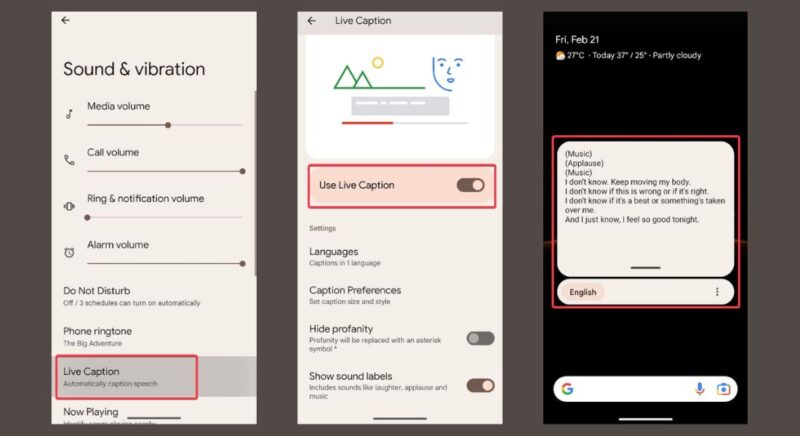
But don’t disable it just yet. It can be a lifesaver when outdoors and needs a subtitle for whatever you’re listening to or watching.
Note: You can further turn your Android into a Pixel-like experience with some of these tricks.
Switching to a Google Pixel is like breaking in a new pair of shoes – uncomfortable at first, but worth it once they fit. The Google Pixel features we’ve covered here are not just quirks, they’re practical tools that will enhance your phone game once you get used to them. So, dig in and get familiar today; they get easier with time.
Image credit: Unsplash and all screenshots by Henderson Jayden Harper