Tired of manually adjusting your phone’s settings throughout the day? Fortunately, your Android can handle repetitive tasks effortlessly, with automations tailored to your needs. This guide explores powerful ways to optimize your device via Android rules by location.
Good to know: if you have a Samsung phone, check out these useful Bixby routines to improve your experience.
1. Silence Phone When at the Library
In a situation such as wanting your phone to automatically switch to Silent mode or DND when you reach a certain location, such as the library or theatre, you can employ this rule on a Google Pixel phone.
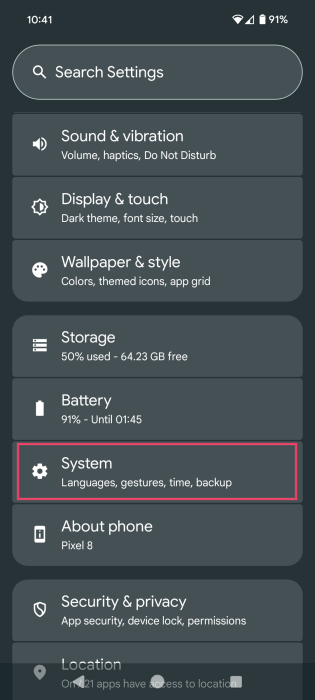
To find Rules, open the Settings app and navigate to System.
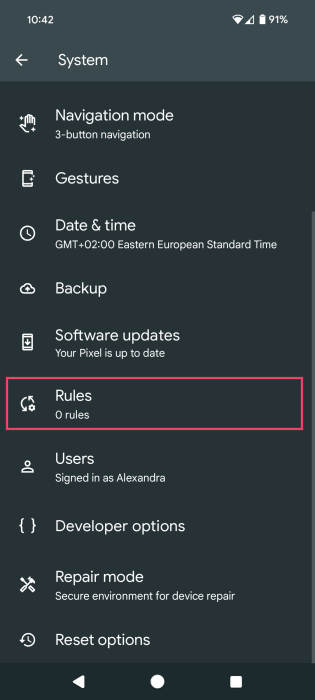
Tap the Rules option.
Turn the Always allow location for Rules is turned option on, then tap Next.
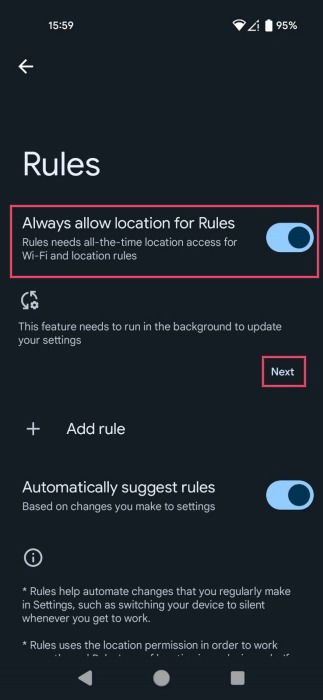
Confirm that you are allowing the Settings Services app to always run in the background. (Keep in mind that it may drain your battery faster.) On the Rules screen, tap + Add rule.
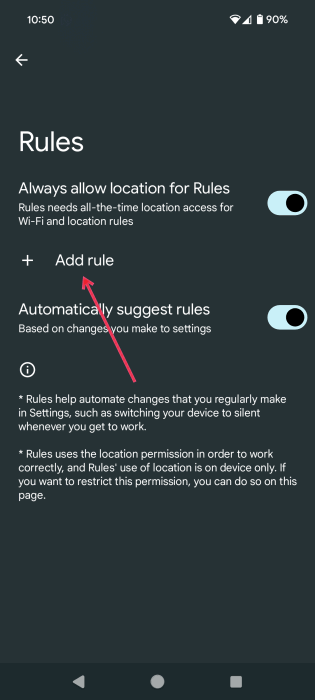
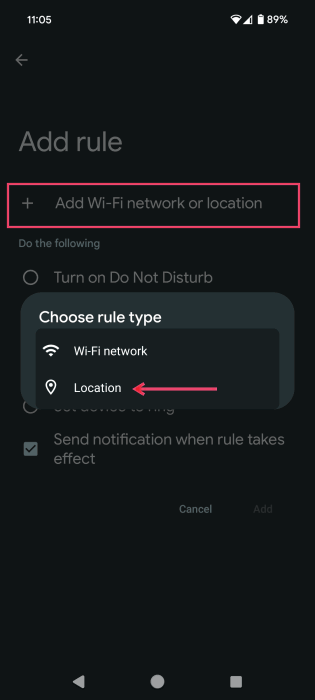
Tap Add Wi-Fi network or location, and Select Location.
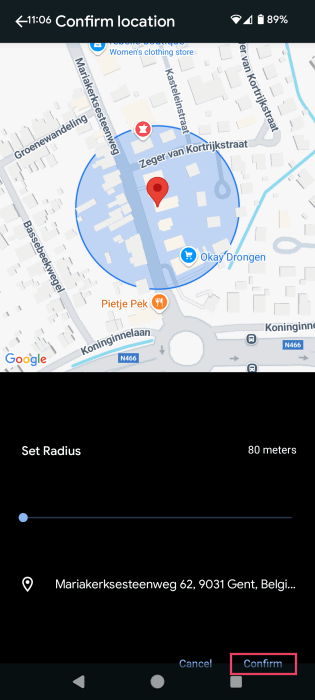
Manually input the location’s address, find it on the map, and press Confirm.
The location will be added under When at location in the Add rule panel.
Under Do the following, select Set device to silent. Alternatively, select Turn on Do Not Disturb.
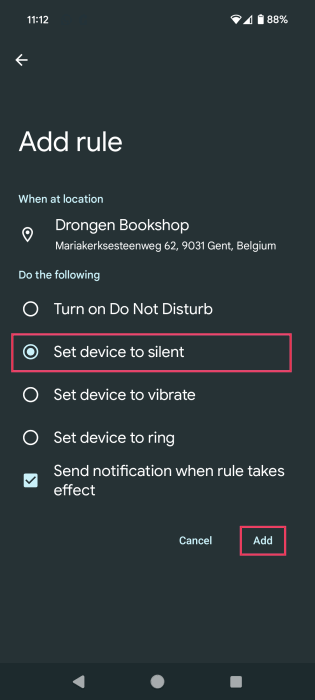
Check the Send notification when rule takes effect option, then tap Add.
2. Set Device to Ring When at the Office
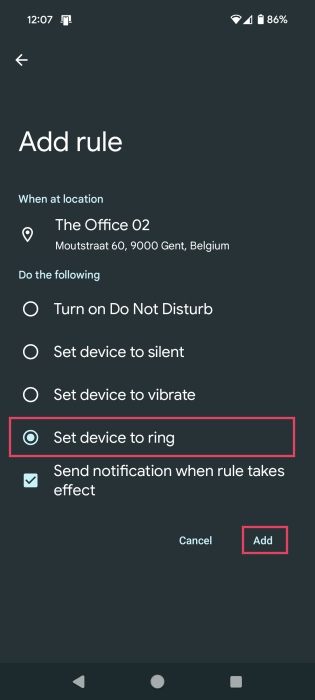
You can also employ a Rule to set your phone to ring when you reach your office to ensure you don’t forget your device or miss a call from an important client or collaborator when it’s set to silent.
Go to the Add rule screen, and set your office address under When at location. Select Set device to ring under Do the following. Alternatively, if you know you’re heading into a meeting, select Set device to vibrate. Press Add.
Tip: learn how to use your Android phone as a Wi-Fi hotspot.
3. Turn on Hotspot When at the Beach
Many Android phones have the option to create Routines. These are similar to Rules but are bound to Google Assistant. They offer many more options to create automations. In this example, I’m setting up a routine that will allow me to turn on my hotspot when I arrive at the beach.
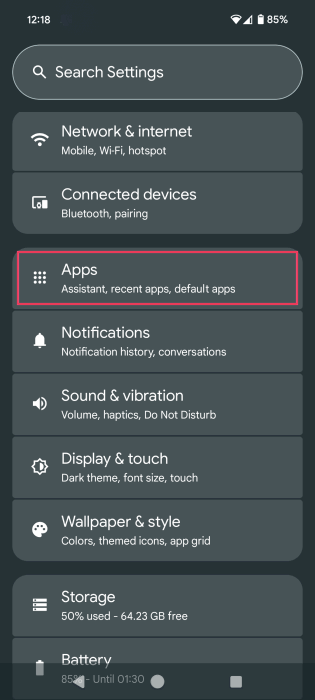
To find Routines on your phone, open Settings, and navigate to Apps.
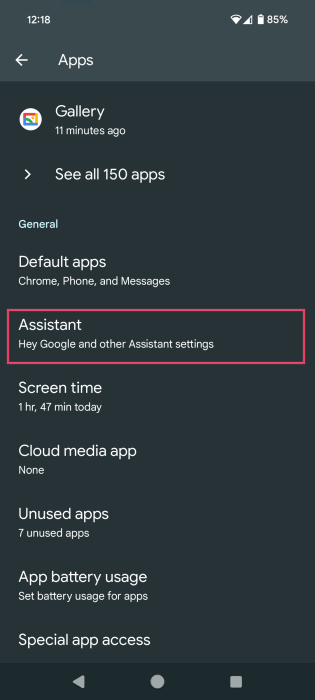
Select Assistant.
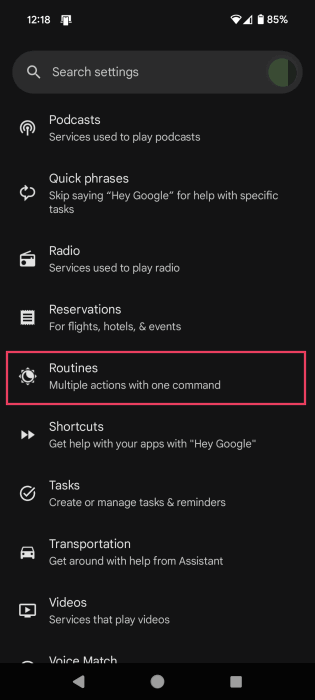
Tap the Routines option.
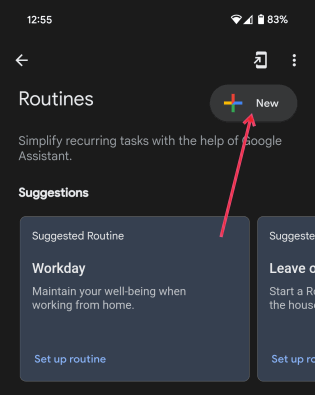
Press the + button at the top to create a new Routine.
Name your Routine at the top, then press the Add starter button.
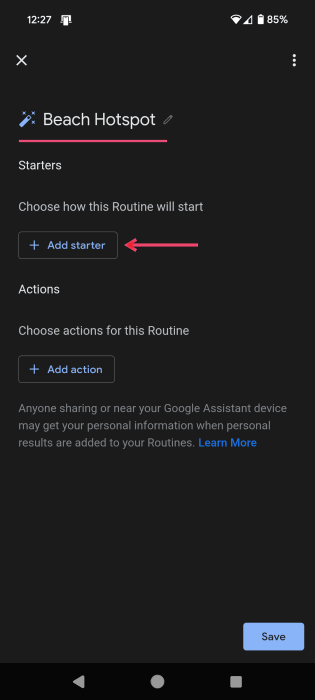
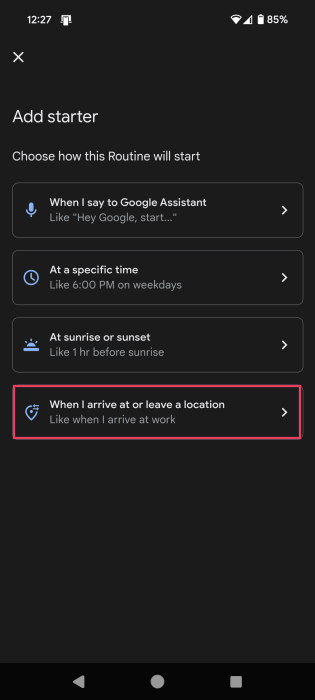
On the next page, select the When I arrive at or leave a location option.
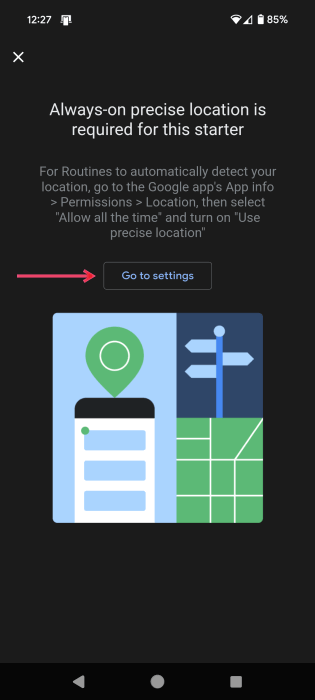
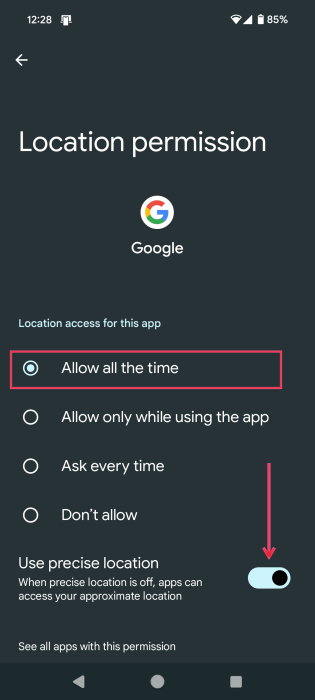
Enable Always-on location permission for the Google app by pressing the Go to settings button.
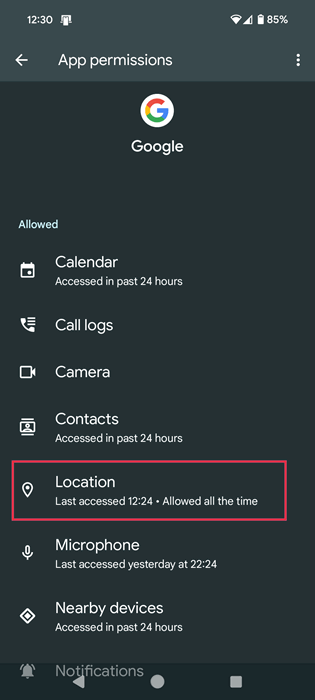
Tap Permissions, and select Location.
Toggle on the Use precise location option. Make sure the Location access for this app is set to Allow all the time.
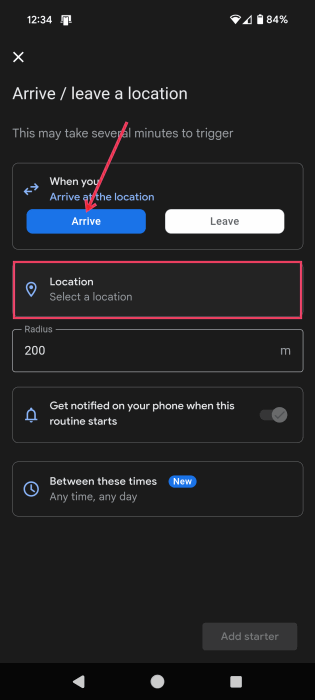
Return to your Routine. Select Arrive in the When you section, then tap Location.
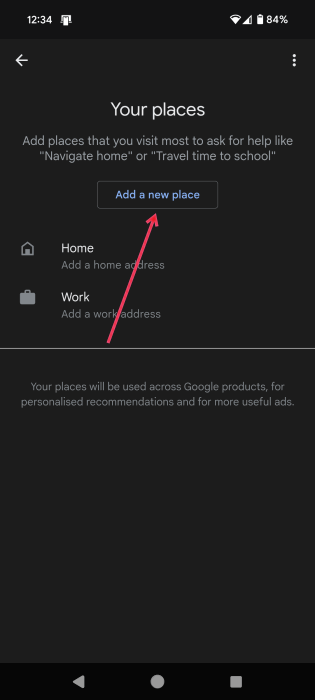
Tap Add a new place. You’ll be redirected to Your places. Add your new place, in this example, the beach. Press Add a new place.
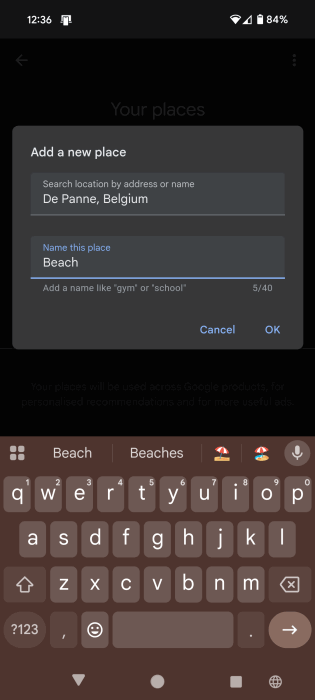
Search the name of the place, give it a name, and press OK.
Back in Routines, tap Location again, and select the one you just added. Press Done.
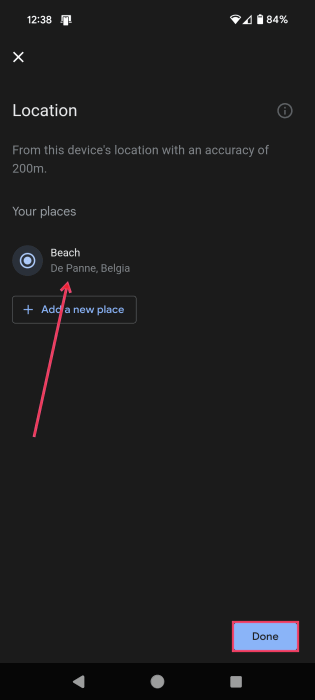
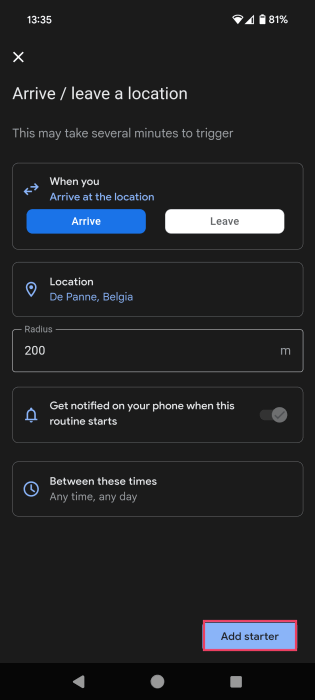
You can also add a time interval and the days when you want this Routine to run. I’m leaving this empty and pressing Add starter.
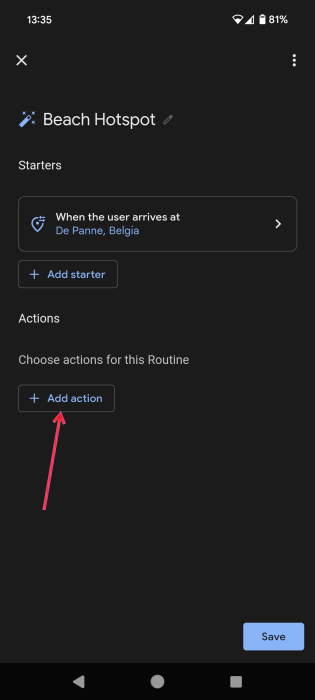
Back on the new Routine page, tap Add action.
Select Try adding your own.
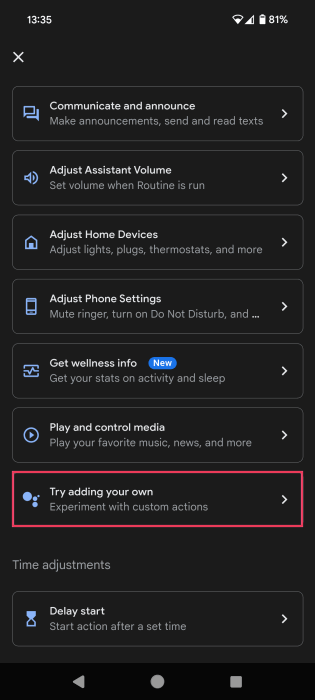
Add your own action. In my case, it’s “Turn hotspot on.”
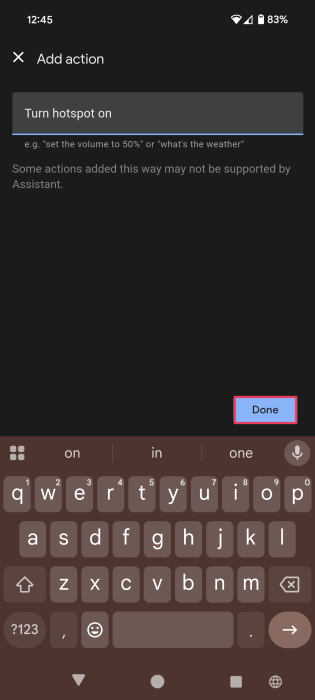
Press Done to save the Routine.
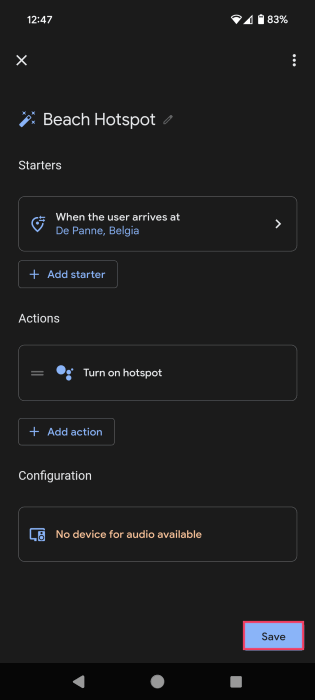
The “No device for audio available” issue
If you see the No device for audio available message under Configuration, it could mean the Routine won’t work properly. The issue is that you can’t select your phone as the audio device for the Action. This is a known Android issue that pops up on the Google Forums quite frequently and has yet to be fully resolved.
Unfortunately, as per user comments and my experience as well, Android location-based routines don’t seem to work very well. In the best-case scenario, the Assistant shows a message on your phone’s display alerting you of the Action, but no audio will play with it. Interestingly, if you set the Starter to a Google Assistant voice command, the No device for audio available no longer appears.
If you have some other devices linked to your Google Home app, you may be able to have the Action work on one of those devices instead. Nevertheless, the Android rule by location still won’t be carried out on your phone.
FYI: find out how to create location-based reminders without Android Routines.
4. Get a Reminder When You Get Home
Since location-based Routines on Android are unreliable, I’m using a third-party app for these next automations. The MacroDroid app is relatively easy to use and includes many automation options – even for Android devices that are not rooted.
This Routine allows me to have my phone announce an important reminder once I get home.
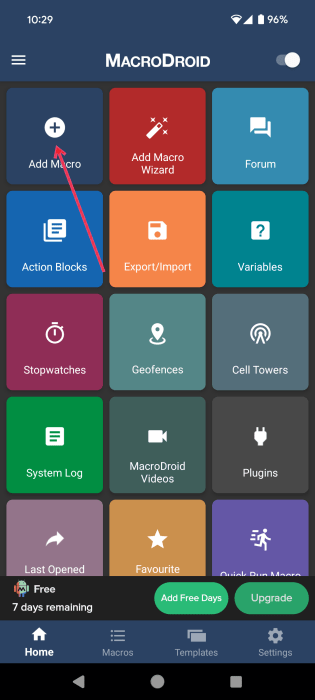
Open the MacroDroid app, and press the + Add Macro button.
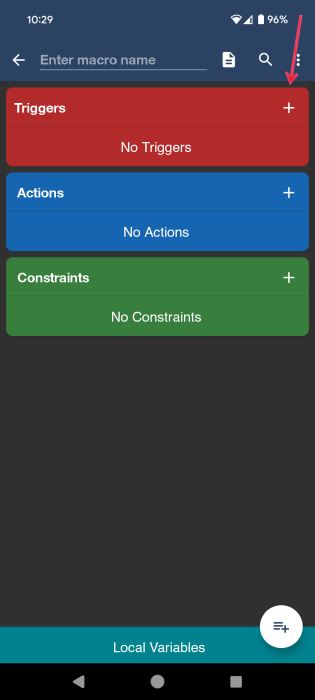
Tap the + on the Triggers tile to set your “If” condition.
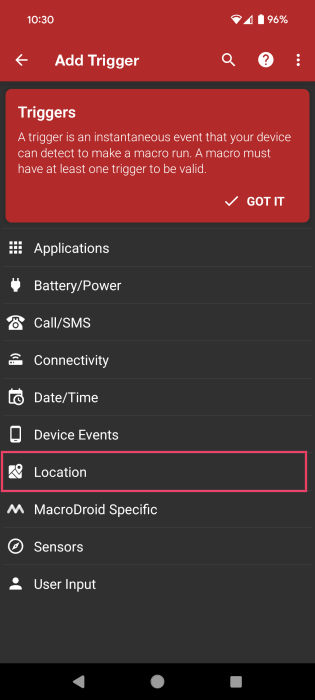
Select Location.
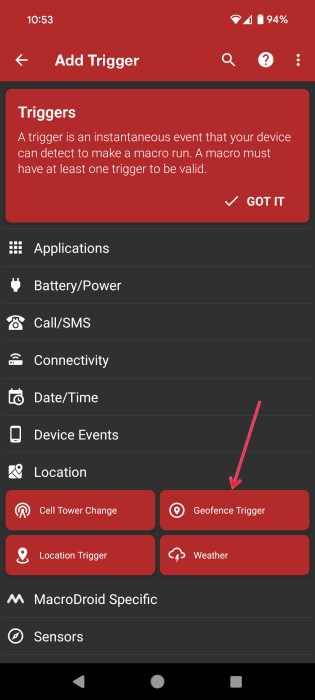
You can choose Location Trigger, but MacroDroid suggests Geofence Trigger as the more accurate option.
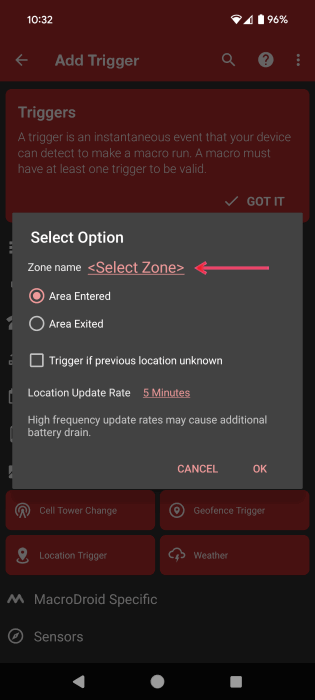
Tap Select Zone to select your home location (or any other location).
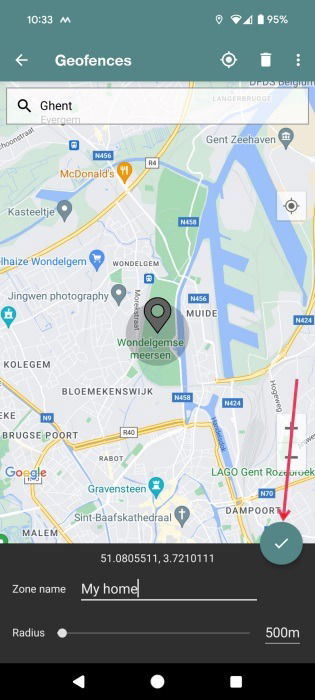
Find it on the map, name it, and save.
Tap on the + button on the Actions tile.
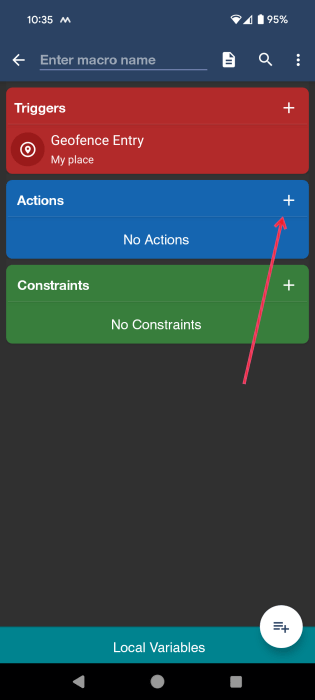
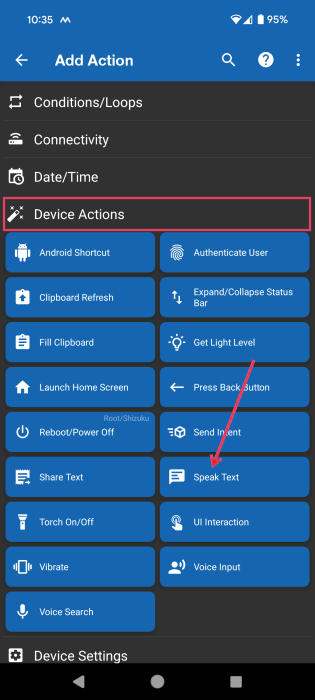
Go to Device Actions and select Speak Text.
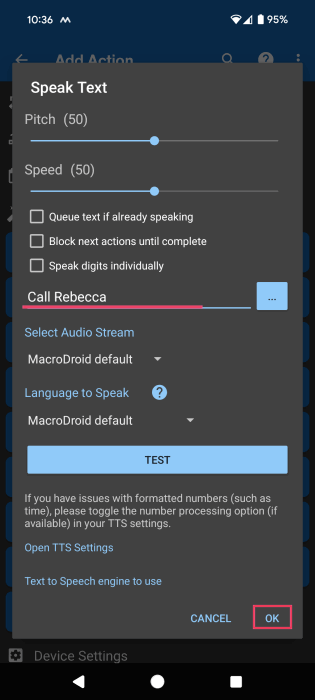
Add your text. You can also test the message before pressing OK.
Note: while you can add multiple actions, you may be limited to the number of actions you can add in the free version of the app.
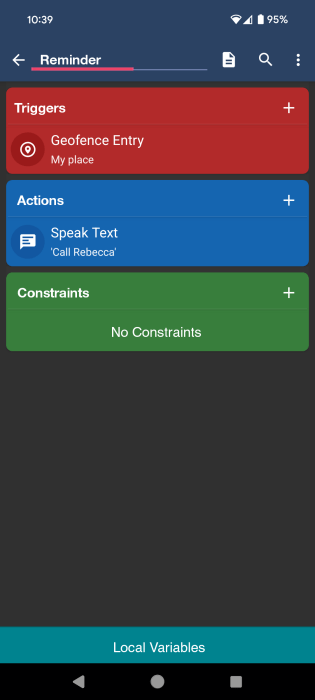
Don’t forget to name your routine at the top.
5. Open Music or Health app When at the Gym
If you’re a regular gym user, you may want to create a routine that automatically opens your music or health app as you reach your workout spot. I’m once again using MacroDroid.
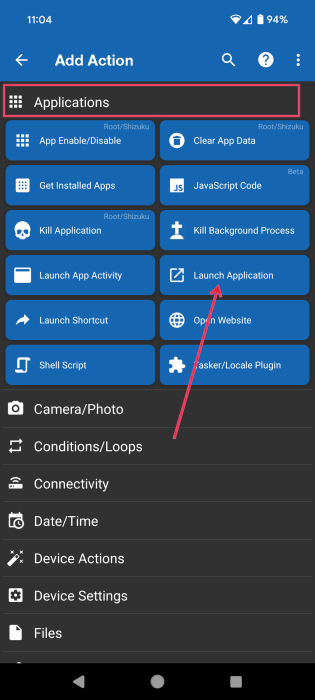
Set your gym’s location as a Trigger, as instructed above. Move to setting an Action. Select Applications at the top, then press the Launch Applications option.
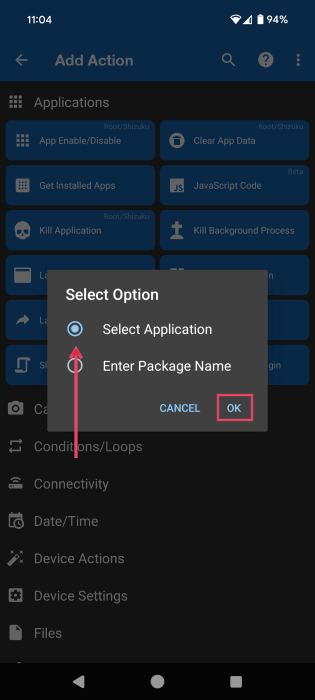
Tap Select application in the pop-up.
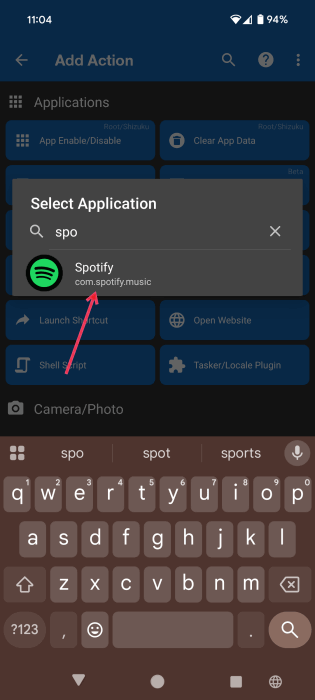
Search for and tap on the app you want your phone to open.
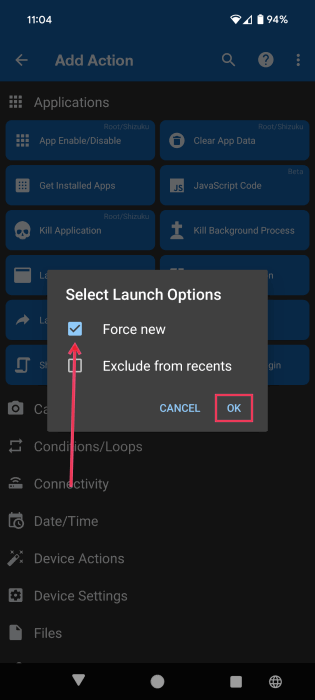
Select Force new in the pop-up.
Name your routine to save it.
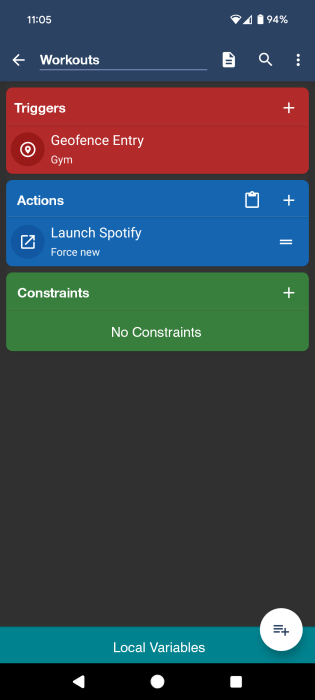
Keep in mind that this routine won’t start playing your music; you’ll still have to press Play.
6. Send SMS Once You’re Home Safe
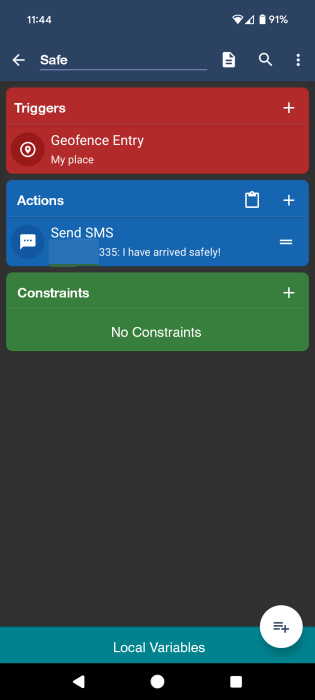
Maybe you’re traveling or returning home alone after a night out with friends. You can create a routine with MacroDroid that sends an SMS to a trusted contact once you’ve returned home. The app also has the option to send a WhatsApp message, but it’s currently in beta and did not work for me.
Set your location, such as your home or the hotel where you are staying, as the Trigger. For the Action, go to Messaging and choose Send SMS.
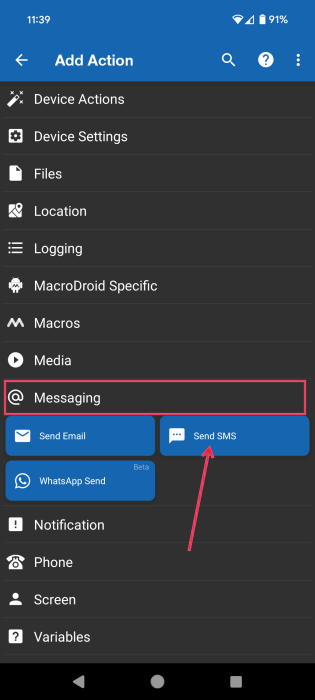
Tap on the person icon in the upper right to access your phone book, and select the contact you want to send the message to. Alternatively, add the number manually.
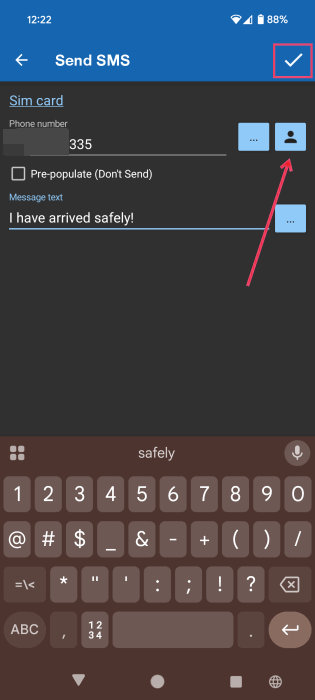
Type in the message you want to send, then press the Save button. Name your routine to save it.
7. Turn Off Location When At Home
Since having Location turned on all the time on your phone can drain your battery life faster, you can create a routine to disable Location when you’re at home.
For this automation, I’m using the RuleBot app. Install the app, and give the necessary permissions.
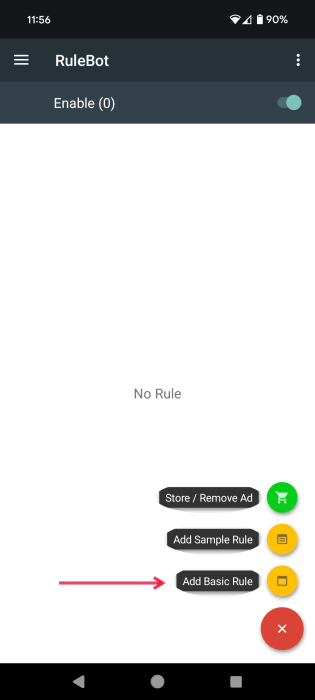
Press the red + button at the bottom of the display to add a new rule, then select Add Basic Rule.
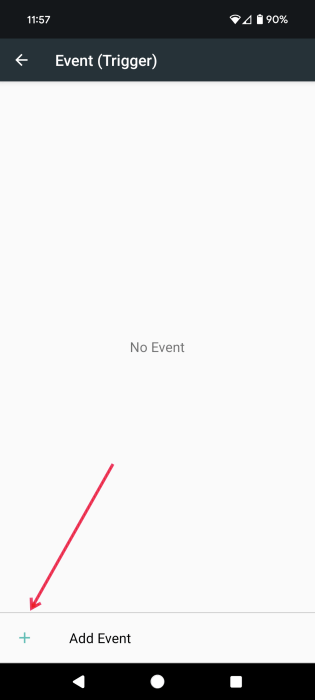
Tap Event, then select Add Event at the bottom.
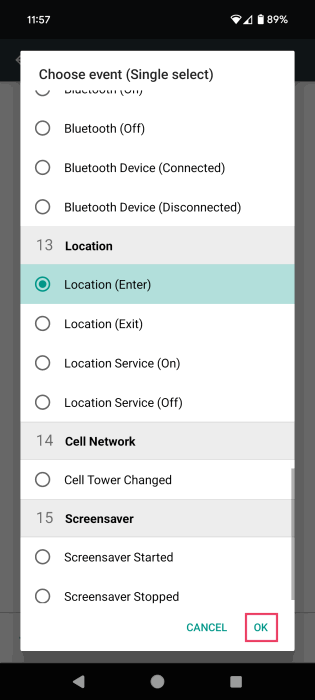
Find the Location section, select Location (Enter), and press OK.
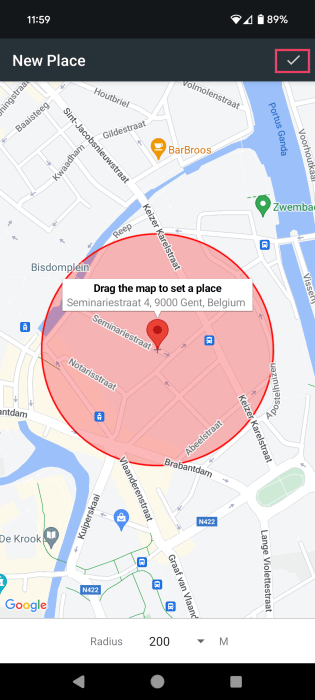
Find your location on the map and save.
Go back to the Rule screen, and select Action, then tap Add Action. Go to the Settings section, select Show Location Settings, and press OK.
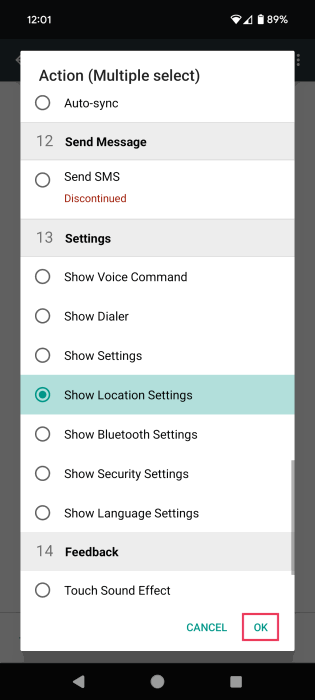
Go back to the Rule page and save.
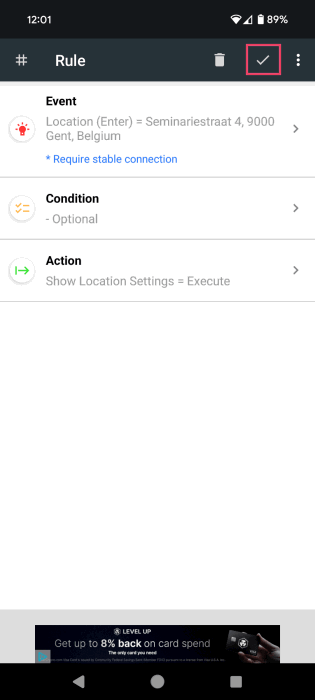
Once you reach your destination, your phone will open the Location Settings page so that you can disable the Location toggle from there.
If you need more automation ideas beyond Android rules by location on your phone, check out these useful Gmail scripts that can help you automate your inbox.
Image credit: Unsplash. All screenshots by Alexandra Arici.