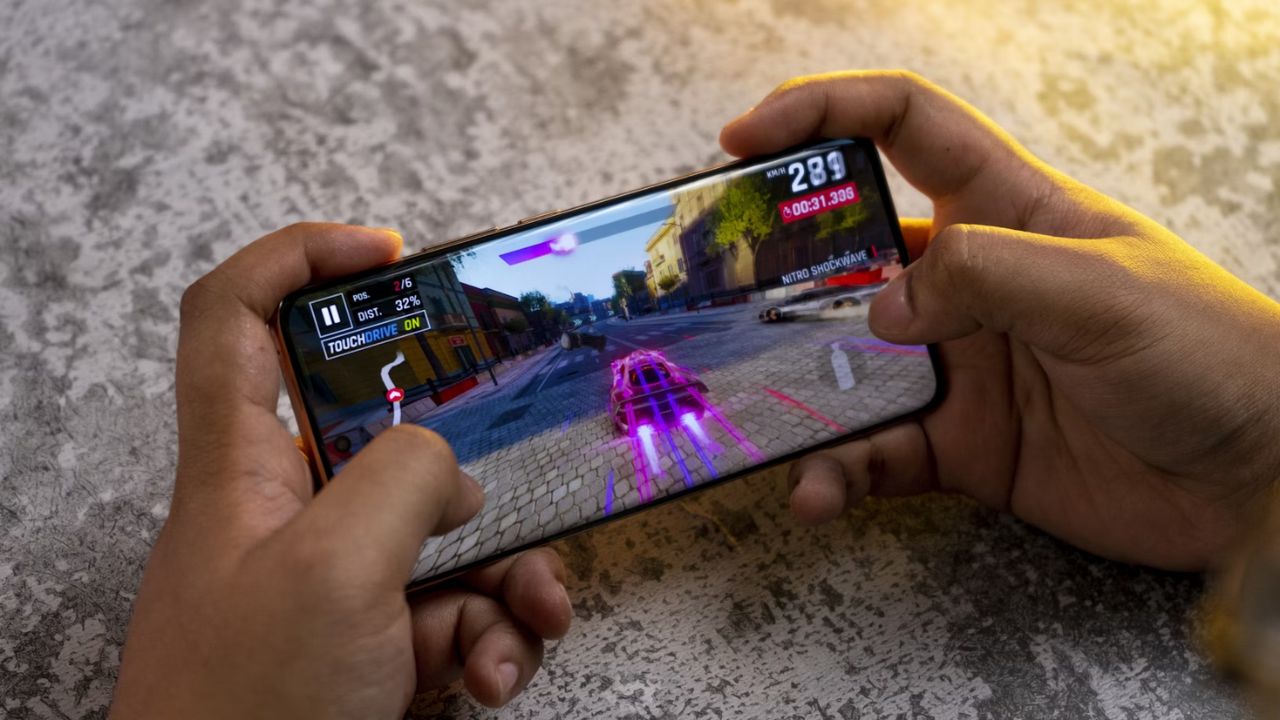
Ever dreamed of playing Skyrim or Fallout on your Android phone instead of your PC? You’re not alone. The idea of turning your phone into a portable PC gaming machine is tempting. The emergence of Android emulators for PC games makes this happen, bringing Windows classics to your mobile phones. This list includes the best emulators to play Windows games on Android.
Best Emulator for Windows Games: Winlator
An industry leader among Android emulators for PC games. Winlator is a free and open-source emulator that relies on Wine and Box86/Box64 to run Windows games on your mobile.
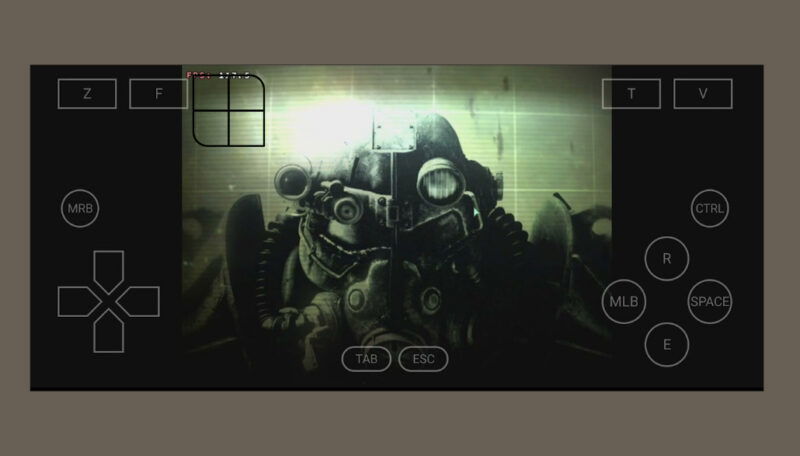
It’s a solid performer for lightweight or retro games – think older titles, like Half-Life or Command & Conquer. However, it struggles with modern, graphics-heavy games, and initial setup can be a headache if you’re not tech-savvy. It’s easily customizable, though, and doesn’t require the Internet to work.
Compatibility is a coin toss – hit or miss – but it’s a smooth experience if it hits. Also, there are no known malware issues, as it’s open source and community vetted. It’s perfect for retro PC gamers for on-the-go access to their games, but don’t expect miracles with AAA titles.
Best Emulator for Older Windows Games: ExaGear
ExaGear, a paid emulator for Windows games, was originally developed by Eltechs, but it is now community-supported, kept alive by fans.
If you want to have a smooth, nostalgic experience playing Windows classics like Diablo II or StarCraft, this is your best shot. You will get a decent run with most 32-bit games on this emulator. When combined with the simple interface, it makes for an excellent choice.
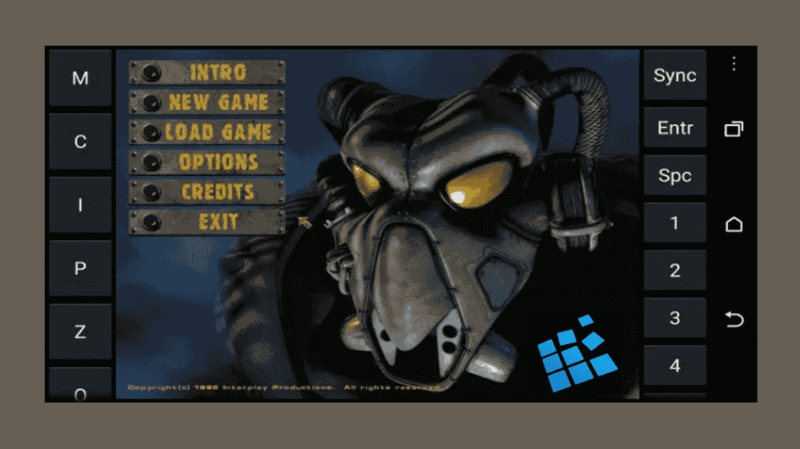
The only downside is that it’s not officially supported anymore, so there are no updates. This may cause dodgy play or stumbling on newer Android versions. Also, heavy titles or AAA games tank on it.
Be extra careful to avoid downloading sketchy APKs from untrustworthy websites to avoid malware. For a $5 to $10 one-time payment on this emulator, you can turn your Android into a portable gaming rig for your 90s and early 2000s Windows classic games.
FYI: learn how to play old PC games on your Android with ExaGear.
Best Emulator for Die-Hard Gamers: Bochs
Another one of the best Android emulators, Bochs is a free, open-source x86 that can run a full Windows OS and games – with a lot of patience.
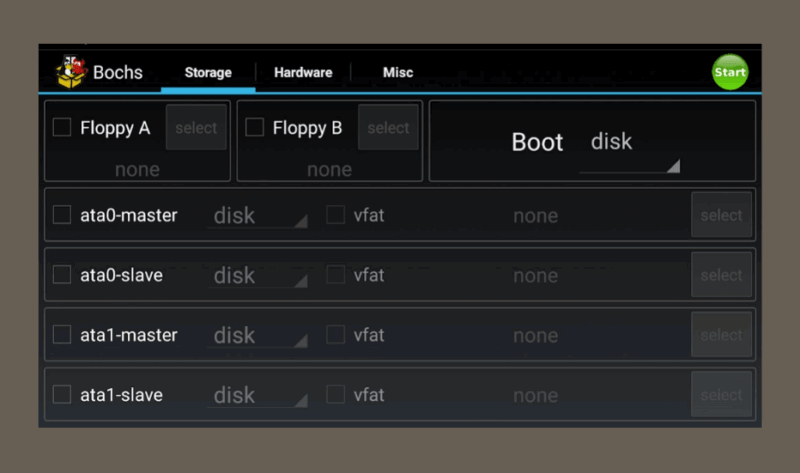
Despite being fine for lightweight or DOS-based games like Doom and emulating a full PC environment, it’s super slow. Think 5 FPS on a good day. Also, it requires Windows ISO and some complex setup skills to get it rolling. You need to fully commit if you’re thinking of using this emulator. Casual gamers will hate it.
You won’t be bothered by malware flags, as it’s available on official sources, like GitHub, so it’s safe. Besides the free price tag, only the die-hard gamers who love a tinkering challenge will find any success with this emulator.
Best Emulator for Casual Gamers: Limbo PC Emulator
Limbo is another free Android emulator for Windows games based on QEMU. It’s designed to run basic Windows setups, is super lightweight and performs best on low-end devices.
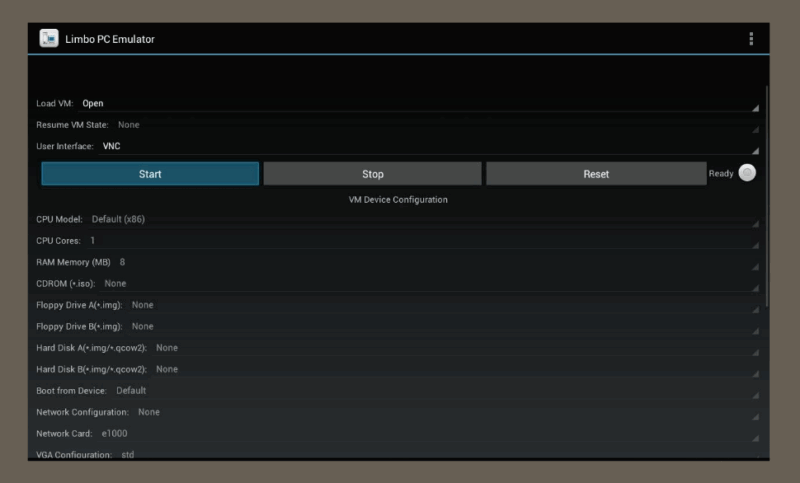
Do you want to play simple games like Minesweeper or older point-and-clicks? Limbo is perfect for you. However, it’s painfully slow for anything beyond that. Also, Limbo doesn’t support native gamepads and demands some tech know-how to set up.
Malware is probably your least concern if you download from official sources: performance is your largest concern. You’ll love this emulator if you’re a casual minimalist or just looking to experiment. Serious gamers looking for a gaming powerhouse will hate it.
Tip: use Genymotion to run Android apps and games on your desktop.
Best Emulator for Tinkering: Wine for Android
Wine for Android is a free, open-source compatibility layer that lets you run Windows apps and games without emulating a full OS.
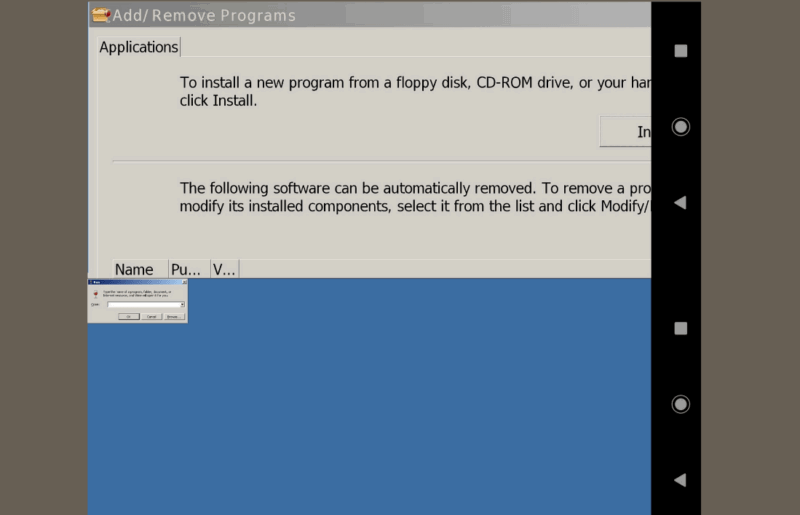
It’s lighter than Limbo and Bochs but supports a decent range of older Windows games, like Age of Empires II. Also, it doesn’t need a virtual machine, which means less overhead.
However, setup is a pain, with sideloading APKs and manual tweaks. In addition, newer titles often tank, and it doesn’t have built-in controller support.
Download Wine from official sources, like WineHQ or F-Droid, to dodge malware: shady downloads are a no-go.
Wine for Android is a solid choice for tinkerers who want direct game access but skip the full system emulation that comes with other plug-and-play options. Check out the steps to run Windows apps on Android with Wine.
Is It Worth It?
Here’s the deal: tools like Winlator and Wine show that playing older PC games on Android is possible without spending a dime. Portability is also a plus, without carrying around a console/PC. But modern games stutter or fail, setups can feel like rocket science, and compatibility is a coin toss.
For retro fans with patience, give it a go. For most, though? Android’s native games or cloud gaming like Xbox Game Pass are better with less stress. But if playing Windows games on your Android is important to you, the ones mentioned here are your best bet.
If you want to flip the script and run Android on your PC, try this selection of the best Android emulators for Mac and Linux.
Image credit: Unsplash. All screenshots by Henderson Jayden Harper.