If you open LinkedIn and can’t find anything useful or relevant, it could be time to customize your LinkedIn feed so that it’s more beneficial. Unliked most social media sites, LinkedIn’s algorithm actually does want to show you the best content for your needs.
Follow or Unfollow Users
The simplest way to customize a LinkedIn feed is to carefully choose who to follow. Only follow users and brands that fit with your niche and interests. The goal of LinkedIn is professional networking. Curate your network to optimize career opportunities and connect with like-minded people in your industry.
LinkedIn offers a discovery hub to find people related to your industry and interests. I’ve found dozens of users to follow this way.
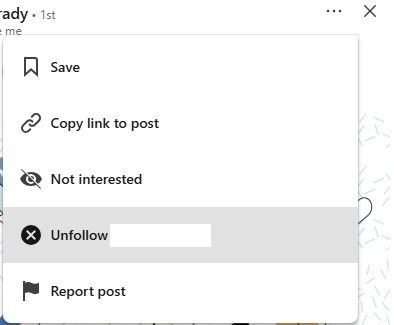
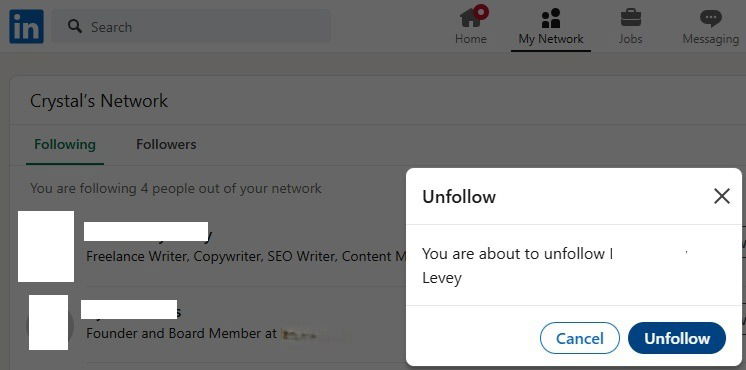
If you’re seeing too much irrelevant content, unfollow users. Do this directly from your feed by right-clicking the three dots on a user’s post and selecting Unfollow. If they’re particularly frustrating, block them. Please note that all steps that follow focus on the desktop version of LinkedIn.
I’d highly suggest going to the Following screen if you need to unfollow numerous people. Select My Network at the top of the screen, choose Following and followers, then Following beside any user and confirm you want to unfollow them.
Increase Your Engagement
Do you tend to endlessly scroll without liking, sharing, or commenting on anything? LinkedIn has no clue what content is most important to you unless you interact with something. Otherwise, you’ll just see posts from users you follow, along with posts they interact with.
Take a moment to engage with the types of posts that are most relevant to you. After a few weeks, you’ll notice your LinkedIn feed catering more to your interests. Additionally, commenting helps introduce you to a wider network of users.
Say You’re Not Interested
I have users I follow on LinkedIn, but I’m not always interested in all the content they post. All I have to do is tell LinkedIn I’m not interested in a specific post. This lets the algorithm further customize my LinkedIn feed to what I want to see most.
Use the three dots above any post and select Not Interested. Then, state why you’re not interested from the list that appears. I usually choose that I’m not interested in the topic if I want to still see posts from that user.
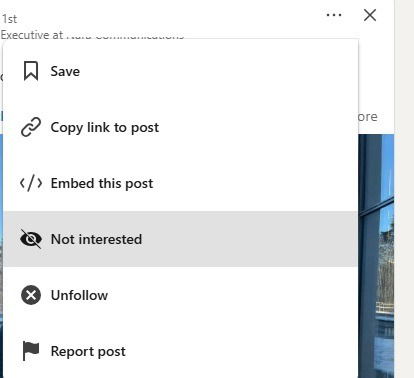
Make sure you do this on Suggested posts especially. These are posts LinkedIn suggests outside of your network of followed users and connections.
Disconnect From Users
It’s a common misconception on LinkedIn that connections and followers are the same. However, connections are users you’re directly connected to. This is kind of like friends on Facebook. A potential connection must approve the request before it’s official.
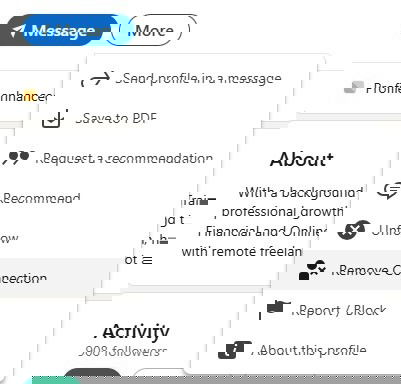
You’re free to follow anyone you want. But, when you connect with someone, you also start following them. If you want to completely disconnect from them to clean up your network, open the user’s profile, and select More -> Remove connection.
You can also go to My Network -> Connections. Select the three dots beside a name, and select Remove Connection.
This is also useful if you’re reaching your connection limit on LinkedIn.
Get Involved in Groups
In trying to customize my LinkedIn feed, I started joining relevant groups. This signals to LinkedIn the type of content and interests that are most important to me. Within a few days of being active in three groups, I noticed a major change in what I saw in my feed.
The bonus is I also made new connections and found new people to follow. Of course, this further optimized my feed. Remember, only join groups you’re truly interested in, and try to be active. You can only be a part of 100 groups at any given time.
Sort Your Feed
One of the most annoying things social media networks do is sort feeds by what the algorithm thinks is most relevant. This means I often miss the latest posts from users in my feed that aren’t quite as popular as others.
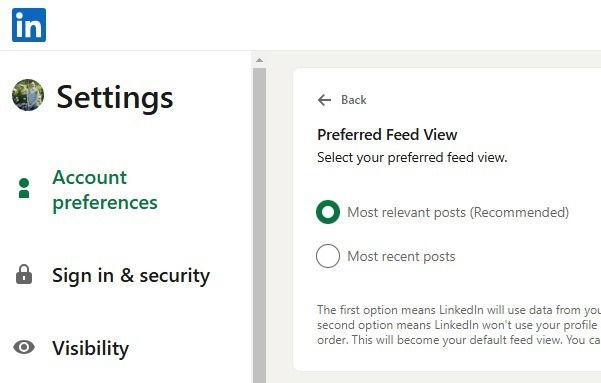
By default, LinkedIn sorts your feed by Most Relevant. I personally prefer Most Recent to see posts in order. However, you’re free to change your preferences at any time. Select your profile icon at the top right, and select Settings & Privacy. Choose Preferred feed view from the Account preferences section.
Then, select the type of view you want. This saves immediately.
Share Relevant Content
One of the easiest ways to customize a LinkedIn feed is to share relevant content. Want to see more content about AI development? Post your own updates or questions about it to start conversations. LinkedIn looks at keywords in the posts you create and share, along with posts you interact with to better understand the types of content you want to see.
Optimize Your Profile
LinkedIn initially offers recommendations based on your profile. From past work history to your skills, your profile influences your feed. Carefully review and optimize your profile to make your interests and history clear. Plus, a great profile attracts more connections and job offers.
Take Courses
This is the only premium method I’ve listed to customize your LinkedIn feed. While only LinkedIn Premium includes courses, many businesses offer employees free courses, so take advantage if you can. Taking relevant courses in your industry or niche sheds more insight into your professional goals. LinkedIn then suggests more content in those areas.
Overall, it can take several weeks to a month to get your LinkedIn feed where you want it. My recommendation is to regularly evaluate your feed and perform the above tasks to keep the feed as relevant as possible. If you’re a YouTube user, know that you can optimize your YouTube recommendations as well.
Image credit: Unsplash. All screenshots by Crystal Crowder.