WhatsApp users can simultaneously use a single account on two or more phones or tablets, known as the “Companion Mode.” Whether you wish to replace your device or pick up from an ongoing chat, the WhatsApp Companion Mode offers convenience and flexibility.
What is WhatsApp Companion Mode
The WhatsApp Companion Mode is a multi-device access feature introduced by WhatsApp.
It requires a minimum of two devices: a primary device with an active WhatsApp account. and one or more companion devices where the account has been set up. This means all your messages and chat histories will smoothly transfer from the primary to companion device(s).
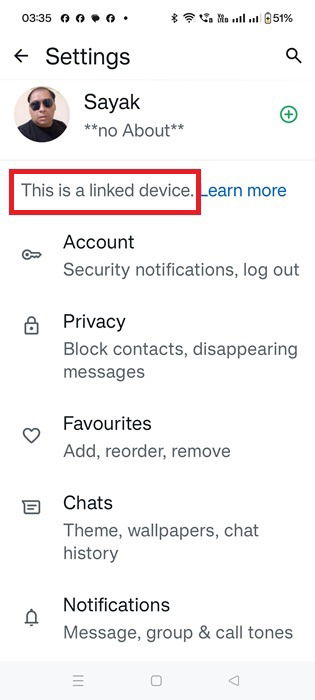
When you visit the WhatsApp app Settings page on the companion device, it displays a status indicating: This is a linked device. All messages are end-to-end encrypted, ensuring that each device’s chat history, although the same, remains secure separately.
Each time a companion device connects to the internet, its WhatsApp app will display all the latest messages, regardless of whether you’ve logged out from WhatsApp on your primary phone. At this point, your account is no longer tied to a single device. This only lasts for 14 days by which you need to sign back in.
You may use WhatsApp Companion Mode on up to four devices. They may either comprise Android phones and tablets, or iPhones and iPads. Obviously, you cannot use the same WhatsApp account on both iOS and Android.
Use WhatsApp on Two or More Phones (or Tablets)
We will explain how to enable Companion Mode in WhatsApp to have up to four independently linked devices.
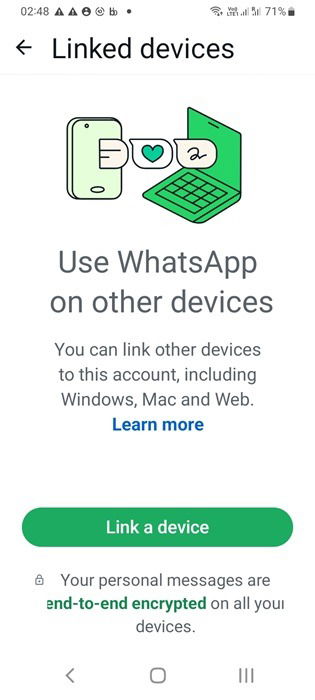
It all starts with your primary phone on which you have a WhatsApp account. On Android, click the three-dot menu followed by Linked devices -> Link a device. iPhone users must choose Settings -> Linked devices -> Link device.
Next, you need to install WhatsApp on a new phone, either Android or iOS. Here you must select your language and click Agree and Continue.
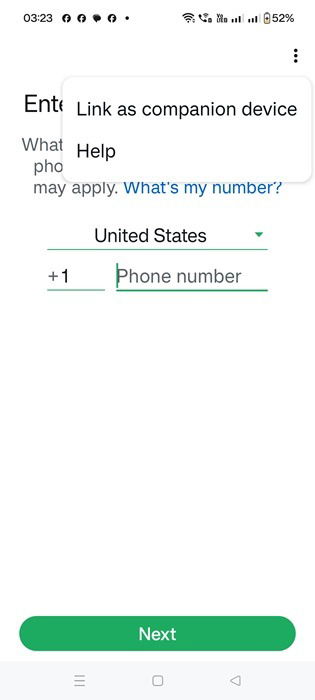
On the next screen, it will prompt you to enter your phone number. Don’t do that. Instead, tap the three-dot menu and select Link as companion device.
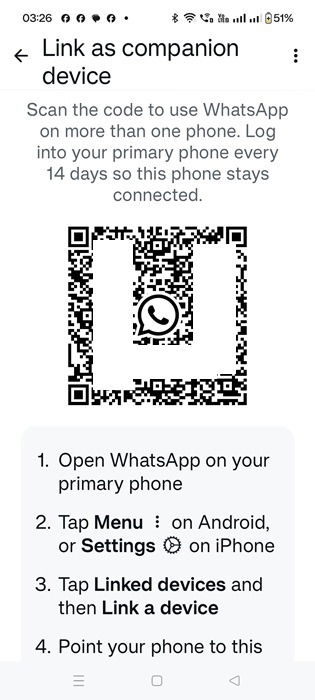
This would display a QR code for the companion device. Now it’s a simple task of capturing the QR code using your primary phone camera.
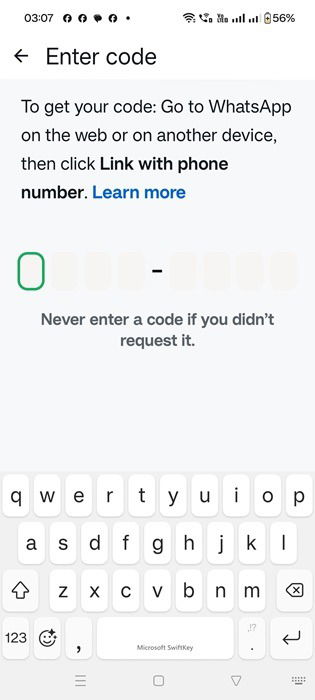
If you’re not a fan of QR codes, there’s another way to connect the primary and companion devices. Click Link with phone number instead on the primary device. You will receive a numeric code from the companion device.
For your primary phone, you will be able to see the active device that was added. This indicates that your WhatsApp account transfer is complete. My companion device is an Android 14 phone. It shows Active status. On top of this, I can add two more companion devices here by clicking Link a device.
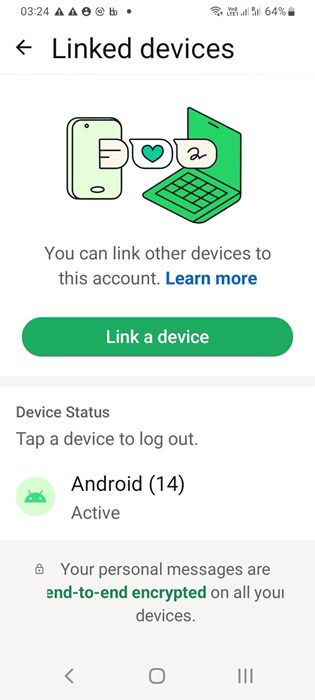
Important: if there’s another WhatsApp account on your companion device, take a backup of its entire chat history before linking it to the primary account.
Disabling a WhatsApp Account on Companion Devices
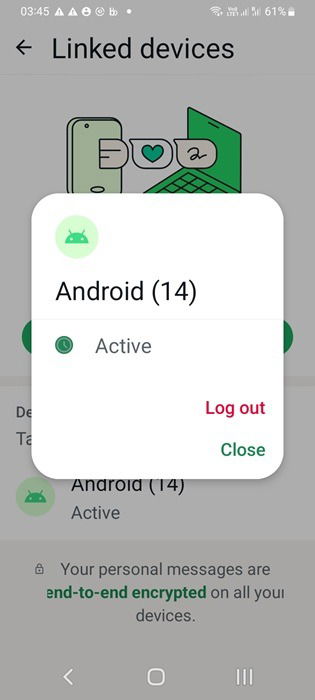
To disable your WhatsApp account on the companion devices, go to your primary device’s Linked devices page. Tap on any of the Active devices which will open a pop-up screen. Here, you can click Log out to disable the secondary device temporarily (or for good.)
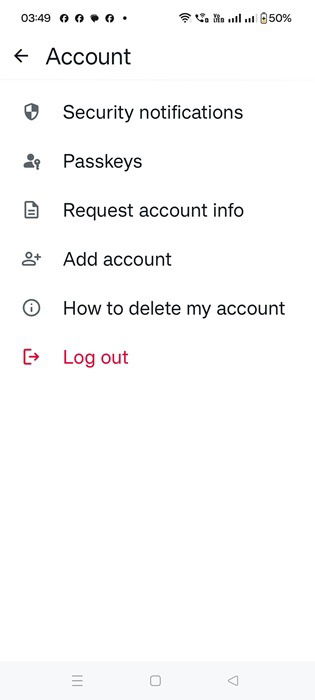
Alternatively, you may sign out from the companion device. Go to its Account page and follow it by clicking Log out.
You’ll now see a status on your companion device which says You have been logged out. All your chat histories will vanish, which is the best way to remote wipe all your data distantly.
Do not worry: this is a security mechanism to prevent misuse. To load your messages on any secondary device, you just need to enable your primary WhatsApp account once again. It’s not possible to delete your WhatsApp account on a companion device. You have to go back to the primary device.
Related: do you lack a WhatsApp even though it’s the most common app worldwide? You’re not alone as there are many reasons to avoid using it.;
Benefits and Disadvantages of Using WhatsApp on Two or More Phones
WhatsApp is one of my preferred text apps. I use it frequently to communicate with a lot of people. We learned how to use it on two or more phones in Companion Mode. There are many advantages of this.
- You don’t have to always carry your main phone: using a companion device frees me from having to carry my primary phone everywhere. It helps minimize the risk of loss, theft, or damage due to rain, dust, and other elements.
- Reducing the exposure of your WhatsApp account: I can remote wipe my companion app on another device. To maintain this privilege, I only need to log in to my primary WhatsApp device once every 14 days.
- Your contacts need not know of your additional devices: all your WhatsApp devices work simultaneously, and your phone number doesn’t change. Your chat recipients and contacts won’t feel any difference.
- Enhanced customer support: WhatsApp is extensively used for customer chat support. If you’re a small or medium business, you can hire a total of four agents to operate the sane account on different devices.
Function wise, the Companion Mode is very different from WhatsApp on the Web, or WhatsApp on Windows/Mac desktops. It ensures your WhatsApp account is “always on”‘ no matter the device. The remaining methods require you to regularly sign in to your primary phone for your messages to sync.
There are a few restrictions and disadvantages of this feature. Since you have to sign in once every 14 days on a primary device, if it gets lost or stolen, your WhatsApp account cannot recover. However, you can at least take a backup of your prior chat histories on Google Drive.
While you’re doing it, keep your guard up about these common WhatsApp scams.
Image credit: Pixabay. All screenshots by Sayak Boral.