Almost every user faces problems in Windows at some point. However, it’s not always the software’s fault – hardware issues can also have similar symptoms. If you are having trouble distinguishing between hardware and software problems, this guide can help determine the cause.
Note: some signs and diagnosis steps may apply to both software and hardware problems. For clarity, we’ve organized them under the category where they most commonly occur.
Signs of Software Problems
Any problem that occurs in Windows can be attributed to software, but it’s not always the case. However, some signs only appear when the problem is software related. If you notice the following signs, there is a good chance it’s a software problem.

Individual program crashes: if a specific app is crashing – like Microsoft Word or Chrome – and other apps run fine, it’s probably a software issue, like compatibility conflicts, corrupted files, or bugs in the program’s code.
Full system crashes with warning: while there are many software and hardware reasons for system crashes, the software problems are usually accompanied by errors. If you see a BSOD or an error like “Critical Process Died” before the system crashes, look for software causes.
Error messages: most error messages are related to software, as hardware issues are unexpected and show symptoms without an associated error. Of course, some inevitable hardware issues, like heated or failing hard drives, can generate error messages, but most errors are generally software-related.
Problems that occur right after an update: updates are often problematic. If a problem occurs right after an update, like Windows, drivers, or an app update, it’s software related.
Malware or virus symptoms: malware is malicious software, so any symptoms suggesting you have been infected is a software issue. Common malware signs include sudden slow performance, unauthorized installation of programs, disabled security apps, etc.
Methods to Diagnose a Software Problem
If you notice any of the above problems, there are many ways to confirm it’s a software issue and pinpoint the cause. Below are some of the more common ways to know that you’re looking at a software problem instead of a software-related one.
Search for the error online: since most software-related issues are accompanied by an error message, and you can search for the details online, though you may get better details and solutions if you ask an AI chatbot.
Boot in safe mode: for bigger problems like Windows not starting or a third-party program issue, booting in Safe Mode can confirm it’s a software issue. Access Safe Mode from the Windows Recovery Environment by going to Troubleshoot -> Advanced options -> Startup Settings. If your PC boots fine into Safe Mode, it’s probably a software issue due to drivers, third-party apps, or system files.
Check event viewer logs: Windows Event Viewer can give a lot of information about errors and problems you face in Windows. Even if you don’t see an error, Event Viewer may have recorded the cause of the problem.
Search for “event viewer” in Windows Search and open it. Open the Windows Logs folder to find the record under the Application or System events.
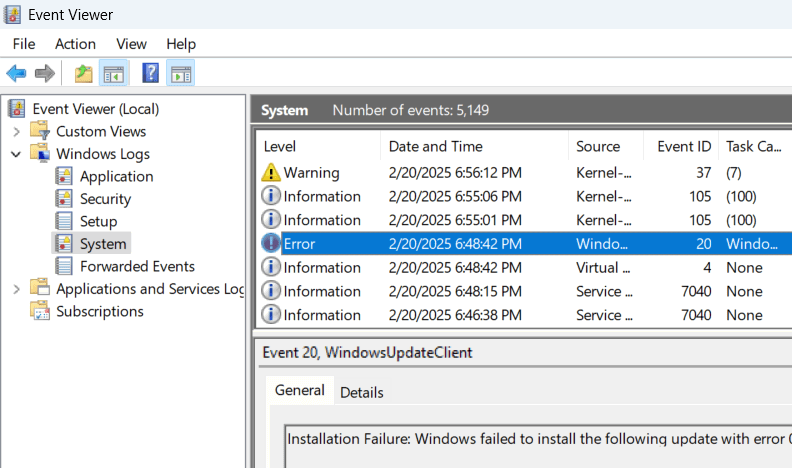
You need to look for entries with the level Warning or Error around the time you faced the problem.
Fix corrupted system files: for software-related crashes or unexpected app errors, corrupted system files are usually the cause. Thankfully, you can easily fix this by running SFC and DISM scans. Learn how to fix corrupted system files.
Update the system: outdated Windows and drivers are another common cause of unexpected software problems. In Windows Settings, go to Windows Update and click on the Check for updates button.
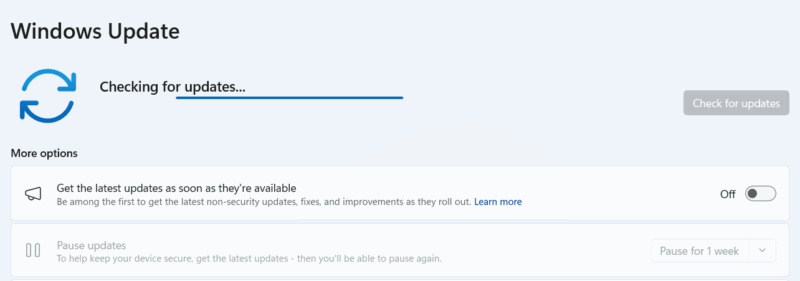
While Windows updater also downloads the latest driver updates, it often fails to get all the drivers. For main components like a GPU, network adaptor, or storage controller, download the driver manually from the official website or use a third-party driver updater like SDI Origin.
Run a full system scan for malware: if you notice any of the malware symptoms discussed above, getting rid of the malware is your best bet to confirm it was the issue. While you can remove malware, even without an antivirus, the easiest option is to run a full system scan with an antivirus program.
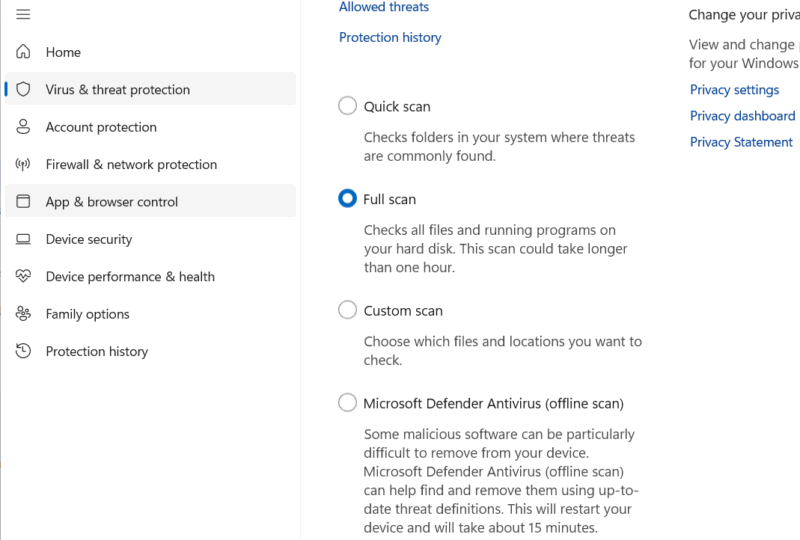
Search for “windows security” in Windows Search, and open the Windows Security app. Go to Virus & threat protection -> Scan options and run the Full scan. If you think your PC is infected by kernel-level malware, run the Microsoft Defender Antivirus (offline scan) to.
Reinstall Windows: it’s extremely rare for software problems to persist through reinstalls. If you are unable to locate the problem, reinstalling Windows should fix it. Try reinstalling Windows while keeping your data, and if that doesn’t fix the problem, back up your data and do a clean install of Windows.
Signs of Hardware Problems
Most hardware problems won’t even let you turn on the PC, but some may only appear while using the PC – especially in the early stages. The following signs, will show it’s a hardware problem and not the software.
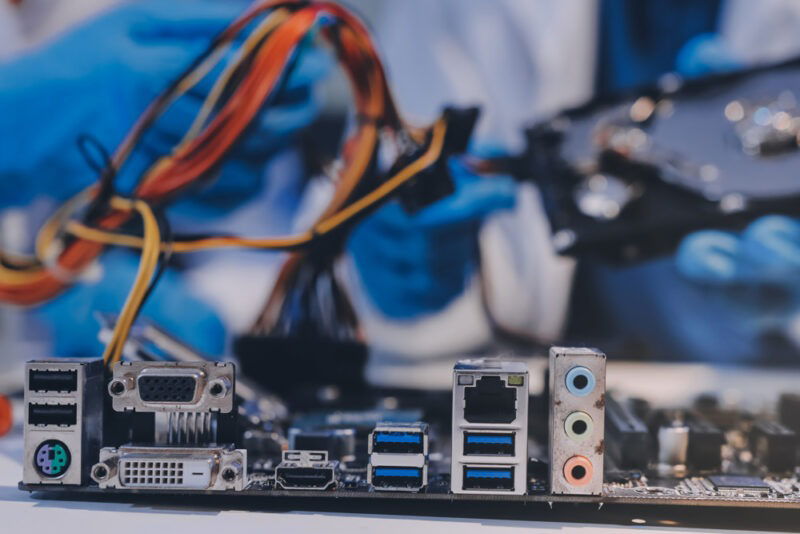
System not passing power-on self-test (POST): when you turn on your PC, it runs a POST to confirm critical components like RAM, GPU, CPU, etc., are working. If POST fails, you won’t see the manufacturer’s logo and will get beep noises or see a black screen.
Full system crashes without warning: if the whole system crashes abruptly without any warning/error, it’s probably due to a hardware issue, which halt the system usage without giving time to software to generate an error.
Display issues: system-wide display issues like glitches, artifacts, and black screens are usually related to GPU or monitor problems. While flickering could be a software issue, due to the way refresh rates work, it is a good indication of hardware problems rather than software.
Visible damage: open the PC case (laptops may need professional help) and look for any signs of damage. This includes burn marks, frayed/damaged wires, bulging capacitors, etc. If present, you’ll probably need to get it repaired/replaced (no diagnosis needed).
Heating issues: if your CPU temperature is consistently going above 90°C (194°F) or GPU above 100°C (212ºF), it means your hardware is having trouble managing component cooling needs. While some software tweaks can decrease temperatures, you’ll have to apply hardware fixes to completely fix heating.
System failure under load: if the PC crashes when you run something heavy, it’s usually a hardware problem. For example, the PC always crashes when you run games or heavy programs.
Methods to Diagnose a Hardware Problem
When diagnosing hardware problems, your options are a bit limited, as your PC either won’t turn on or Windows won’t show related errors. However, there are still a few ways to diagnose common problems before heading to a repair shop:
Use hardware diagnostic tools: if your PC still turns on, diagnose hardware issues with a tool that’s either built-in or a third-party hardware diagnostic tools that can monitor and test important hardware components. Many will automatically detect problems, but some may require understanding results.
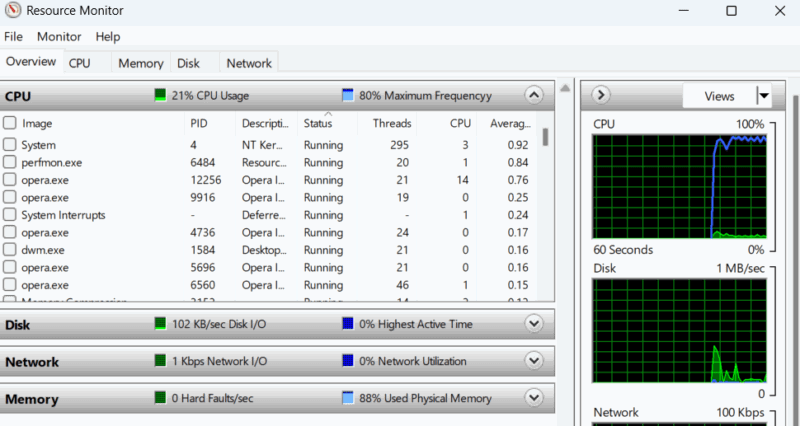
Check our top Windows Diagnostic Tools to find tools for all main PC components.
Inspect physical connections: even a single loose cable or component can prevent a PC from turning on. Unplug the power cable, open the case, and inspect each cable to make sure they are properly connected. For display-related issues, check monitor cables as well.
If everything is fine, try reseating both the GPU and RAM. Both of these often feel secure but still may cause issues. Just pull them out, clean the slots using a soft-bristled brush (or compressed air can), and set them back in firmly.
Stress test the system: if you are experiencing sudden crashes while using the PC, stress testing individual components can help find the cause. We recommend OCCT for stress testing, as it can stress test multiple components and report errors. RAM, CPU, and GPU can be tested individually.
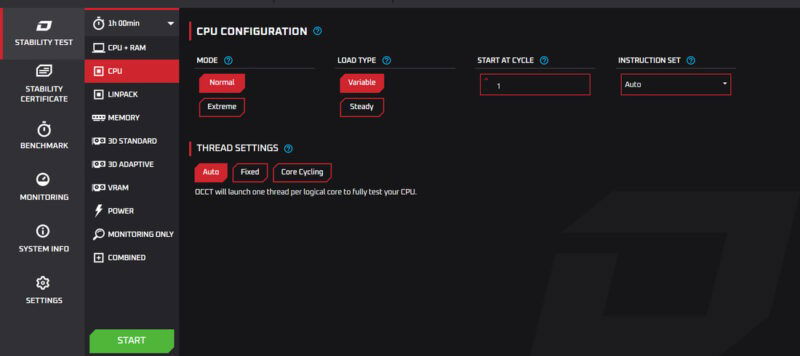
If none of these components are the problem, run a PSU test that stresses all PC components to find issues with the PSU. Learn how to use OCCT for stress testing.
Use a live USB: live USBs carry an OS that allows you to run it on any PC to repair or use a secondary OS without installing it. It can be great for diagnosing hardware issues, as it completely separates the system from the original OS and storage drive. If your system fails even when using a live USB, it’s surely a hardware problem.
While you can use a Windows live USB, we highly recommend a Linux live USB to rule out all possible problems associated with Windows. Make sure the PC is completely shut down, insert the live USB, and turn on the PC. It should detect the USB and run the OS if there are no hardware problems.
Knowing the difference between hardware and software problems can minimize your chances of wasting time aimlessly trying unrelated solutions and possibly making things worse. Sometimes issues are neither with Windows nor hardware and could be incorrect BIOS settings or a corrupted Master Boot Record.
Image credit: Freepik. All screenshots by Karrar Haider.