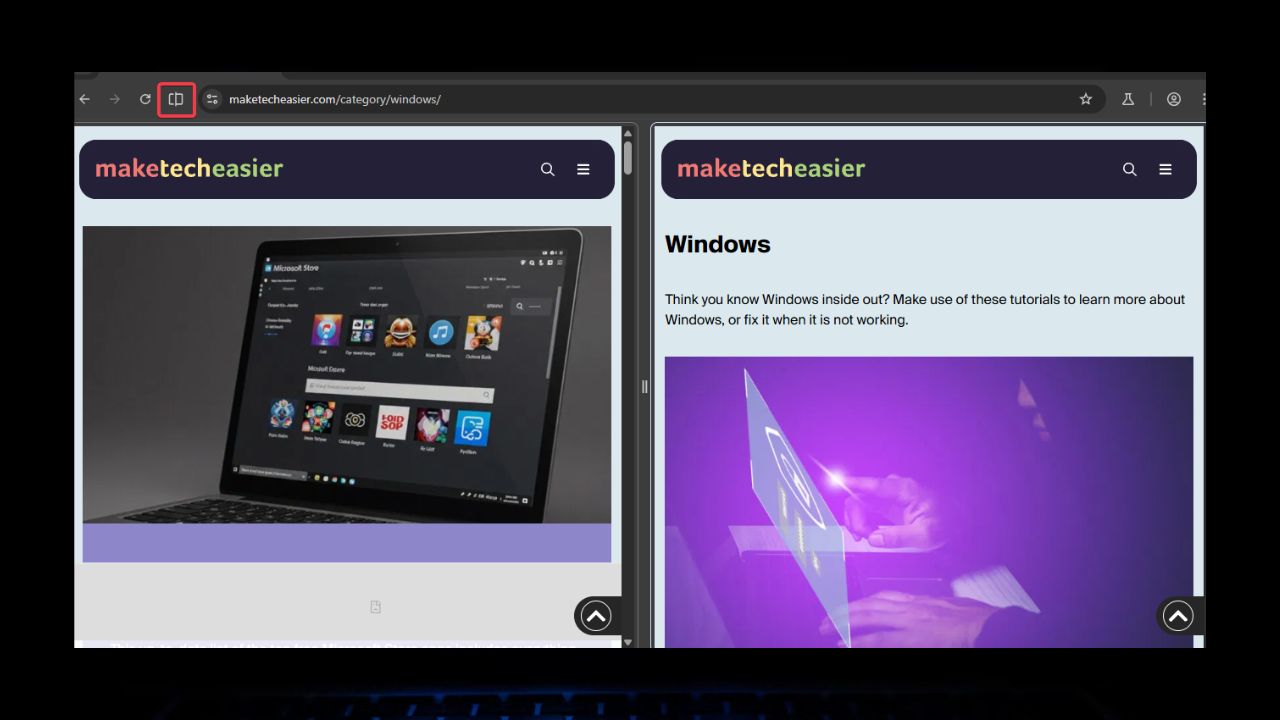
Ever get annoyed flipping between tabs? Say you’re researching with two tabs on, but you’re stuck swapping back and forth. Chrome Split Tabs Feature is here to save the day. It lets you split your screen, and see two tabs in one window without extra tools or an extension. Although raw, it is only in Chrome’s test version (Canary). I’ve got a scoop on how to try it. Let’s dive in!
How Does Chrome’s Split Tabs Stack Up to Edge?
Think of this new Split Tabs feature as Chrome’s response to Edge and Vivaldi’s Split Screen, but less polished. Hence, there is no more tab-flipping chaos as you can slap two tabs side-by-side in one window.
Right now, the Split Tabs is only in Chrome Canary, Google’s testing ground for new features. So, you won’t find it in your everyday Chrome yet.
While it’s meant to cement Chrome’s dominance, Edge browser’s Split Screen is still superior for now with its slick button to split tabs. Also, Edge puts your main tab on the left, while Chrome just cuts it even with no option to select from open tabs.
Overall, Edge is the pro for now, but Chrome Split Tabs could catch up when released to everyone.
Note: You can check out how to split screen on Edge and other browsers.
How to Enable Split Tabs on Chrome
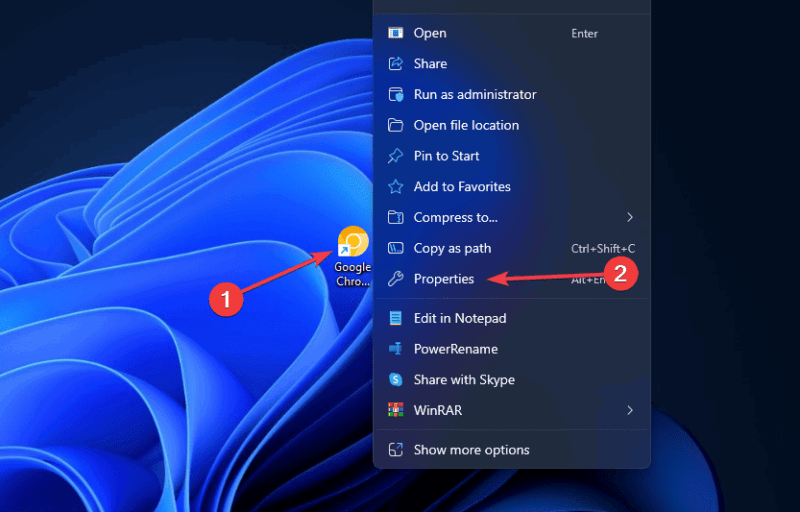
To start, you need to download Chrome Canary – it’s a different app, so your regular Chrome stays safe. Right-click the Chrome Canary shortcut on your desktop, and click Properties.
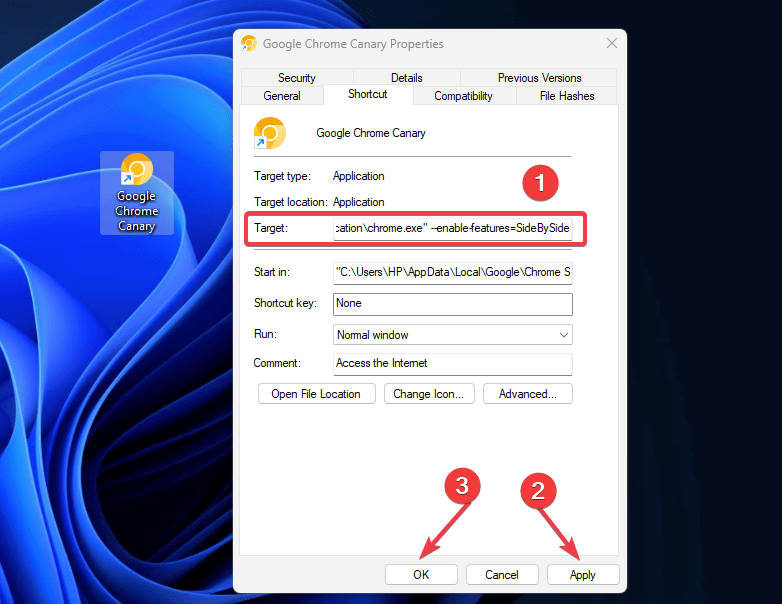
In the Target box, add a space, and paste the following: --enable-features=SideBySide. Then hit Apply and OK.
Restart the Canary shortcut, open multiple tabs, right-click one, and select Show side-by-side. Boom! Your screen splits.
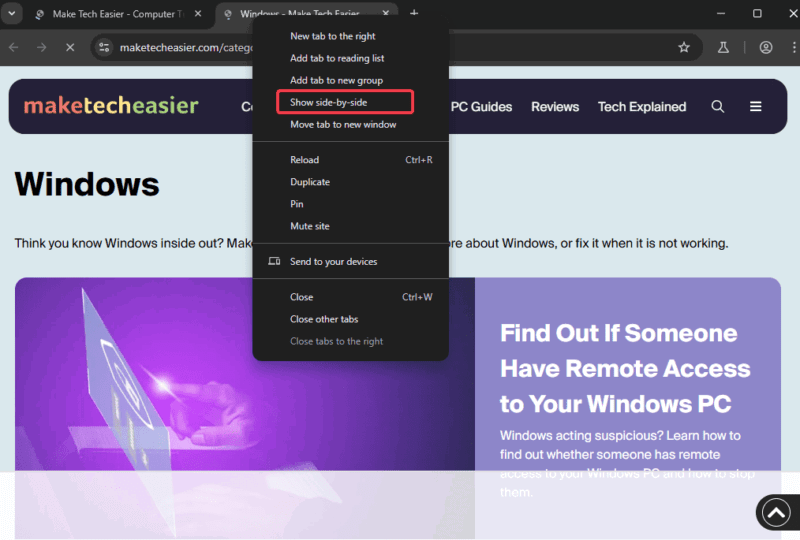
When you’re done, right-click again and select Exit side-by-side to return to the single tab view.
Heads up: You may experience glitches since it’s still experimental. So, don’t ditch your normal Chrome yet.
How to Use Split Tabs
Once the Chrome Split Tabs is running, you’ll notice a Split Screen button on the left side of the toolbar. This is particularly effective for grouped tabs.
Also, you can drag the center divider to resize tabs – make one bigger if you want. This feature is a game-changer for multitasking. Despite the clunkiness, it gets the job done. Try it for research, document comparisons, multitasking, and make it your own.
Want more screen-splitting tricks? Check out how to split screen on Chromebook or Windows 10.
When’s It Out for All?
As earlier stated, Split Tabs is still in Canary. Hence, no firm release date yet. However, if testing goes right, it might hit regular Chrome in 2025.
Competitors like Edge and Vivaldi took time to perfect Split Screen before release, so this is just an early-access perk for us curious types.
Chrome Split Tabs is still rough and a multitasking boost in the making. It’s Chrome’s flex to catch up with Edge and other browser’s split-screen without extensions. It’s a small tweak with potential that makes your browser feel twice as big. Give it a spin in Canary and drop a comment below on how it’s working for you.