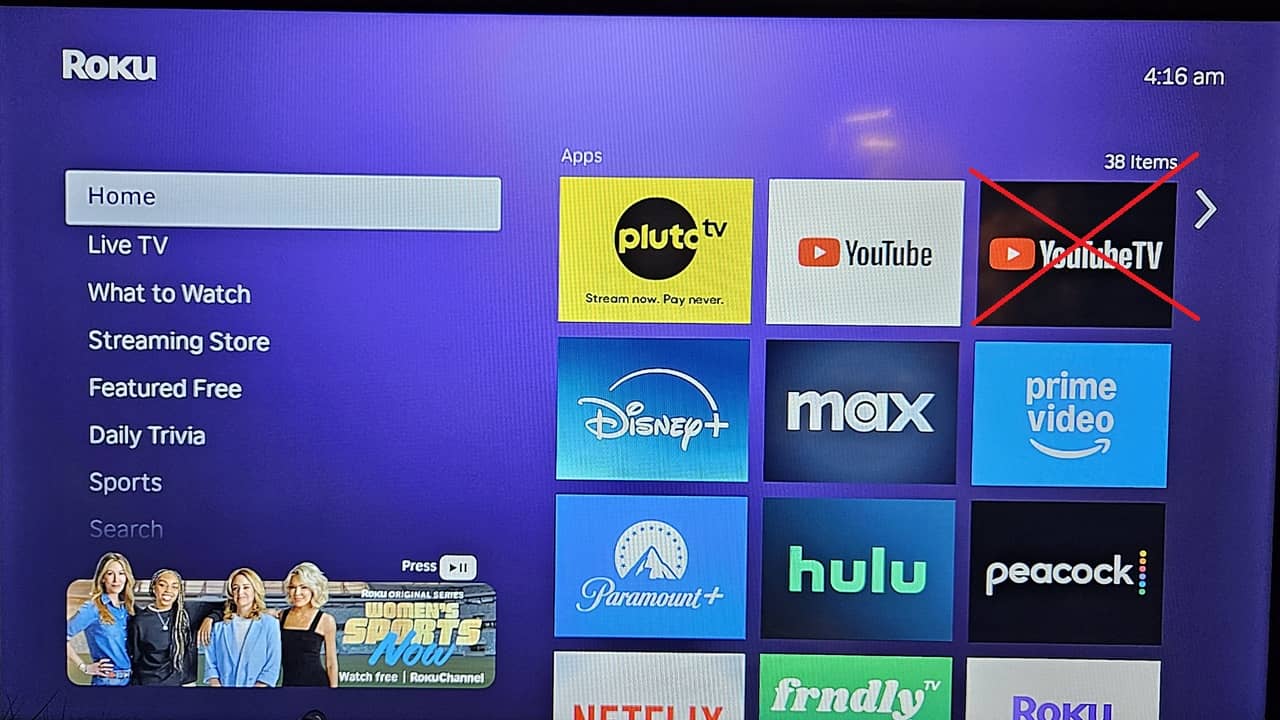
Did you start up your Roku device only to discover YouTube TV is missing? While you might think it’s another dispute between the two services, it’s actually a mysterious glitch. There are a few ways to restore YouTube TV on Roku if this happens to you.
Why YouTube TV is Disappearing
Neither YouTube TV or Roku have released any statement about why the app has disappeared for many users. It doesn’t appear to be tied to a specific Roku version or device type, either.
What makes users even more uneasy is when they try to re-install the popular TV streaming app, it’s not available. If this takes you back to when Roku and YouTube were feuding, you’re not alone. As someone who uses YouTube TV regularly, I didn’t want to have to switch because of a dispute. Thankfully, this is simply a glitch on the Roku device.
Update Roku Device
Simply resetting your Roku device doesn’t work. To restore YouTube TV on Roku, you have to update the device. While these usually update automatically, I’ve had several occasions where I had to perform a manual update to fix an issue.
Press Home on your Roku remote and select Settings in the left-hand menu. Select System -> Software update -> Check now. Your device may restart after updating.
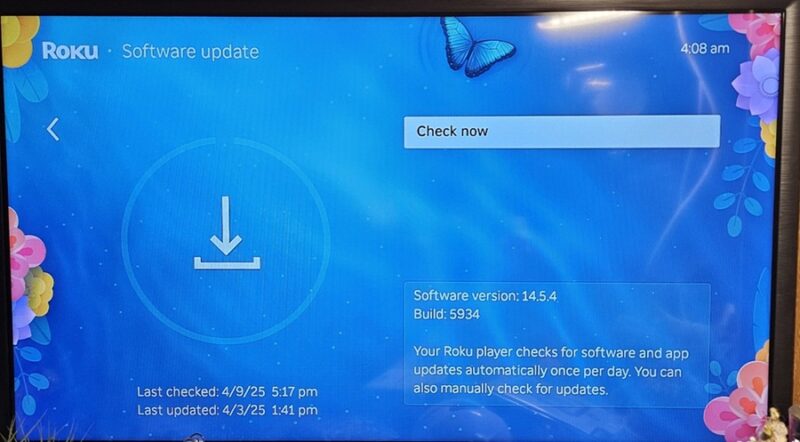
Check to see if YouTube TV has re-installed. If not, try searching for it to re-install it yourself. If it’s still not restored, you’ll have to temporarily resort to one of two less convenient options.
Access YouTube TV Via YouTube
As a workaround when Google and Roku were arguing, Google added a YouTube TV shortcut to the YouTube app. When I first started using YouTube TV, this was the only way to access it on Roku devices. Please note that you don’t need YouTube Premium to do this, just the free version.
Users aren’t having any issues accessing YouTube on Roku. So, if you don’t have it installed, search for it on your Roku device and install it. Then, log in using the same account you use with YouTube TV.
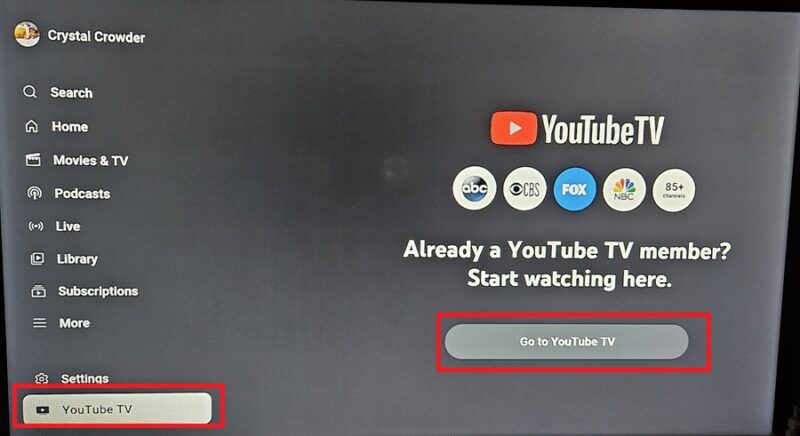
Open YouTube on your Roku and scroll down on the left side until you see YouTube TV. Select this and then choose Go to YouTube TV. This will restore YouTube TV on your Roku until either Google or Roku fixes the issue. I know having to open one app to get to another isn’t ideal, but it’s a quick workaround.
Cast YouTube TV to Roku
If you don’t mind streaming YouTube TV on your phone or tablet, just cast it to your Roku device. Install the YouTube TV app on your mobile device. Ensure your Roku is turned on and both devices are connected to the same Wi-Fi network. This won’t work if your phone’s on cellular data.
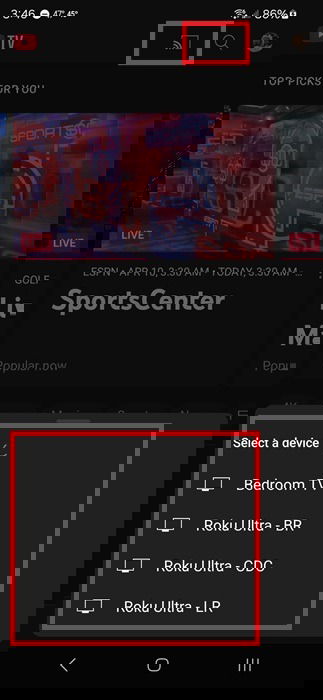
Open YouTube TV on your phone or tablet. Tap the Cast button at the top right and select a device from the list that appears. If this is the first time you cast to your Roku from this device, you’ll need to approve the connection on your TV.
Remove Excess Apps
While this only applies to a small percentage of Roku users, if YouTube TV’s disappeared and it’s still listed as available for you to install, you may get a Not enough memory error. If so, you may have too many apps installed and your device is out of space.
Press the asterisk button on your Roku remote on any app you no longer need and select Remove app. Clearing space may let you reinstall YouTube TV.
Reinstall YouTube TV
Another similar issue is the YouTube TV icon is still there, but if you try to open it, you’re sent back to the Roku home screen. Some users are having this version of the problem. If so, highlight YouTube TV and press the asterisk button on your remote. Select Remove app.
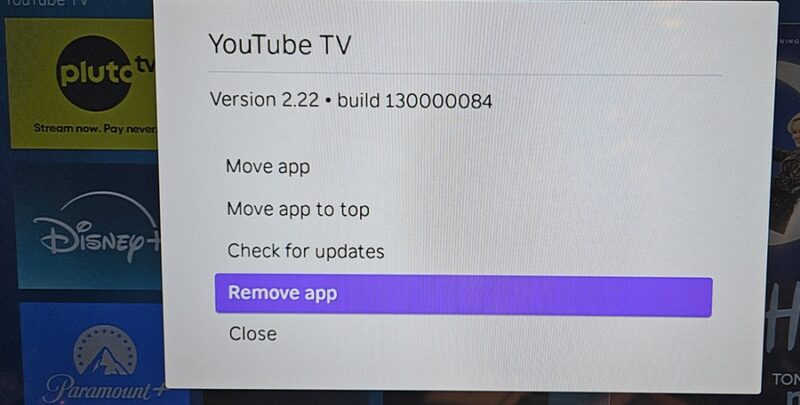
Then, search for YouTube TV again and reinstall it. For this simpler version of the glitch, this has worked for most users. If it’s still not working, try the other fixes above.
Purchase a New Roku Device
I only recommend this fix as a last resort. If you’re having trouble accessing apps other than YouTube TV, the problem may be with your Roku device. Most devices last between 3-7 years. If it’s an older device, it may need to be replaced.
Or, if your Roku device is on the Legacy List, Roku no longer supports it and it won’t receive new updates. This means you won’t be able to update to restore YouTube TV on Roku.
However, unless you’re having other issues, I won’t suggest replacing your Roku just yet. Roku typically pushes updates quickly when glitches are found. And, if this is an issue on Google’s end, Google will likely issue a fix soon.
Until the issue is official fixed, consider checking out other streaming services. Numerous premium and free services will keep you endlessly entertained.