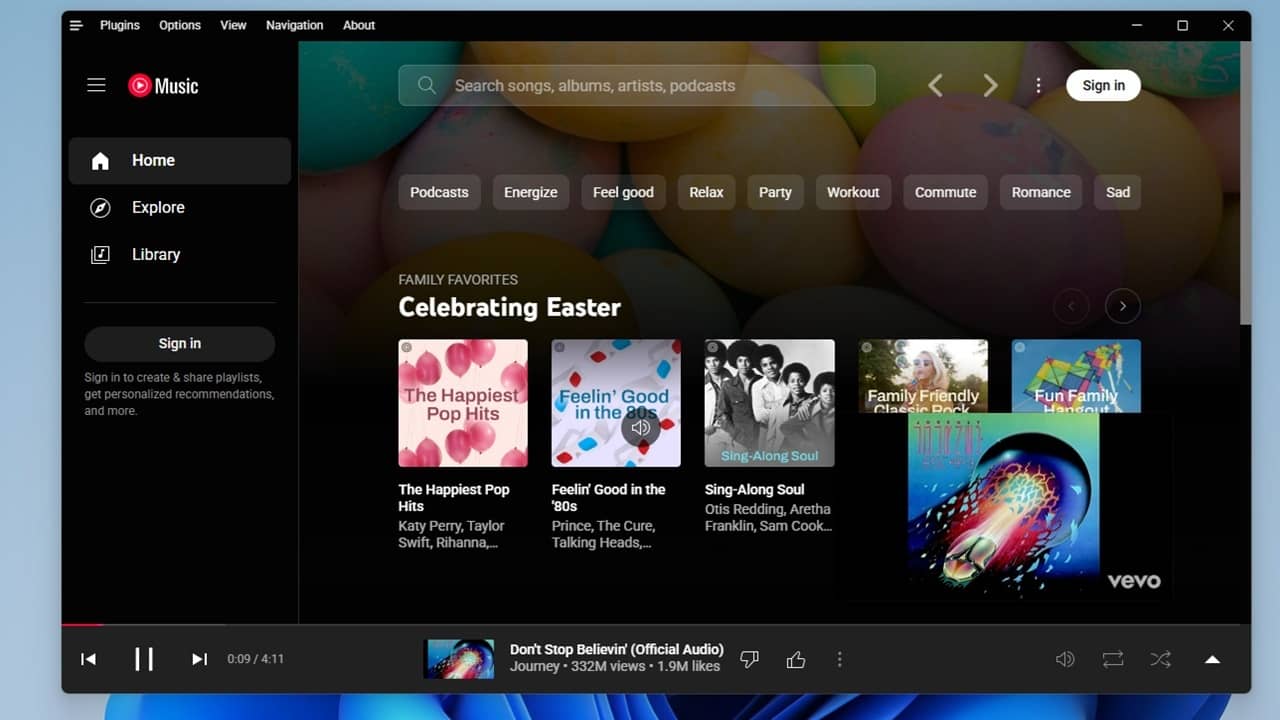
YouTube Music works well enough as a Spotify alternative, but it lacks one major feature – a dedicated desktop player. If you prefer an actual app over a web app, give the YouTube Music Desktop App a try and you might start to love YouTube Music.
Why Bother With a Desktop App?
I know you’ve gotten used to clicking a link on your desktop or just opening YouTube Music in your favorite browser. But, you’re then limited to your browser. Have a dozen tabs open and need to skip a song? Now, you’ve got to stop what you’re doing, find the right tab, and change the song or playlist.
And, something I’ve done quite a few times, I close the browser window (all tabs at once) and poof! My music’s gone and I have to start over. That’s why I typically listen to Spotify on my laptop thanks to the desktop player. No browser necessary. Though, now that I have this app, I can transfer some of my favorite Spotify lists to YouTube Music.
When I ran across the YouTube Music Desktop App, I was beyond thrilled. Not only does it let me play music, but it comes with an ad/tracker blocker, downloader, and numerous plugins to customize your experience.
Since it’s open-source and cross-platform, you’re also able to build your own plugins and share with the community.
The only downside for some users is it’s not an official YouTube Music app. Google has nothing to do with this, so if you only use official apps, this might not be for you.
Getting Started With YouTube Music Desktop App
The app is free and you just download the right version of your operating system from GitHub. I personally prefer the portable version for Windows since I can stick it on a flash drive to use on other PCs. But, a standard Windows version is available, along with releases for Mac and Linux.
As this isn’t an official app, Window did warn me that it might not be safe. I ran my usual checks (such as scanning the download URL on VirusTotal) before downloading to ensure the app was virus free. For Windows users, just confirm that you do indeed want to run and install the app.
In less than 30 seconds, I was staring at a desktop version of the YouTube Music web player. It has the same layout, so it’s familiar and easy to use.
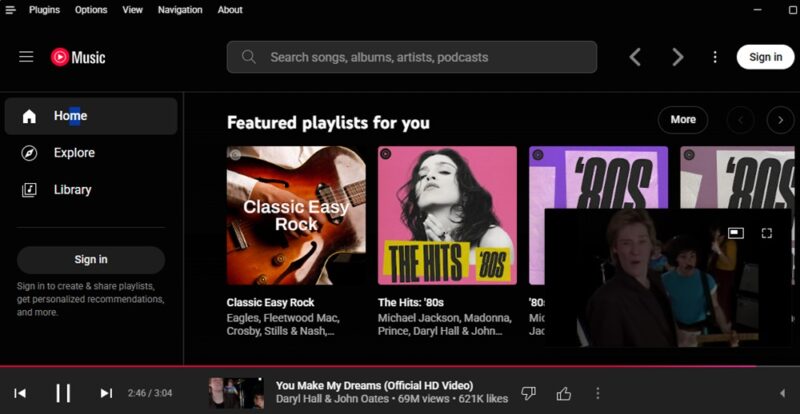
Just like with the web player or mobile apps, you don’t have to login to start using it. Of course, you’re limited to the features in the free version of YouTube Music, though after listening for over two hours, I realized I never encountered an ad. Just remember that the ads are what generates income for artists when you listen for free. It works the same with all legal free music streaming sites.
If you do have a YouTube Music Premium account, click Sign In at the top right to access all your saved songs and playlists.
Customizing Your Options
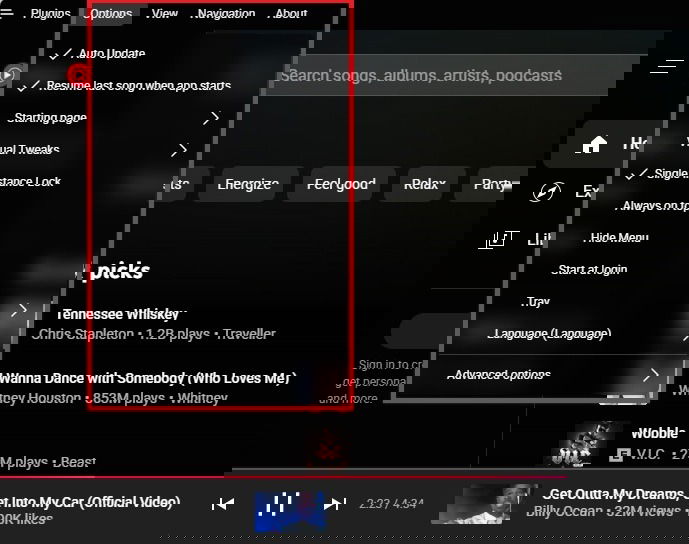
Before you get overwhelmed with all the plugins available, let’s take a look at some of the not-so-basic options for customizing the YouTube Music Desktop app. Click Options near the top left of the app. My favorite option is changing the Starting page.
Instead of sticking with whatever YouTube Music wants to display, you get to choose what you see first. I usually prefer Library so I can jump straight into my lists, though you will need to sign in first to view saved playlists.
Also, if you just want to open the player and have your music start automatically, make sure you turn on Resume last song when app starts. You can even toggle on Start at login to start YouTube Music when Windows boots.
Making Magic with Plugins
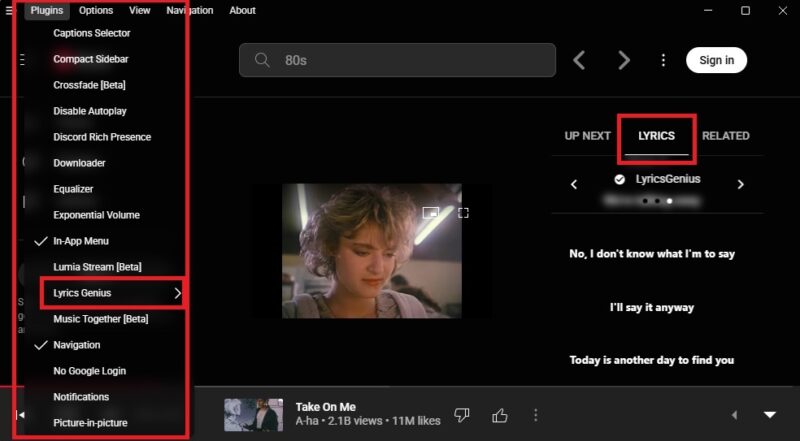
The real beauty behind YouTube Music Desktop App is the growing list of plugins. Click Plugins at the top left to view what’s available. You’ll usually need to restart the app for the plugin to enable. A few of the incredibly useful things you can do include:
- Ad Blocker – Enable/disable/customize the ad-blocker
- Captions – Add captions
- Discord Rich Presence – Show your friends on Discord what you’re listening to
- Lyrics Genius and Synced Lyrics – Adds lyrics to any songs that support it
- SponsorBlock – Skip those annoying parts of songs/videos that are silent or not actually part of the song
- Precise volume – Easily change the volume with your mouse wheel or hotkeys
- Video toggle – Switch between video and audio-only modes
- No Google login – Take away the Google login controls, which could be ideal for younger users
- Audio compressor – Evens out volume levels to avoid super soft or ultra loud moments
Now, this is just a partial list of what’s available. There are also ways to customize the player’s look and add effects, such as a visualizer or ambient background colors. View the full list, along with how to create your own, in the full project details.
I’ve only encountered a few glitches. The main one is sometimes after enabling a plugin and letting the app restart itself, the plugin doesn’t work. I have to manually exit and restart. And, occasionally, the app takes over a minute to startup. Otherwise, I’m finally getting more use out of the YouTube Music subscription that’s included with YouTube Premium.