I’ve always believed that computers should work for us, not the other way around. This was until I found myself spending countless hours on mindless tasks. This was until I started using artificial intelligence (AI) to effortlessly create PowerShell scripts for to automate my Windows tasks.
PowerShell 101: Task Automation for Windows
PowerShell is both a command-line shell and scripting language built into Windows that enables powerful system administration and automation capabilities, as Microsoft explains.
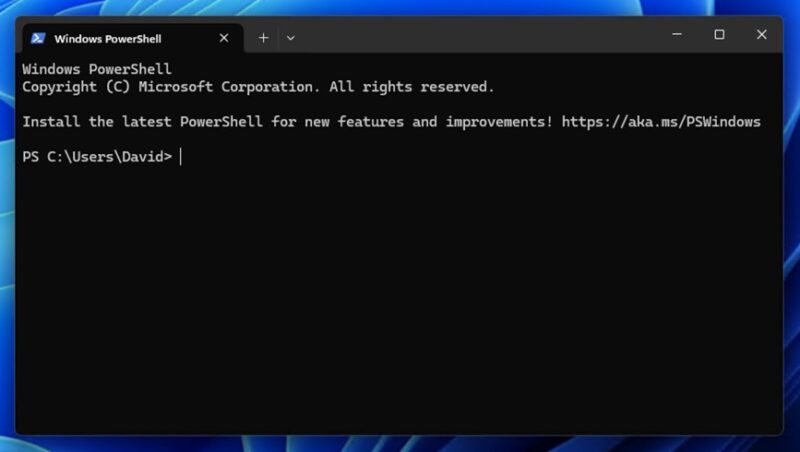
In practice, you can create scripts (self-contained files containing commands and instructions that can be executed automatically) that do everything from simple file operations to complex system management tasks.
There are countless ready-made PowerShell scripts online that can handle common tasks. For example, the PowerShell Scripts Repository contains over 500 free scripts for tasks that range from managing system settings to automating file operations. You can find scripts that check drive space, list installed software, and even organize photos by date.
But while premade scripts are useful, the true power of PowerShell is unlocked when you create custom scripts tailored to your unique needs, and that’s where AI comes in.
Using AI to Create Custom PowerShell Scripts
Let me explain how I create PowerShell scripts to automate taskks without actually knowing PowerShell, using AI on a practical example.
I recently recovered a bunch of data using PhotoRec from a failing drive. Unfortunately, I ended up with thousands of different files in a single directory, and going through them was a nightmare. To make things a bit easier, I wanted to automatically sort this pile of files into major categories, like images, audio, documents, and so on.
Instead of spending hours learning PowerShell syntax or searching for the perfect pre-made script, I turned to ChatGPT with a clear description of what I needed. Here’s how I prompted the AI:
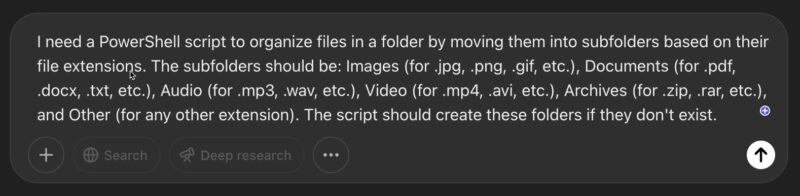
The key elements I made sure to include in my prompt were:
- What should happen with files that don’t match my categories
- The exact task I wanted to accomplish (organizing files by extension)
- The specific categories and file types for each category
Of course, I highlighted the fact in my AI prompt that my goal was to create a PowerShell script (as opposed to, let’s say, a Bash script) at the very beginning.
Within seconds, the AI generated this PowerShell script to automate tasks for me:
# Define the source folder as the current directory where the script is executed
$sourceFolder = $PSScriptRoot

# Define category folders and their associated file extensions
$categories = @{
   "Images" = @(".jpg", ".jpeg", ".png", ".gif", ".bmp", ".tiff", ".webp", ".svg", ".ico", ".raw", ".cr2", ".nef", ".heic", ".psd", ".ai", ".eps")
   "Documents" = @(".pdf", ".docx", ".doc", ".txt", ".rtf", ".xlsx", ".xls", ".pptx", ".ppt", ".odt", ".ods", ".odp", ".md", ".csv", ".json", ".xml", ".html", ".htm", ".log", ".tex", ".epub", ".mobi")
   "Audio" = @(".mp3", ".wav", ".aac", ".flac", ".ogg", ".wma", ".m4a", ".mid", ".midi", ".aiff", ".alac", ".ape", ".opus", ".amr", ".au", ".voc")
   "Video" = @(".mp4", ".avi", ".mov", ".wmv", ".mkv", ".flv", ".webm", ".m4v", ".mpg", ".mpeg", ".3gp", ".3g2", ".ts", ".vob", ".ogv", ".divx", ".asf", ".rm", ".rmvb")
   "Archives" = @(".zip", ".rar", ".7z", ".tar", ".gz", ".bz2", ".xz", ".cab", ".iso", ".tgz", ".tbz2", ".lzh", ".dmg", ".pkg", ".deb", ".rpm")
   "Code" = @(".py", ".js", ".html", ".css", ".java", ".c", ".cpp", ".cs", ".php", ".rb", ".go", ".swift", ".sql", ".ps1", ".sh", ".bat", ".vbs", ".ts", ".jsx", ".r", ".pl", ".lua")
   "Executables" = @(".exe", ".msi", ".app", ".apk", ".dll", ".bin", ".com", ".jar", ".gadget", ".wsf", ".appx", ".appxbundle")
   "Other" = @()
}

# Create category folders if they don't exist
foreach ($category in $categories.Keys) {
    $categoryPath = Join-Path -Path $sourceFolder -ChildPath $category
    if (-not (Test-Path -Path $categoryPath)) {
        New-Item -Path $categoryPath -ItemType Directory | Out-Null
        Write-Host "Created folder: $category"
    }
}

# Get all files in the source folder (non-recursive)
$files = Get-ChildItem -Path $sourceFolder -File | Where-Object { $_.Name -ne $MyInvocation.MyCommand.Name }

# Counter for moved files
$movedFiles = 0
$totalFiles = $files.Count

Write-Host "Starting to organize $totalFiles files..."

# Process each file
foreach ($file in $files) {
    $extension = $file.Extension.ToLower()
    $targetCategory = "Other"

    # Determine which category the file belongs to
    foreach ($category in $categories.Keys) {
        if ($category -eq "Other") { continue }
        if ($categories[$category] -contains $extension) {
            $targetCategory = $category
            break
        }
    }

    # Move the file to the appropriate category folder
    $targetPath = Join-Path -Path $sourceFolder -ChildPath $targetCategory
    $targetFile = Join-Path -Path $targetPath -ChildPath $file.Name

    # Check if target file already exists and handle accordingly
    if (Test-Path -Path $targetFile) {
        $baseName = [System.IO.Path]::GetFileNameWithoutExtension($file.Name)
        $newName = "$baseName`_$(Get-Random)$extension"
        $targetFile = Join-Path -Path $targetPath -ChildPath $newName
    }

    Move-Item -Path $file.FullName -Destination $targetFile
    $movedFiles++

    # Show progress
    $percentComplete = [math]::Round(($movedFiles / $totalFiles) * 100, 2)
    Write-Progress -Activity "Organizing Files" -Status "$movedFiles of $totalFiles files processed ($percentComplete%)" -PercentComplete $percentComplete
}

Write-Host "File organization complete! Moved $movedFiles files into categories."
As you can see, the entire code is nicely commented, so it’s actually possible to tell what individual parts are doing with relative ease, which is great if you would like to learn PowerShell and do manual tweaks yourself.
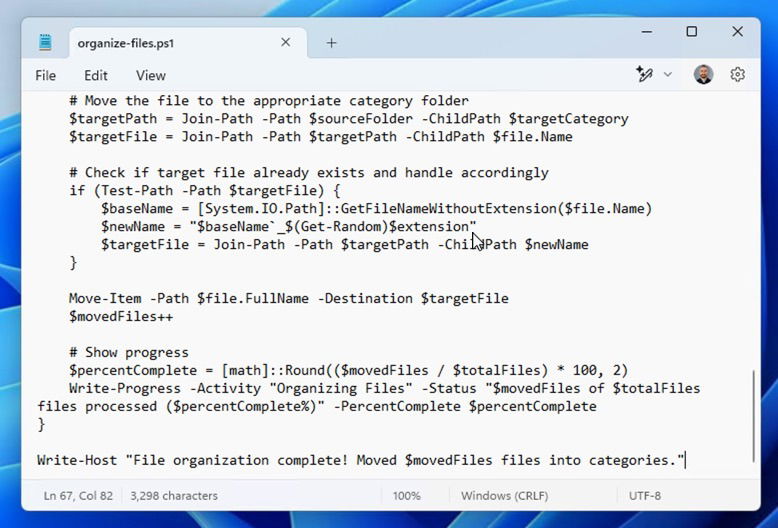
To turn this code into a usable script, I simply copied the entire code block from the AI chat and opened Windows Notepad (though any text editor would work fine).
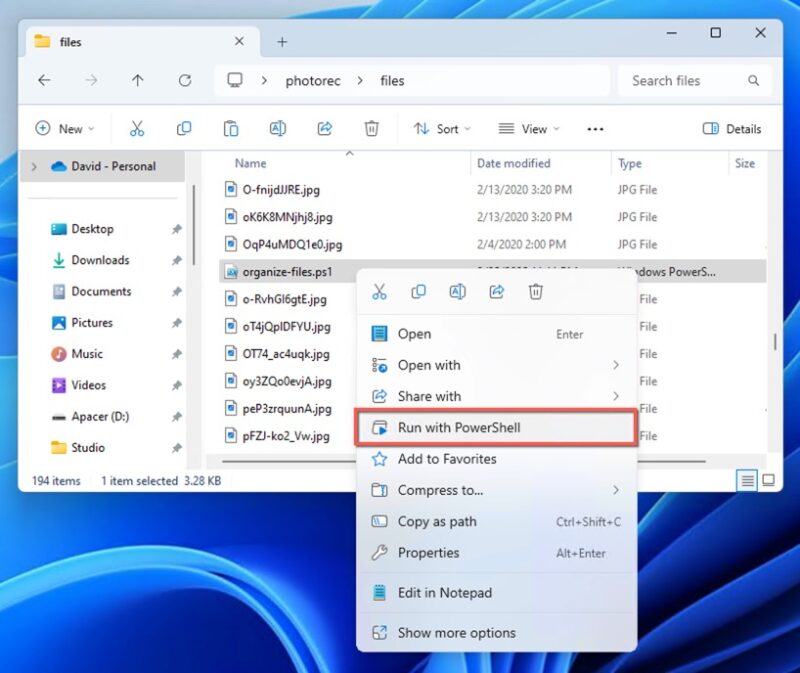
After pasting the code, I saved the file with a descriptive name and the .ps1 extension (like “organize-files.ps1”). I placed this script directly in the folder with my recovered files and ran it by right-clicking on the file and selecting Run with PowerShell.
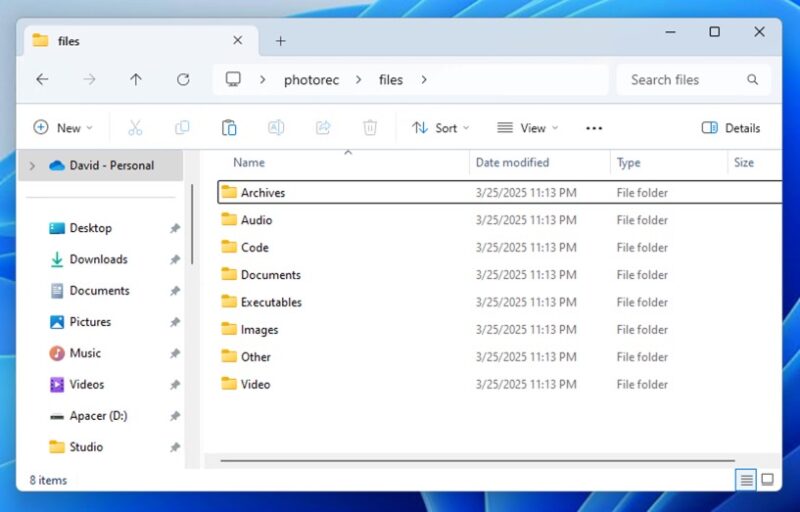
In no time, thousands of scattered files were neatly organized into appropriate folders.
Automating Your AI-Generated PowerShell Scripts with Task Scheduler
Even better than a useful AI-created PowerShell script is one that will automate your Windows tasks without you having to think about it!
I work on my computer for long hours, and I often forget to take breaks, which leads to eye strain and reduced productivity. I decided to create a script that would remind me to take screen breaks at regular intervals. Once again, I turned to AI with a clear prompt:

The AI quickly generated this eye-saving script:
# Script to remind user to take regular screen breaks

# Load required assemblies for notifications
Add-Type -AssemblyName System.Windows.Forms

# Function to show break reminder notification
function Show-BreakReminder {
    $motivationalMessages = @(
        "Time for a 5-minute break! Rest your eyes and stretch.",
        "Screen break time! Look at something 20 feet away for 20 seconds.",
        "Break time! Stand up and move around for 5 minutes.",
        "Your eyes need a rest! Take 5 minutes away from the screen.",
        "Productivity hack: A 5-minute break now will boost your focus!"
    )

    # Select a random message
    $randomMessage = $motivationalMessages | Get-Random

    # Create and configure the notification
    $notification = New-Object System.Windows.Forms.NotifyIcon
    $notification.Icon = [System.Drawing.SystemIcons]::Information
    $notification.BalloonTipTitle = "Wellness Reminder"
    $notification.BalloonTipText = $randomMessage
    $notification.Visible = $true

    # Show notification for 10 seconds
    $notification.ShowBalloonTip(10000)

    # Clean up after a delay
    Start-Sleep -Seconds 12
    $notification.Dispose()
}

# Display an initial notification
Show-BreakReminder

Write-Host "Break reminder displayed. Set this script to run hourly using Task Scheduler."
This script was exactly what I needed, but I didn’t want to have to remember to run it manually. Instead, I set it up to run automatically once an hour using Windows Task Scheduler.
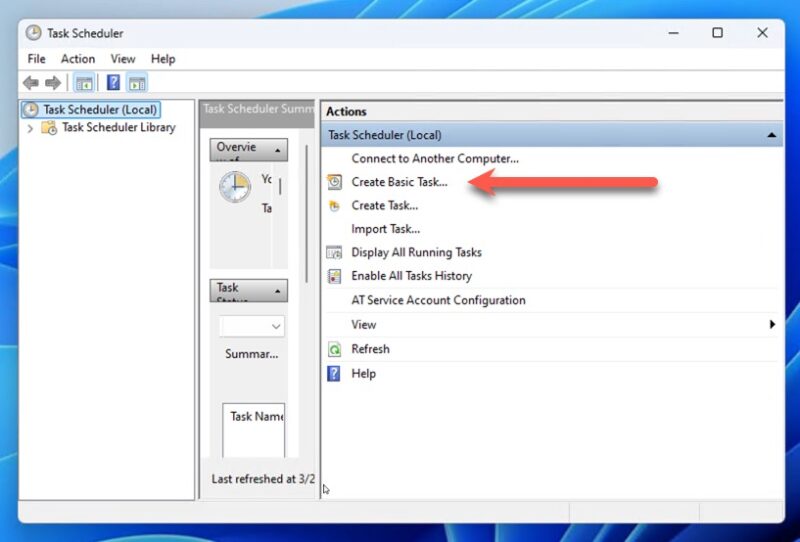
Again, I saved the AI-created PowerShell script as a .ps1 file, then opened Task Scheduler from the Start menu and created a new basic task with a daily trigger.
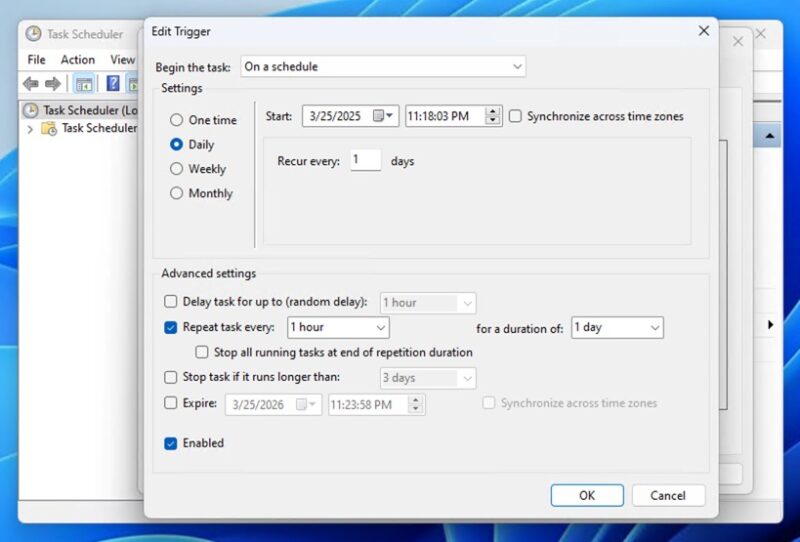
After creating the basic task, I needed to modify the trigger settings for hourly execution. In the Task Scheduler Library, I located my newly created task and right-clicked to select Properties. I navigated to the Triggers tab and selected Edit. In the Edit Trigger window, I checked the Repeat task every: option and set the repeat interval to 1 hour. Under duration, I selected Indefinitely, then clicked OK to save these settings.
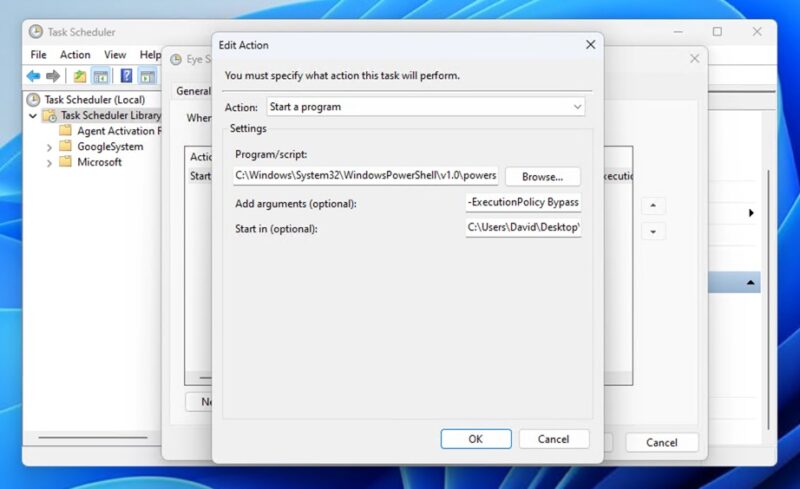
I also needed to properly configure the action settings. In the Properties window, I navigated to the Actions tab and selected Edit. For the Program/script field, I entered powershell.exe instead of the direct path to my script. In the Add arguments field, I entered -ExecutionPolicy Bypass -WindowStyle Hidden -File "C:\Users\David\Desktop\eye-saver.ps1", which includes both the execution parameters and the full path to my script.
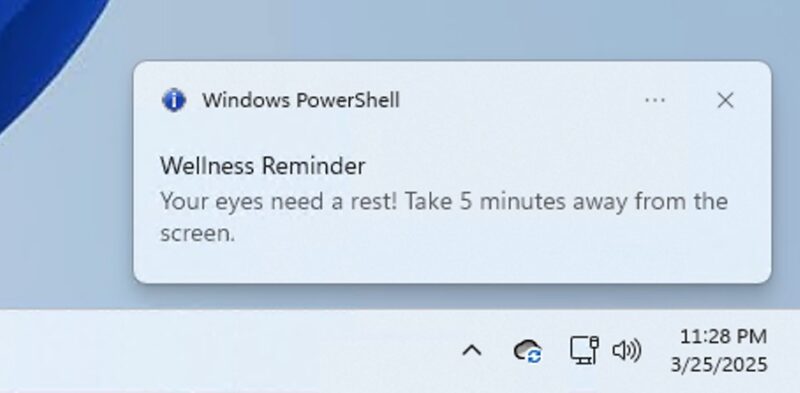
After making these changes, I clicked OK to save the action settings, then clicked OK again on the Properties window to finalize all changes. The result was worth the effort!
The beauty of this AI approach is that once you’ve set up a few automated tasks via PowerShell scripts, your computer starts working for you in the background, doing all those little helpful nudges that used to require you to remember or set external alarms.
If you’re interested in exploring more PowerShell capabilities for your automation projects, check out our guide to essential PowerShell commands that every Windows user should know. These commands form the building blocks of more complex scripts and will help you understand what’s happening under the hood of your AI-generated automation.
All images and screenshots by David Morelo.