Windows comes preinstalled with a lot of extra applications that you probably don’t use. They are often called bloatware. There are many debloating tools that you can use to lighten the operating system. However, they don’t always translate to a PC performance gain. We will explain why it’s a waste of time to debloat Windows 11, and why it’s better to use your new Windows installation as it is.
Table of Contents
- What Exactly is “Debloating” in Windows
- 1. Windows 11 Bloat May Not be as Bad as You Think
- 2. Uninstalling Windows 11 “Bloat” is Easier than Before
- 3. Uninstalled Applications are Reinstalled with Every System Update
- 4. Debloat of Windows 11: Very Little Performance Gain
- 5. The Negatives of Debloating: System Issues and Malware
- What to Do If Windows Accumulates Cruft With Time
What Exactly is “Debloating” in Windows
Debloating in Windows refers to any technique that uninstalls bloatware applications that were preinstalled in the Windows operating system. Additionally, it should remove their dependencies, such as binaries, folders, registry entries, background processes, and startup programs.
Currently, there are two widely used external methods to debloat Windows.
Debloat scripts
Many websites claim that you can uninstall Windows bloat completely by running a debloat script in PowerShell, or other terminal emulators.
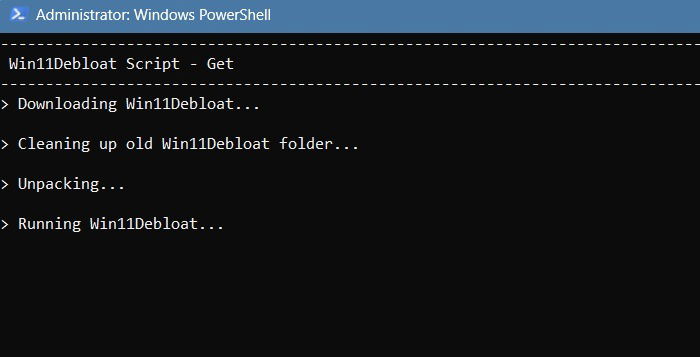
A majority of these scripts are available on GitHub, and a few, on developer websites. If using PowerShell, you must run it in administrator mode. After executing the script commands, you can selectively remove the apps the script identifies as bloat.
These debloat scripts often do more harm than good, so it is best not to use them at all.Debloat tools
Just like scripts, you can find third-party tools to uninstall Windows bloat. These tools are more detailed than running a debloat script, as they delve deeper into specific system settings, the Start menu, personalization options, and UWP apps.
Microsoft recommends not using any debloat scripts or tools to remove its built-in applications in Windows 11. As the following points show, at best, these tools offer very little benefit to your Windows device. They are often unnecessary. At worst, they can lead to system instability or introduce malware.
1. Windows 11 Bloat May Not be as Bad as You Think
What exactly qualifies as “bloat” is subjective, defined by user requirements. In Windows 11, preinstalled applications have many uses. They may perform specific tasks (Calculator, Clock, Weather, or Maps), a necessary service (Settings or Mail) or telemetry (Feedback Hub). Most users find these applications useful, and considering them bloat is a bit of a stretch.
While there are so many preinstalled applications, their combined impact on your device, particularly Windows 11, is minimal. They occupy very little disk space, that too in kilobytes. Left alone, these bloat applications do not take up any of your system resources, either as background or Windows processes.
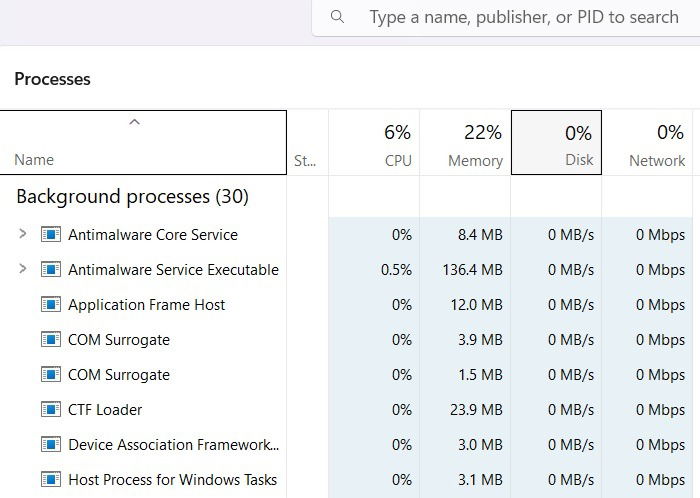
However, your laptop manufacturer may have its own diagnostics and performance monitoring tools that can be categorized as “bloat.” You don’t need to retain any of the PC manufacturer bloatware as Windows apps can perform the same activities. Moreover, it’s very easy to uninstall the manufacturer apps.
2. Uninstalling Windows 11 “Bloat” is Easier than Before
Some users might remember that bloat wasn’t always this serious a problem with older Windows operating systems. Remember Windows XP and Vista, with their Add or Remove Programs in the Control Panel? You could uninstall almost everything (except for Internet Explorer). That ease of use has now returned with Windows 11.
During the Windows 8/8.1 and 10 era, most bloat apps were installed as Universal Windows Platform (UWP) apps, and some of them were indeed CPU and RAM-intensive. Due to a tight system integration with the operating system, they could not be removed. That’s when these debloating scripts and tools would have become popular. But right now, they’re certainly very redundant.
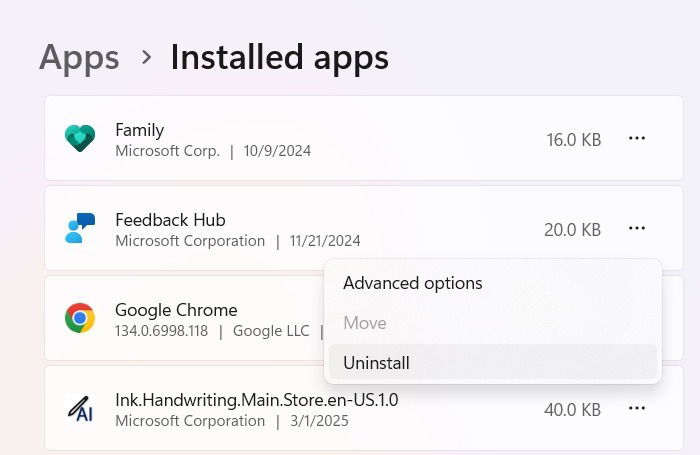
In Windows 11’s latest versions, if you don’t want any of these extra applications, it’s easy to uninstall them from Settings -> Apps -> Installed apps. The Uninstall option is no longer greyed out as in the past. Whether it’s the Widgets, Feedback Hub, or a program like Clock or Mail, you can get rid of them all.
Related: Microsoft Edge is the only Windows 11 application that is not easy to install, although there are a few tweaks that work.
3. Uninstalled Applications are Reinstalled with Every System Update
One significant change in Windows 11, especially with recent versions like 24H2, is its reliance on monthly updates. Each month, new features are introduced, and older ones are removed. Despite frequent hiccups and issues, Microsoft updates work like clockwork, and it’s best to install them whenever you have the time.
With each succeeding Windows 11 update, the applications you uninstalled make a comeback. This happens because Microsoft has to ensure consistency in its Windows 11 updates. They must appear the same to all users at the same time. Any bloat apps you remove, like OneDrive, will be automatically reinstalled, along with its missing drivers and components.
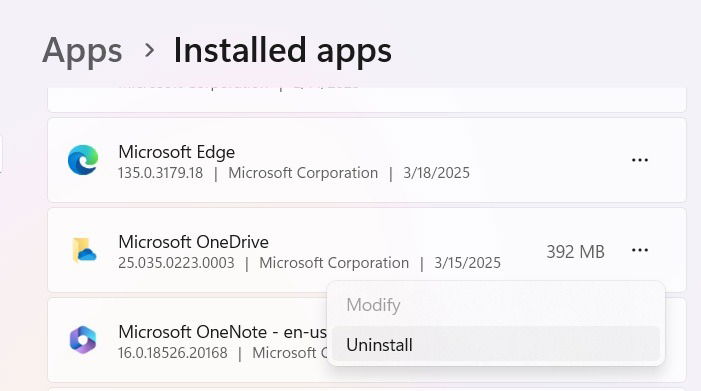
Additionally, most debloat scripts and tools available online cannot reasonably be expected to keep up with Microsoft’s frequent updates. This might lead to critical Windows apps being clubbed as bloat by these third-party methods.
4. Debloat of Windows 11: Very Little Performance Gain
You might have seen benchmark comparisons on websites that showed the supposed benefits of debloating Windows. The thing is with the current versions of Windows 11, these things not exactly match the facts. Most modern laptops with multicore processors, and higher RAM (8 GB or higher), can easily handle the preinstalled apps without any performance dips.
If you’re using the latest versions of Windows 11, the Archive Apps feature is enabled automatically. You can access it by navigating to System -> Apps -> Advanced App Settings. Any apps you rarely or never use are automatically archived, conserving both storage space and Internet bandwidth.
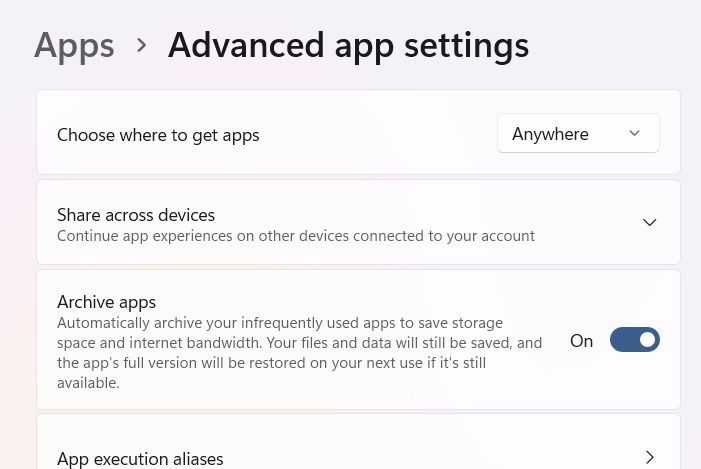
Moreover, with memory compression and intelligent process optimization, Windows ensures that unused apps do not create memory or disk space problems. Clearly, removing these so-called bloat apps, offers minimal benefit.
5. The Negatives of Debloating: System Issues and Malware
This is an important one. While many of these external Windows debloat methods claim to lighten the system, it may come at a cost. The biggest challenge is that your Windows PC or laptop may not behave correctly if some of the critical Windows preinstalled applications are removed.
You can be more lenient with PC manufacturer bloat, as it’s almost never used. However, applications like OneDrive and Xbox, while removable, help with syncing and updates on your device. Even if unused, they need to remain installed to ensure stable Windows updates. Additionally, if you decide to use them in the future, you’ll want them to function properly.
Of course, since most of these debloating scripts and tools are untested and outside Microsoft’s purview, there is no way to guarantee they won’t introduce malware
What to Do If Windows Accumulates Cruft With Time
Having seen that debloating Windows 11 hardly has any benefits, especially with external scripts and tools, it’s best to stay away from them. But when you keep using your PC over a period of time, it does accumulate many unnecessary files, called “cruft.” They definitely create performance bottlenecks. Fortunately, they’re easier to control.
- Have as few startup programs as possible. Many of them are CPU hogs, and it’s easy to downsize.
- Perform a clean boot of your Windows device from time to time. It gives an immediate boost in system performance.
- Open
cleanmgrfrom Run command and get rid of all your temporary and old update files. - Uninstall the unused non-Microsoft applications.
- Consider reinstalling Windows 11 from the cloud as it will help you get rid of the cruft while retaining all your files.
Image Credit: IMAGEN 3. All images by Sayak Boral.