If you’ve recently moved to a new country, you’re probably busy unpacking, learning a new area, and possibly trying to master a new language. Did you realize that you should also change the Play Store country to gain access to country-specific apps? Read on to find out more.
Why Change the Play Store Country
While it’d be nice if all apps in the Google Play Store were available globally, they’re not. Many apps are only available in specific countries. Think of it like streaming services. A show or movie that’s available in the United States may not be available in Australia and vice versa.
To access apps that are specific to your new country, you’ll need to update your Play Store settings to match the area.
Changing the Google Play Store Country
Before you make any changes, only change the Play Store country if it’s a long-term move. If you’re just visiting for a few months, stick with your current settings. Google only allows you to change your country once every 12 months.
When you’re ready to make a country change, turn on your location services on your phone and open the Google Play Store app. You must make the change on your phone.
Go to Settings -> General -> Account and device preferences -> Country and profiles. As long as your location is on, and you’re located in the new country, you should see an option to select that country.
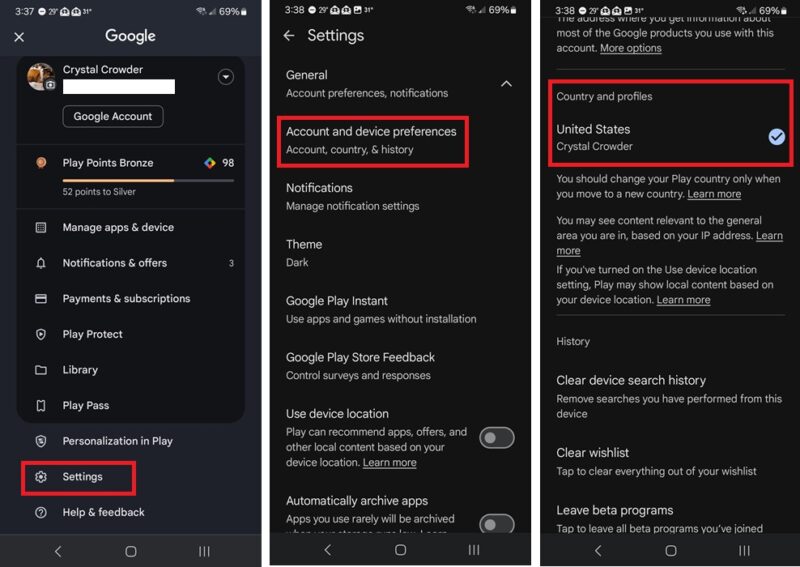
You’ll be prompted to update billing information. Even if you don’t plan to purchase anything, you have to add a local billing method. You can delete this later.
If you can’t change the country, ensure that you’re not part of a Family Group. Google doesn’t allow anyone who is part of a Family Group to change their country. This includes the group owner. If you move as a family, everyone must leave the group, change their country, and then join a new Family Group.
Change Play Store Language
If you want Play Store app descriptions to show in your new country’s language, you’ll need to change the language for your entire Android device.
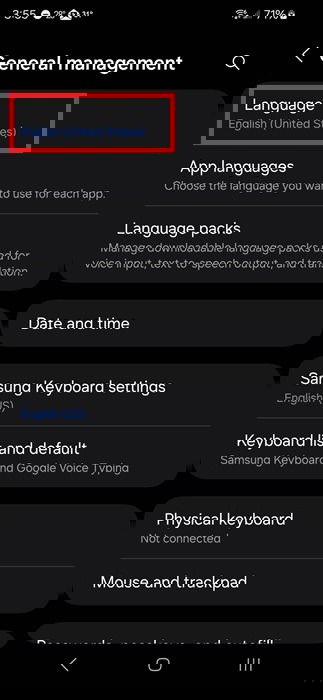
On your Android device, go to Settings -> General management -> Language. Then, switch your language. Yes, this applies to everything on your device, so only change it if you want everything in your new language.
Why You Can’t Change Your Country
If you encounter issues when trying to change the Play Store country, it could be due to any of the following:
- You’re part of a Family Group. Leave the group, then make changes.
- You’re not currently in the new country. Google relies on your location data to determine where you’re located. You can also use a VPN if you want to make changes before you’re actually in that new country.
- Play Store is outdated. Update the Play Store app to the latest version. You can also uninstall and reinstall the Play Store.
- Cache issues. Clear the Play Store app cache. Go to Settings -> Apps -> Google Play Store. Tap Storage -> Clear cache. Do not tap Clear data, as you’ll need to add your account details again.
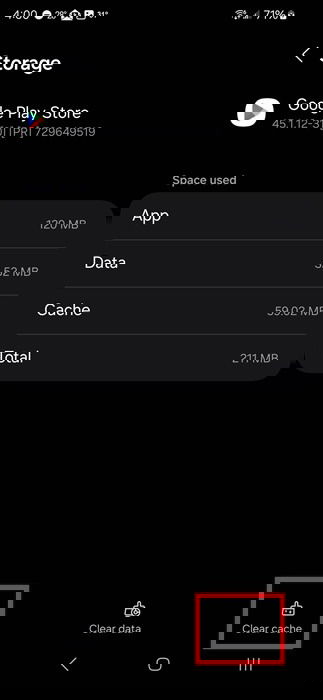
- Clear your Google account. If the above methods don’t work, clear all Play Store data. Go to Settings -> Apps -> Google Play Store. Tap Storage -> Clear data. Restart your device, and re-add your Google account.
Please be aware that it may take up to two days for your country to change. As long as you see the option to switch countries, wait for 48 hours before trying to troubleshoot possible problems.
App Availability After Changing Your Country
When you change the Play Store country, you may notice some other changes in the Play Store. One of the most noticeable is app availability.
Many apps are regional. The developer may choose to only allow an app to be downloaded and/or purchased in specific countries. Plus, some countries may block specific apps. While you may discover new apps that weren’t available in your previous country, you may also lose access to others.
I’d highly suggest looking at your favorite apps before moving. See if they’re available in your new country. If they’re not, look for alternatives. Otherwise, the apps may not function correctly, and you won’t receive new updates. Of course, there are ways to access apps outside of your country.
The same thing applies to movies, TV shows, and books. Regional limitations could take away access to what’s available to purchase. If you’ve already purchased and downloaded an item, you’ll retain access to it. But if you need to re-download it, it may not be available.
Play Store Points and Subscriptions Must Change
One of the more frustrating problems, at least in my opinion, is having to change all your subscriptions. If you’ve had to update your payment details, current subscriptions will still process under your own payment methods unless you cancel them.
As soon as your new country settings are in place, delete old subscriptions and re-subscribe using your new payment settings. Make sure the app is actually available in your new country before re-subscribing.
If you currently have a Google Play balance, you can’t use it in your new country. It’s linked directly to your previous country. So use it before you move.
Also, if you use Google Play Points, these are also linked to your country. If you change countries, you’ll lose access to your points unless you move back to the original country.
The good news is that if you subscribe to the Google Play Pass, it’ll still work as long as it’s available in your new country. If it’s not, cancel your subscription so that you’re not getting charged for something you can’t use.
If you lose access to your favorite apps when you move, there are Google Play Store alternatives. Use those to sideload apps and app updates you can’t get any other way.
Image credit: Pixabay. All screenshots by Crystal Crowder.