If you’re looking to sell or give away your old Android device, you must do two things. First, make a full backup of your Android data and apps. After that, wipe the device clean to avoid having your data fall into the wrong hands. Refer to the instructions to perform the above tasks properly and in the least possible time.
1. Make a Full Android Backup
The best way to back up your files and data on your Android phone is to copy-paste them onto another device. This method is free, totally offline, and should not take very long.
You can easily transfer your Android files to a Windows, Mac, or Linux computer using the phone’s charging cable. Conversely, for high speed data transfer, you can use one of these powerful USB-C data cables or an On-the-go (OTG) cable.
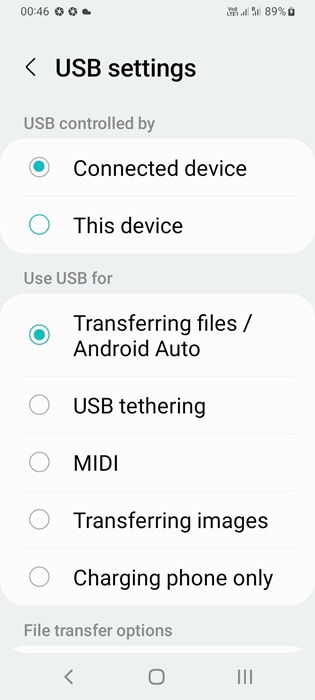
After connecting the cable, go to your phone’s notifications panel and click “tap for other USB options” or similar. Here you must enable Transferring files instead of Charging phone only. At the same time, for any available option called USB controlled by, select Connected device.
You will see your Android’s full data as a regular folder on your computer. It’s usually divided into Internal storage and SD card. The first one contains a folder called “DCIM” which has all your photos and videos. You can delete Android files directly from its PC or Mac folder.
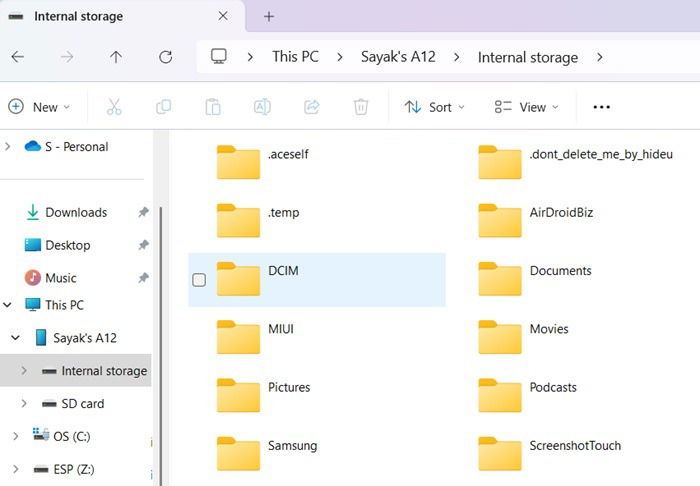
Create a new folder on computer drive, and copy-paste your data. Alternatively, you can copy-paste files on an external hard drive or USB drive. Mac users can use an app called Macdroid to transfer files from Android.
Google Backup
Many Android users rely on Google backup to reliably store and access their data. It is tied to your Google account so you can access your data anywhere on the cloud, on another phone or tablet, or even from a laptop.
As far as photos, videos, Drive, Gmail, and Maps are concerned, you don’t have to do anything. If you’ve enabled Backup, this data is already available in Google Photos and other Google applications. For photos, I like to keep my Backup Quality set to “original” so that I do not lose the image resolution.
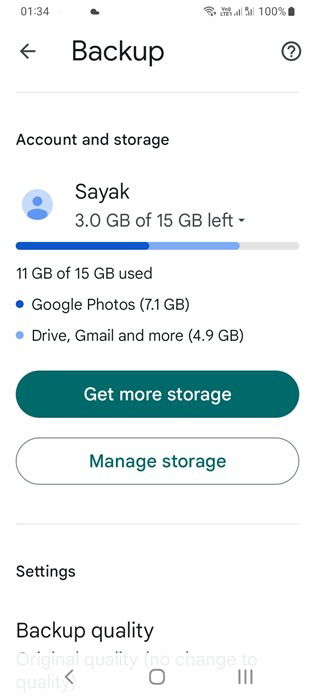
Note: If you don’t have much storage left in your Google account, you will need to upgrade to a premium Google One service.
Google One can also back up your remaining phone data. On Pixel devices, just go to Settings -> System -> Backup. You don’t have to be a paid member as long as you are well under Google’s combined storage limits of 15 GB. It saves your apps, SMS, call history, and device settings. Just click Back up now to periodically back up everything.
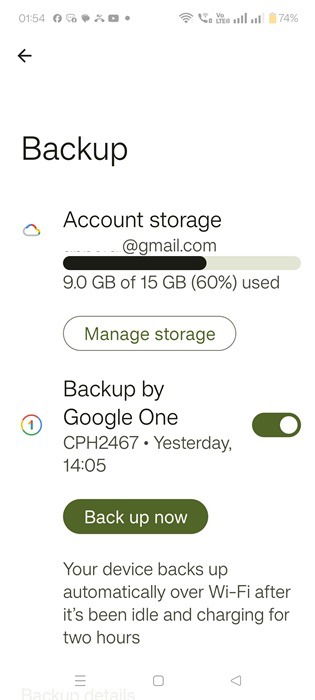
Some phones may not have a Google Backup setting. For example, Samsung Galaxy devices use Samsung Cloud which works similarly as Google One.
Use Your Android’s Backup and Reset option
On your phone’s settings, you will find a Backup and Restore/Reset option that allows you to automatically sync your app data and settings. In fact, it feels like cloning your old phone to a new device.
For an older Android device, you will have some option to select current device as the “Old device.” The phone will take a proper image of all your information and migrate the information to the new phone via a QR code.
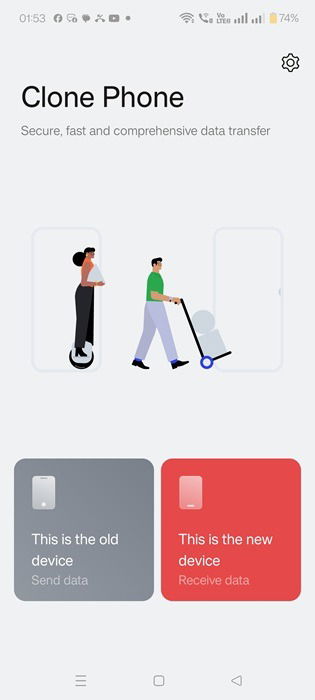
With a new phone, you can receive files from the old one by migrating data. Again, the transfer happens via a QR code. Once you complete the pairing, the data will start downloading to your device without any intervention from your end.
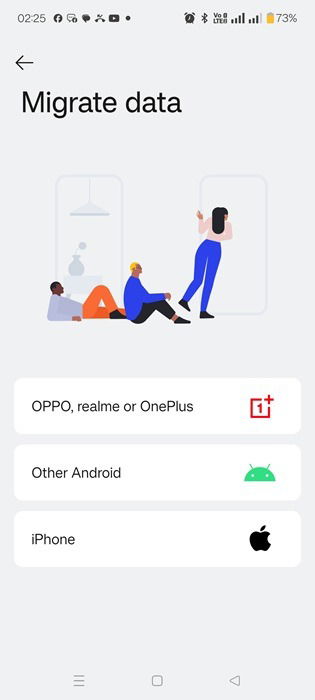
Also read: there are many ways to back up your text messages in Android. If you have an Android device with broken screen, you can access its data.
Other Backup Solutions
There are quite a few third-party backup solutions that make your Android backup a breeze. Some of them are paid solutions.
- Clone Phone – Phone Switch: if you’re a fan of QR codes for swift, efficient data transfer, this app is perfect. After a quick QR code pairing, the data transfer happens in real time. On the new phone, you just have to receive the data. The app works on both iOS and Android, so you can switch on any device.
- Swift Backup: for those who prefer backing up their Android data to a cloud service, Swift Backup makes it very easy. All your data is organized in neat computer-like folders, which you can migrate to your favorite cloud storage provider. Currently, the app supports Google Drive, OneDrive, Box, Dropbox, pCloud, and a few others.
- Titanium Backup: if you have a rooted Android device, Titanium Backup offers a backup and restore solution that works. Its main feature is that it takes a backup of all your apps on your Android phone but helps you remove the bloatware.
2. Wipe Your Device Completely
Once you have a proper backup of your files, contacts and settings, it’s time to wipe your device. Many people think performing a factory reset is enough, but it’s not because the data can be recovered with data recovery tools. To make it nearly impossible, you can do a few other things.
Encrypt your data
Before you wipe your device, it is recommended that you encrypt it first. This process will make your data impossible to decrypt unless a special key is used.
Some older Android phones allow you to encrypt all your data from Settings, but that has been discontinued. However, you can still encrypt all your SD card data. You can easily transfer all your Android phone files and images to the SD card, and encrypt it here.
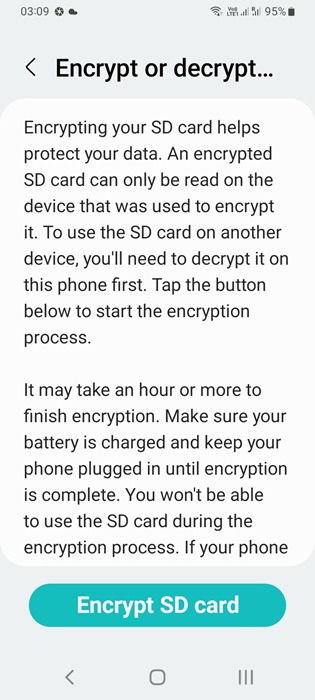
Further, you can use a free app like ZenCrypt. It encrypts multiple files and images with a single click. It uses AES-256, block padding, and random key generation.
Log Out of All Your Accounts
This is a natural step that requires no further explanation. Keeping your active account logged in on a device you’re planning to sell is a big security risk. So, for safety’s sake, log out of all the active accounts on your device.
First, start with the Google app on Android. Click your user icon on the top right followed by Manage accounts on this device. Choose your active Google accounts, and click Remove account. It’s better to verify if the account you removed is not active on Google Play or other Google services.
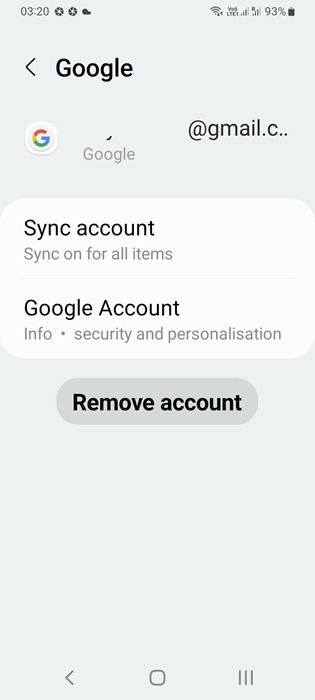
With most non-Google apps, the best way to remove their trace on your device is to uninstall them. You can also remove an app’s permissions which is good for the battery, and wipes your accounts clean.
Unlink Bluetooth Pairings
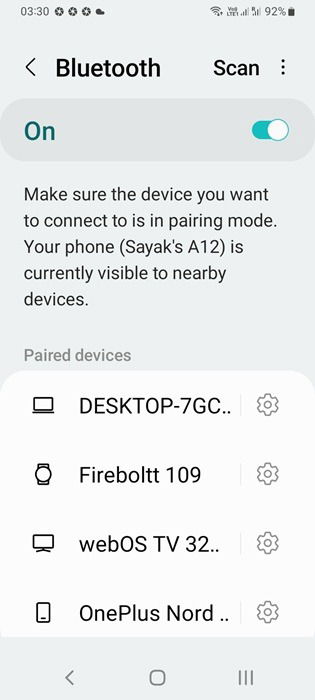
If your Android phone is connected to headphones, smartwatches, smart TV, fitness devices, or smart speakers like Amazon Echo, it’s time to unpair them. You can remove your phone from the paired device.
Or, you can disable the Bluetooth on the Android phone itself by going to individual paired devices and clicking Unpair.
Related: there are ways to auto connect Android to the correct Bluetooth network and device.
Perform a Factory Reset
Every Android phone has a factory reset option. It can be accessed from Settings under Backup & Reset, or you can use other similar options such as “Erase all data”. If your device has an SD Card, make sure you remove it from the device before handing it over to someone else.
Lastly, don’t forget to remove all the SIM cards from your device, even if you’re not using one of them. If you have any eSIM profiles, you need to delete all of them.
After you make Android backup and wipe your data clean, it’s now safe to sell your Android smartphone or give it to a friend or family member. Check out some of the Android security features you should be using to prevent data leaks.
Image Credit: DALL-E 3. All screenshots by Sayak Boral.