Zoom has been the dominant go-to app for virtual meetings, and PowerPoint is still the king for presentations, making it a no-brainer to combine the two whether you’re teaching a lesson, pitching a business idea, or running a webinar. This guide walks you through how to present PowerPoint on Zoom without hassles, plus some bonus tips to level up your presentations.
Share Entire Screen on Zoom
This is the simplest way to present PowerPoint on Zoom and is great if you switch between apps or run a slideshow with animations.
Launch your PowerPoint file and cue it to the first slide. Join or start a Zoom meeting. Hit the Share Screen button at the bottom of the window, then select Entire Screen in the next pop-up.
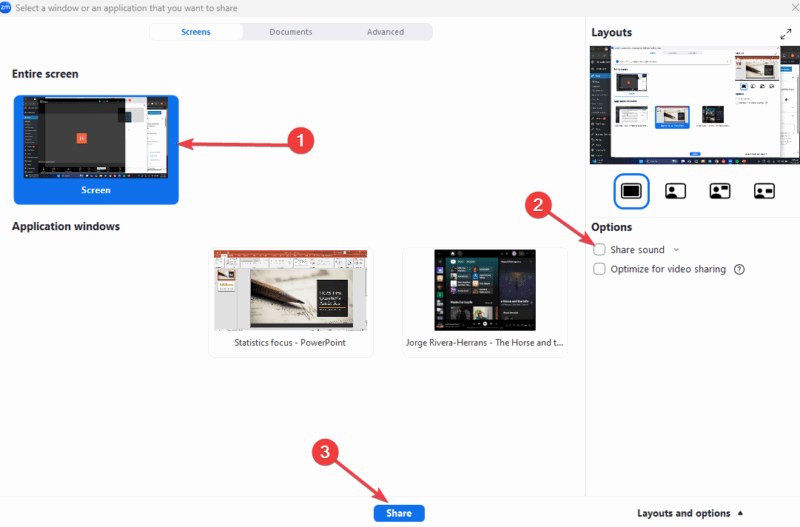
If your slides have audio – voiceover or background – check the Share system sound option. For more details, consult this Zoom audio-sharing guide.
Click Share, then switch back to PowerPoint and kick off your slideshow. While this method is ideal and straightforward, your entire desktop is fair game and exposed.
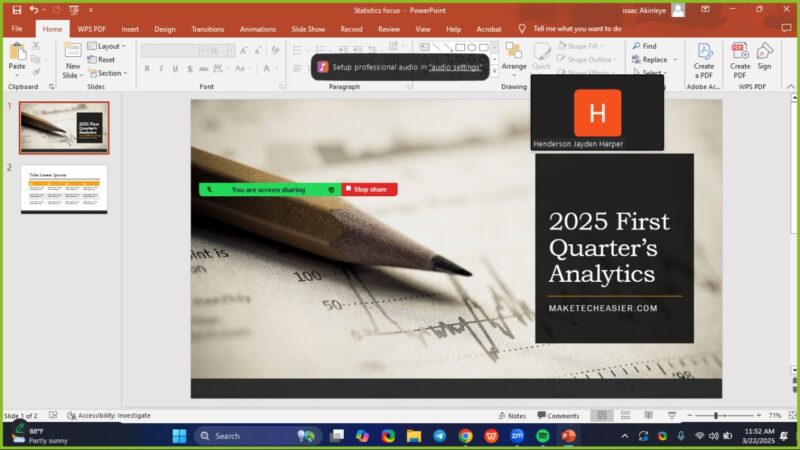
A random Slack pop-up could mess up the presentation, so it’s necessary to close all unnecessary apps, silence notifications, and declutter your desktop before sharing. Trust me, your audience doesn’t need to know about your 52 browser tabs that you have opened.
Share PowerPoint in a Window
Want to keep your desktop private or multitask during the call? This method is ideal, although it takes extra steps to keep things tidy.
Launch your PowerPoint, and go to Slideshow -> Set Up Slide Show. Under Show type, click Browsed by an individual (window), and click OK.
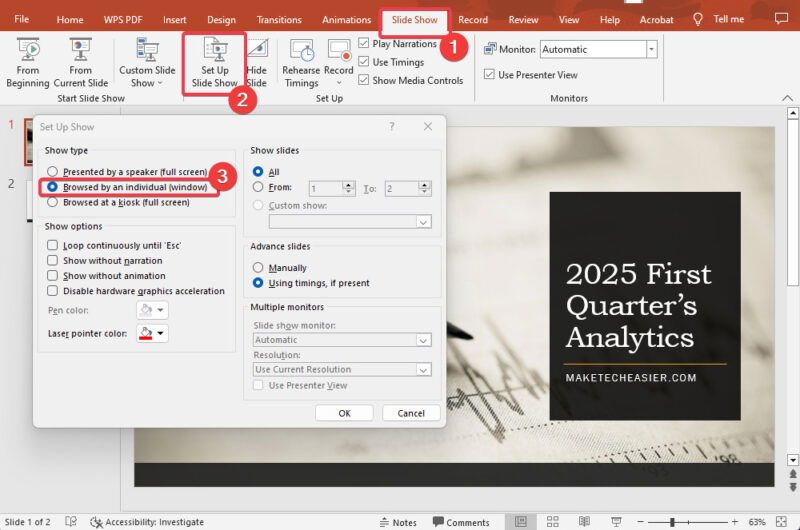
Start your slideshow, and it will run in a resizable window. Launch your Zoom meeting, click Share Screen, switch to the resizable Window tab, and click Share.
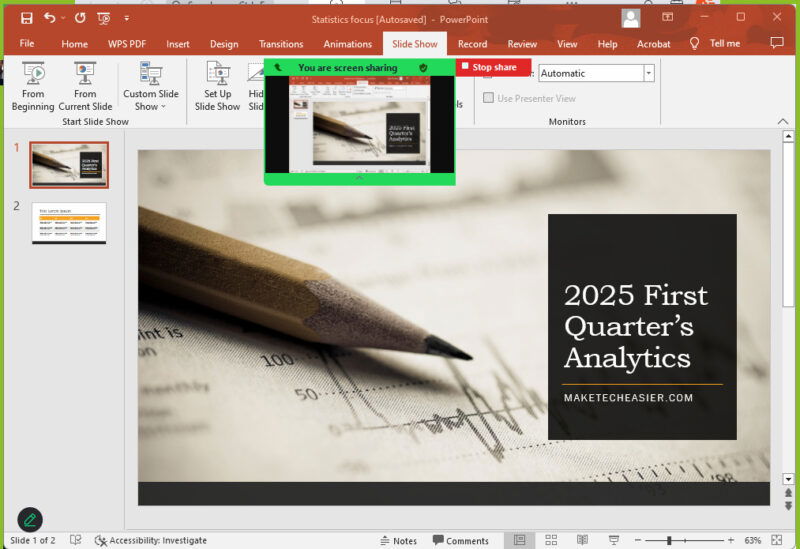
Only your slides will show up – not your desktop chaos. However, you will lose access to the Presenter View for notes without dual monitors.
You can maximize the PowerPoint Window before sharing to fit the screen nicely and shrink the PowerPoint presentation file size to keep things smooth.
Bonus Tips to Successfully Present PowerPoint on Zoom
You can level up your PowerPoint presentation with these tips:
- Set PowerPoint as Virtual Background by going to Share Screen -> Advanced -> PowerPoint as Virtual Background. Upload your slides and present them like TV news.
- Use a dual-monitor setup for a sleek presentation, with one screen for Presenter View to read notes and the other to share slides with your audience.
- Use Zoom’s annotation tools to highlight stuff and engage the audience or toss in a poll.
- Perform a dry run test before the meeting to ensure everything works appropriately.
- Stick to big fonts, bold colors, and minimal text for appropriate slide designs. You can spice up your PowerPoint presentations with minimal effort.
Both methods – full-screen for simplicity and windowed mode for control – work well to present PowerPoint on Zoom. Choose whichever you’re comfortable with, then practice and nail your next presentation. Hungry for more Zoom tricks? Check out the following hidden Zoom features.
Image credit: Canvas. All screenshots by Henderson Jayden Harper.