Zoom chats are gold mines, often containing action items, quick notes, ideas, or links someone dropped. If not saved, they will vanish once the meeting is over. Hence, knowing how to save Zoom chat may be a game-changer whether you’re a student, teacher, remote worker or just catching up with friends. So, I’ll work you through actionable steps to help save your Zoom in-meeting chats and allow you to access them whenever you want without hassles.
How to Save Your Zoom Chat
Probably the easiest way to save a Zoom chat is by using the save option in the chat room. Here’s how to do that:
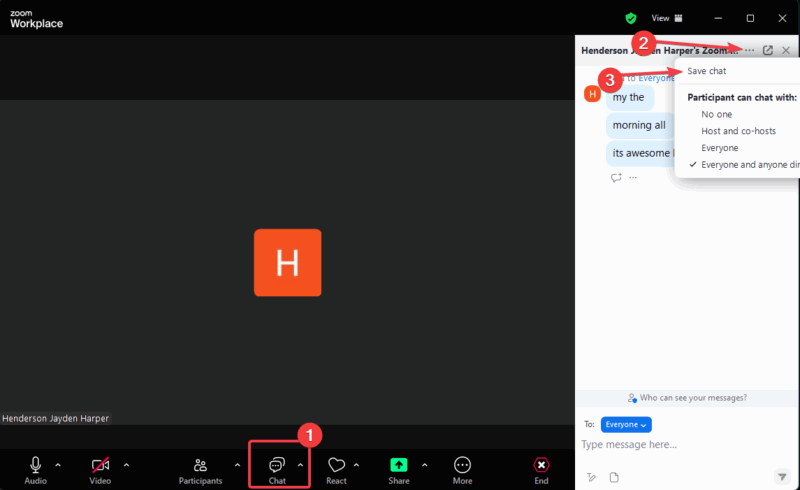
In your Zoom meeting on Desktop, click Chat at the bottom toolbar. Then, navigate to More options (…) -> Save Chat. Doing this will download the entire chat window into a .txt file and save it in your Zoom folder.
For mobile users, there’s a slight twist to locate the chat window. So, navigate to Participants -> Chat and tap Save Chat.
Quick tip: You need to rename the file while saving to avoid losing it in a sea of generic .txt files later. Meanwhile, you can check out Zoom keyboard shortcuts to shave off a few seconds and save faster.
Auto-Save In-Meeting Zoom Chat
Tired of clicking save every time? Zoom’s got you with the auto-save option for your chats.
Open the Settings -> Meetings on the Zoom web portal and click the In-Meeting (Basics) tab in the menu. Locate and toggle on Auto saving chat. This will save every in-meeting Zoom chat in the same folder on your PC.
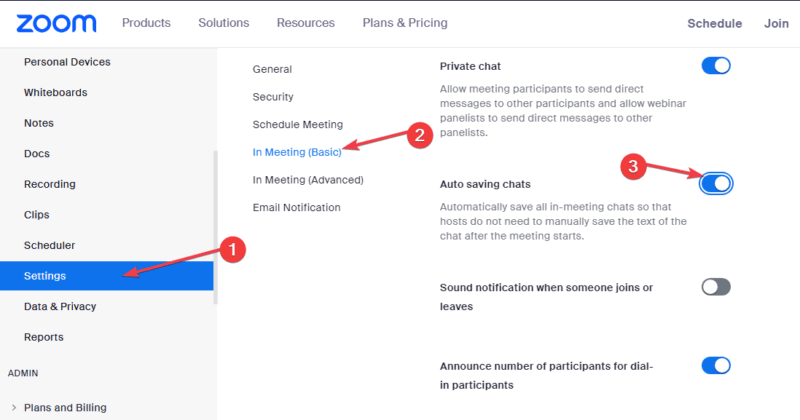
While there’s no auto-save toggle for mobile users, you can work around it if you’re the host. Set up recurring meetings and save manually every time to pile up in one place.
Please note that the auto-save only works for in-meeting chats and not the Team chat feature (the Slack-like thing). Irrespective, it’s still an excellent hands-free chat backup option.
Save Chat on Zoom Cloud
The cloud is the perfect friend to save chat if you’ve got Zoom’s paid plan. You get slick and organized saved chats without the local clutter.
As the host, enable cloud recording pre-meeting. Navigate Settings -> Recordings and toggle on Cloud Recording.
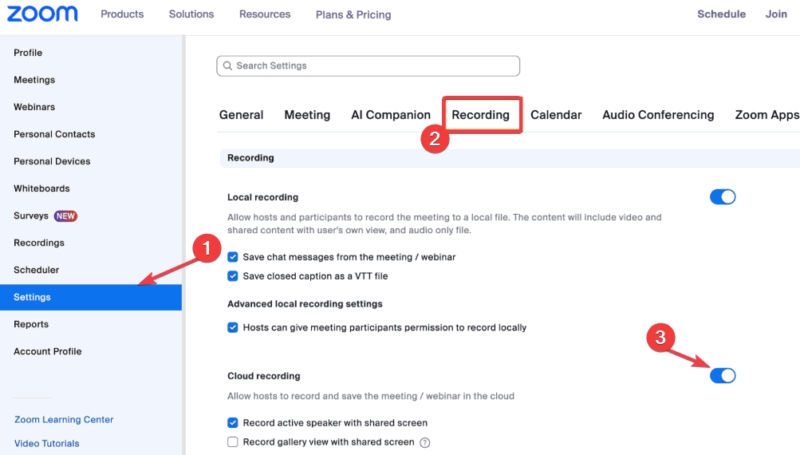
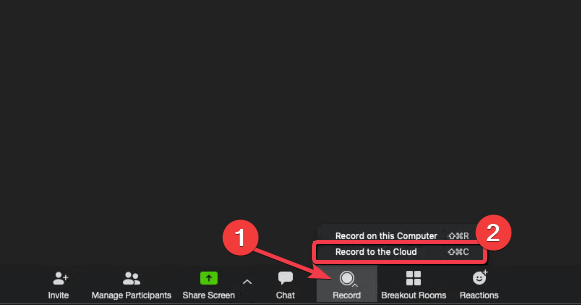
Locate Advanced Cloud recording settings and check the box for Save Chat messages from the meeting/webinar. Start your meeting and click Record -> Record to the Cloud.
Once the meeting is over, Zoom will process and email you with a link to your recording and chat file. Click the link to download the chat’s .txt file.
If you’re on the Pro plan, you have a 1GB storage limit. So, try to manage your space to prevent clogging, as this is a slick alternative to saving Zoom chats.
Access Zoom Saved Chats
Saved your chats but can’t seem to locate them? Here’s how to find them:
For manual or auto-save chats, go to the Zoom folder on Windows and Mac respectively, and look for .txt files named by date or time: “C:\Users\YourName\Documents\Zoom” and “~\Documents\Zoom”.
For cloud saves, log in to Zoom and click Recordings. Select your meeting and click Chat to view the recordings. Paid users can even pair them while sharing audio in Zoom for full context.
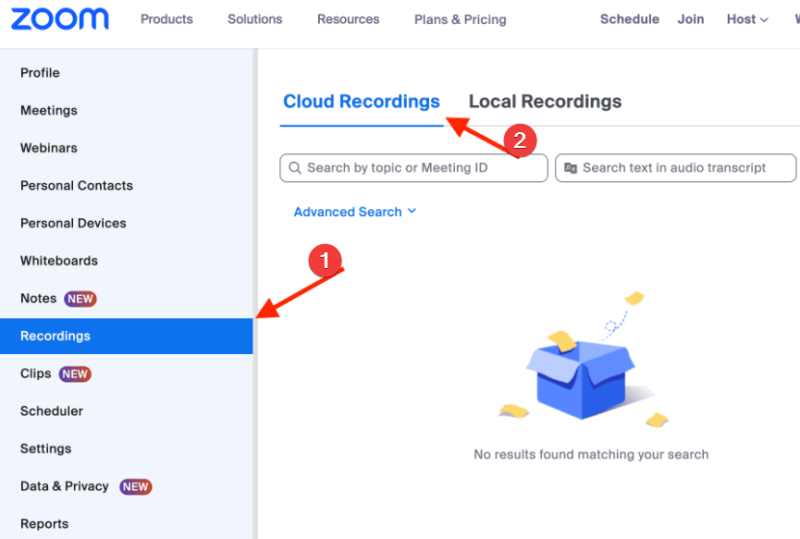
Tip: You can convert the .txt files into PDFs for searchable text.
Alternatively, you can ask the host to share their recordings with you if they use the Zoom cloud feature. Further, explore more Zoom features for better meetings.
So there you have it, you’ve got all the tools to save Zoom chat for easy reference. You can save manually, set and forget, or simply use the cloud storage if you have the plan. By following these steps, your chats won’t slip away ever again. So, give these a spin on your next call, and let us know how it works for you.
Image credit: Unsplash and all screenshots by Henderson Jayden Harper