Looking for feedback from your Instagram community? The app makes it easy to create polls, whether you’re a business owner or just looking for a quick opinion. But if you’re worried that people won’t respond for fear of revealing their identity, this guide looks at the steps to creating an anonymous poll on Instagram.
Good to know: learn how to share your location via the Instagram app.
1. Try the Built-in Poll Option
Instagram has a built-in option that allows you to create polls for stories. You don’t have to worry about others seeing how you voted when they view the story – polls are anonymous in this respect. Only the person who created the poll can see who voted and their answers.
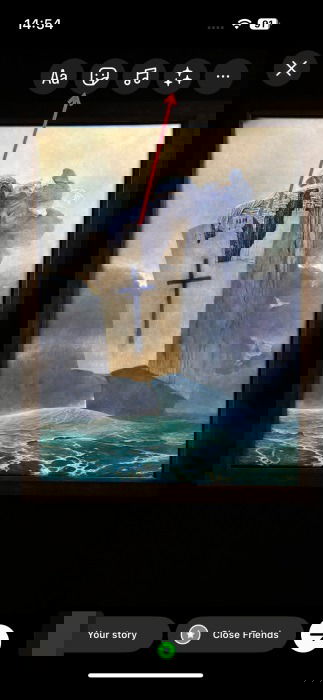
To create a poll on an Instagram story, upload or snap a photo or video. Tap on the sticker icon on the top of the story creation panel.
Select Poll.
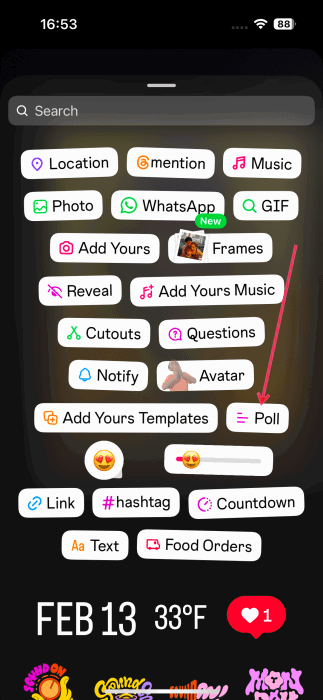
Type the question you want to ask, and add answer options. Press Done at the top.
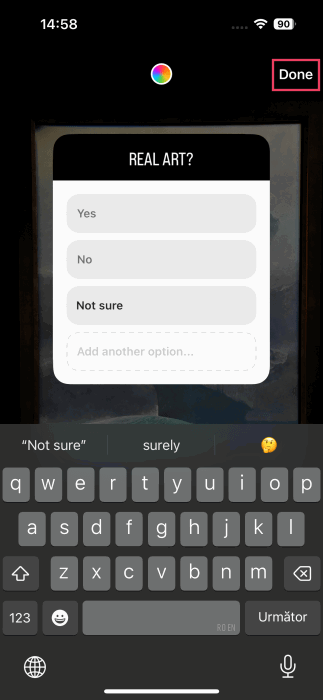
Move or resize the poll window according to your preferences, and press Your story to post it.
When a voter views the poll, they will only see the percentage of people who voted for the various options. They will not be able to see who voted in the poll.
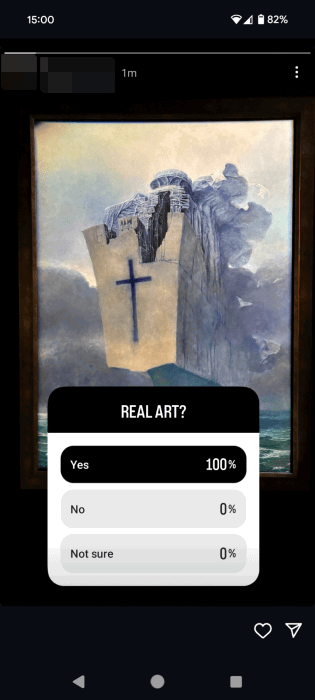
The person who created the poll will be able to view who voted and their answers.
Tip: learn how to create a poll on Facebook.
2. Create an Anonymous Question
Another method you can use is to create an anonymous question for your Instagram story, asking your audience for their opinion. For this, we are using NGL (Android, iOS), a third-party app.
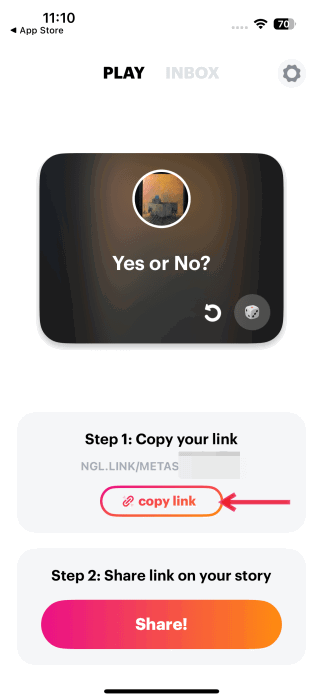
Download it to your device, and use your Instagram username to log in to the platform. The app will generate a link to your anonymous poll/question.
Create your question on the next screen. Try to phrase it like a poll question, then tap the Copy Link button below to save it to the phone’s clipboard.
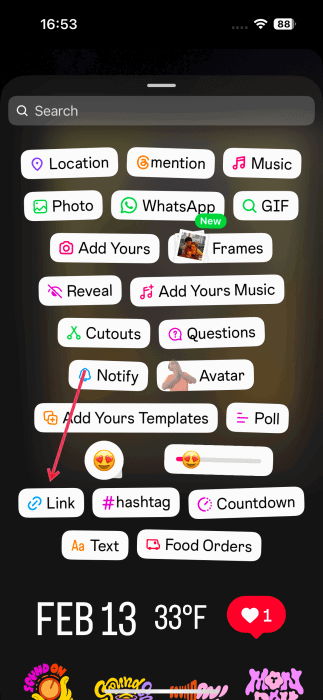
On Instagram, create a new story, add your media, then press the Sticker icon at the top.
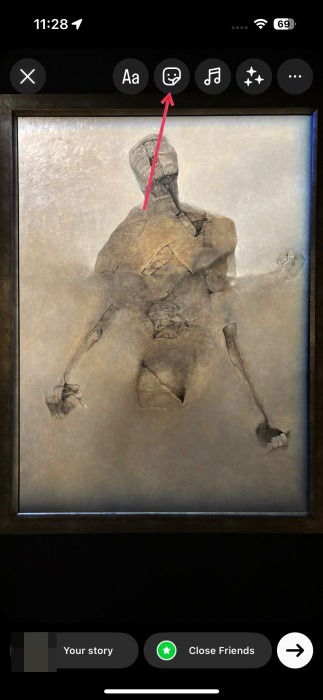
Select Link. (If you can’t see it, use the search bar to find it.)
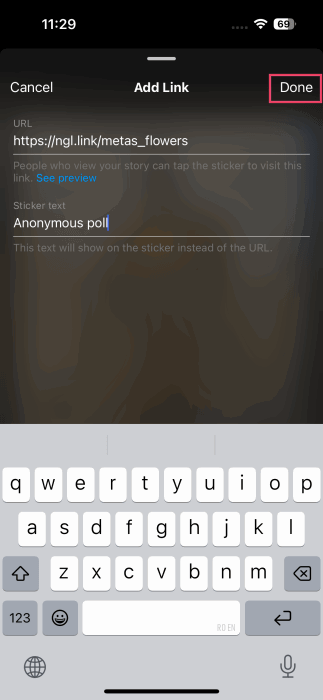
Paste the link from the NGL app. Press Sticker text to add an anchor text: Anonymous poll, for example. Tap Done.
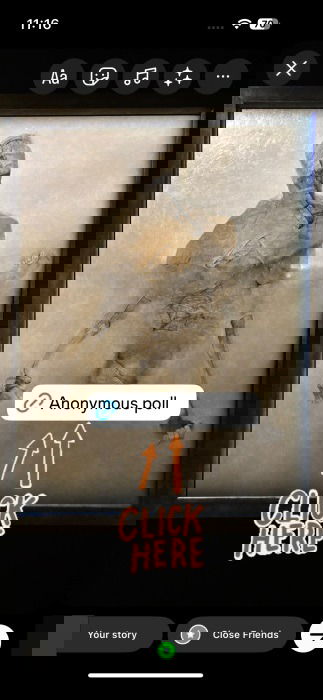
Arrange the link on your story, and add other stickers, too, to draw attention to your poll.
When a viewer taps the link, they can answer your question and reply. Replies are visible in the NGL app in the Inbox tab and are completely anonymous! The NGL app does, however, promise to unlock the identity of people who responded to your poll in exchange for a fee.
Note: you can also share this link in Instagram group DMs.
3. Use an External Website
Alternatively, you can create a poll using a third-party website. The advantage is that it won’t force people to reveal their identities if they don’t want to. You can use a site like Poll-Maker or even Google Forms. (This option won’t show results in bar charts but will display responses individually.)
FYI: check out more websites that allow you to quickly create polls.
Either way, responses are completely anonymous. Unless you choose to include a question regarding name, email, or phone number, and the respondent chooses to share that information, you won’t know who participated in your poll. This approach may encourage more people to take your poll.
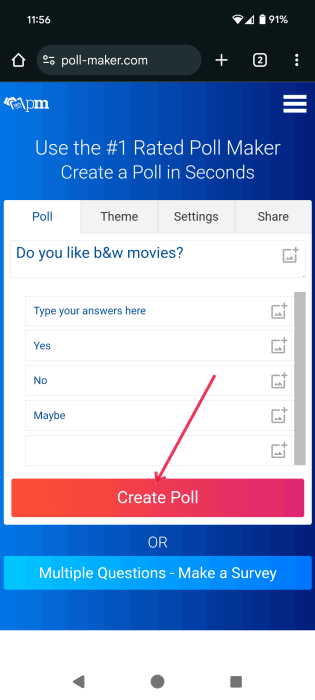
You can easily start building a poll with Poll-Maker, a website you can access via your browser, desktop or mobile. Add your question at the top, then add your choice of answers. Press Create Poll when you’re done.
Once you’ve created the poll, a link will be generated. Press Copy Link to save it to your device’s clipboard.
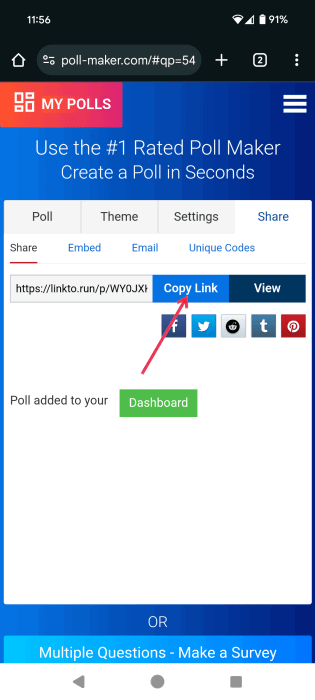
Note: when you depend on the website you are using to create the poll or form, you may need to shorten it a little bit before posting it. For that, you can use a website like Bitly. That shouldn’t be the case for Poll-Maker, as it generates short links.
Return to Instagram to share the link via various alternatives.
Stories
You can share the link via stories. Upload your image or video, then press on the sticker icon to add your link, as shown above.
Paste the link from Poll-Maker, add a text anchor, and press Done.
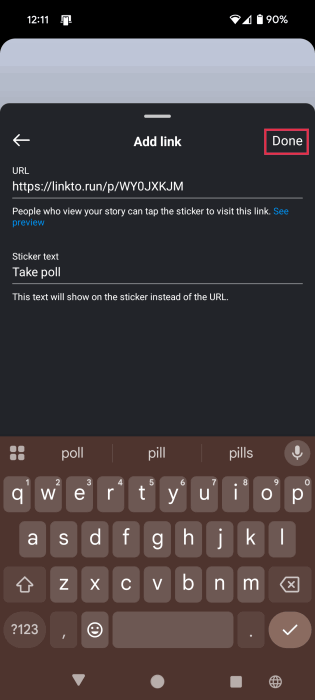
Arrange the link on your story, and post it.
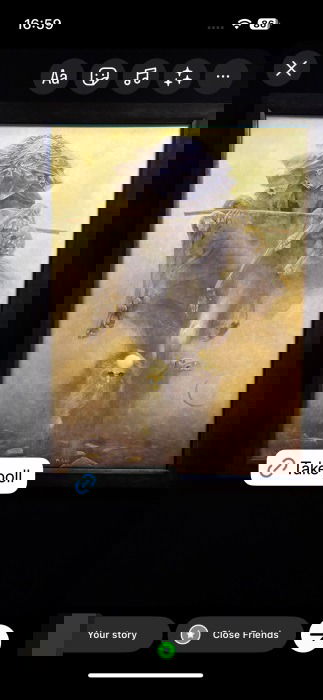
When others view your story now, they can tap on the link and get redirected to your survey.
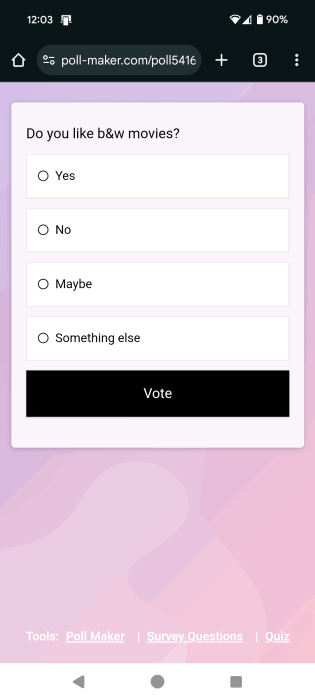
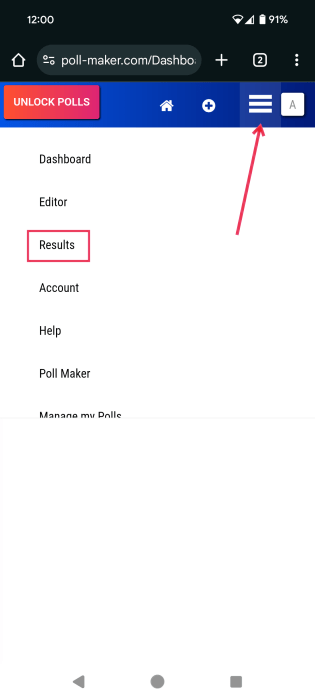
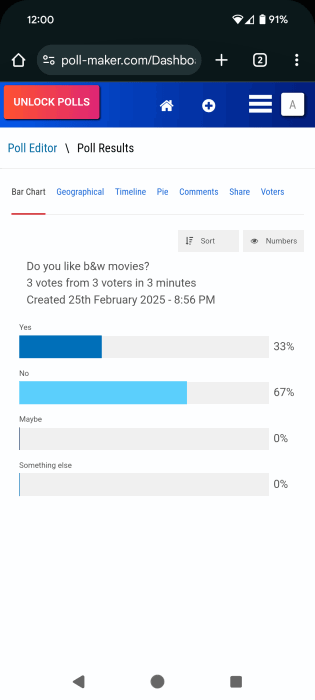
You’ll see all replies in the app or website where you created the poll. Tap the hamburger menu at the top, and select Results to view responses.
The responses will show as anonymous.
Profile
Alternatively, you can add the link to the poll on your Instagram profile so that people who visit your profile can have easy access.
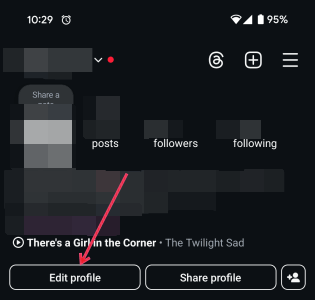
To add a link to your profile on your Instagram, go to your page. Press the Edit profile button.
Select Links.
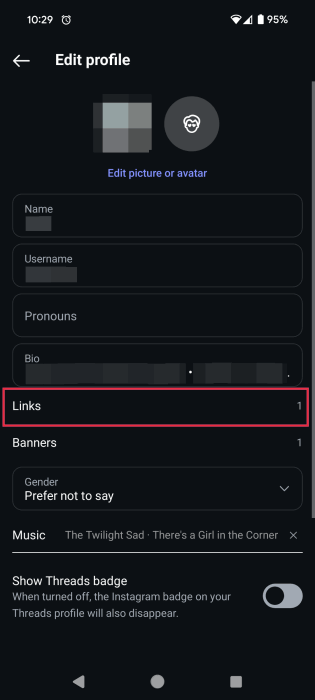
Tap Add external link to add your poll link.
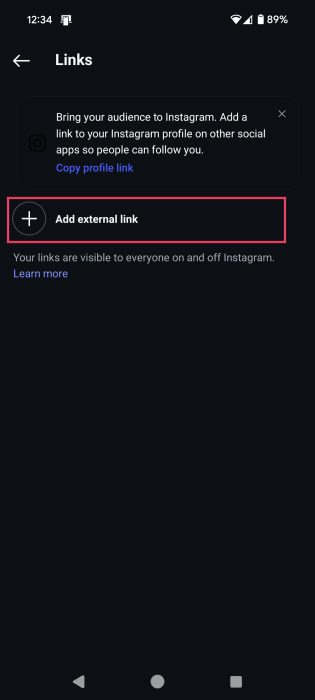
Paste the link, add text to describe the link (optional), and save. The link will be visible in your bio.
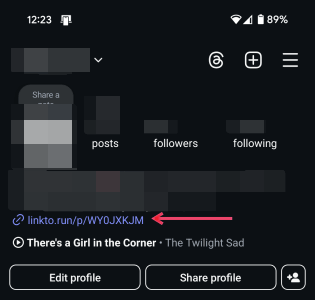
Share on your stories or Reels that you’ve added a poll link on your profile.
Reels
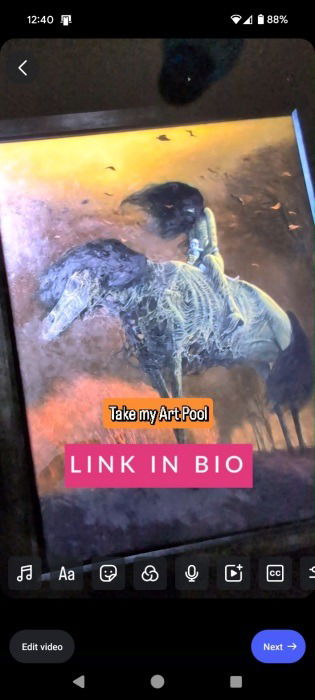
Unlike stories, you can’t add links on Reels. What you can do, however, is add a sticker that redirects the people viewing your video to your Instagram profile, where you’ve shared the link to your poll.
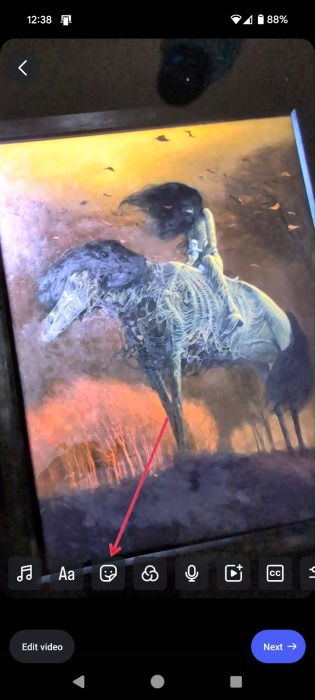
On your Reel creation screen, tap the sticker icon at the bottom.
Search for “Link in bio,” and select one of the options.
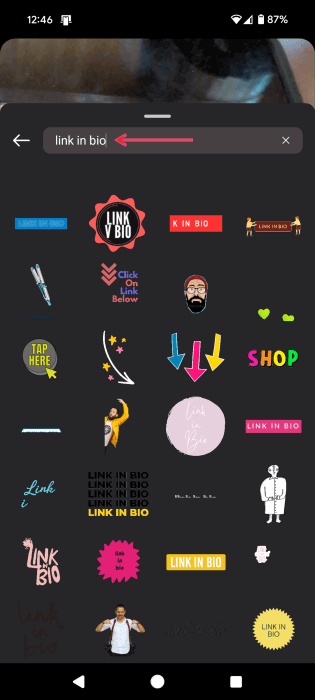
Alternatively, add some text urging people to participate in your poll.
Tip: understand what all the symbols in Instagram Direct Messages mean.
DMs
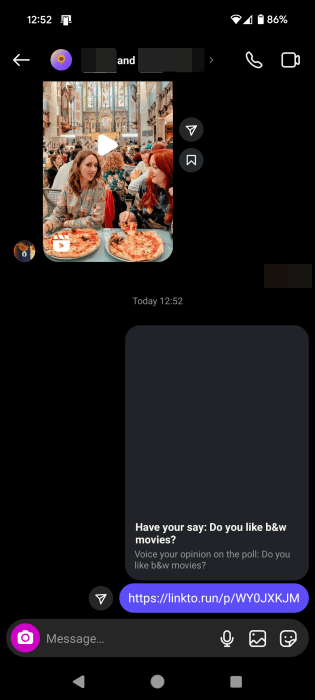
Of course, you can send the link to your poll in group DMs. Make sure you inform people that it’s an anonymous poll to encourage them to participate. When the link is posted in the chat, participants will see a preview of the poll question.
Beyond anonymous polls, Instagram has many other options. For instance, learn how to start leaving Notes on Instagram and how to create your profile card on Instagram for easy sharing.
Image credit: Unsplash. All screenshots by Alexandra Arici.