Want to browse LinkedIn profiles without leaving a mark? LinkedIn’s Private Mode lets you browse anonymously, so other users won’t see that you viewed their profiles. This is especially useful if you’re researching potential connections or exploring job opportunities without drawing attention. In this post, we’ll show you how to enable Private Mode on LinkedIn to browse anonymously.
What is Private Mode on LinkedIn?
Private Mode on LinkedIn lets you look at profiles without revealing your identity. When you view someone’s profile privately, they won’t see your name, photo, or job title in their “Who’s Viewed Your Profile” section. Instead, they will only see a general label like “LinkedIn Member” or “Someone on LinkedIn”. This feature is useful for jobseekers, recruiters, and professionals who want to explore others’ profiles secretly.
How to Enable LinkedIn Private Mode
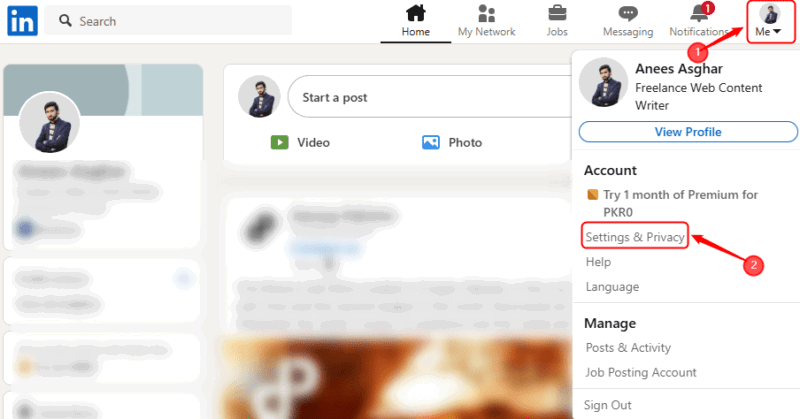
We can enable Private Mode on a desktop through the Settings & Privacy section. To do this, open a browser and log in to your LinkedIn account. Expand the Me dropdown menu from the top-right corner and select Settings & Privacy:
Navigate to the Visibility section, and click on Profile viewing options:

Select Private Mode from the available options to enable anonymous browsing:
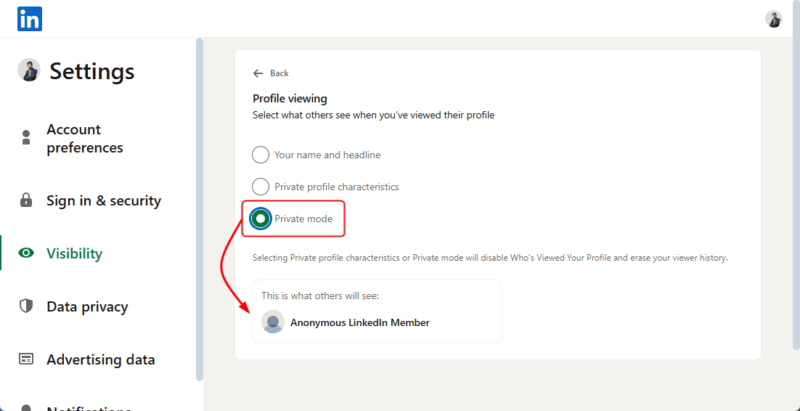
Now the person whose profile you viewed will see “Anonymous LinkedIn Member” instead of your name. However, if they have a Premium LinkedIn account, they may still see limited insights, such as how many times their profile was viewed but not the identities of those in Private Mode.
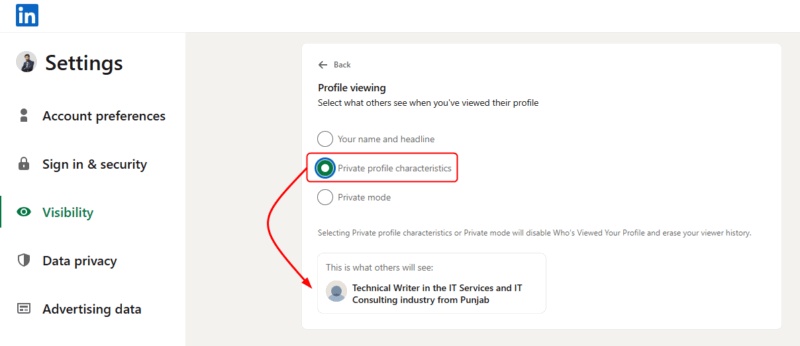
Alternatively, you can select “Private profile characteristics” on LinkedIn, it enables a semi-private mode where your name and profile picture remain hidden, but some details like your job title, company, industry, or education may still be visible to the person whose profile you viewed:
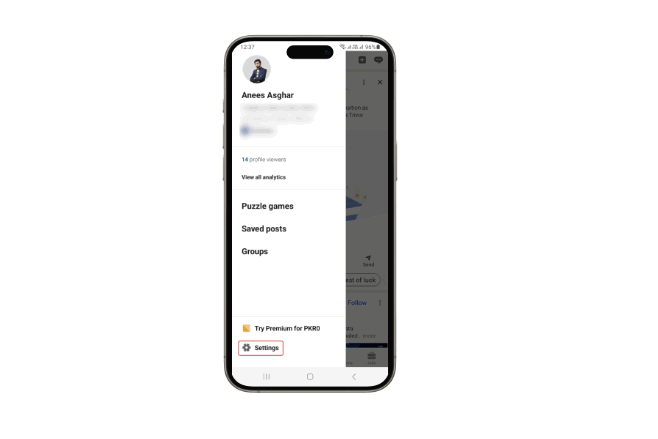
If you’re using LinkedIn on your phone, enabling Private Mode is as easy as on a desktop. Open the LinkedIn app on your phone, tap on your profile picture in the top-left corner, and navigate to Settings from the menu:
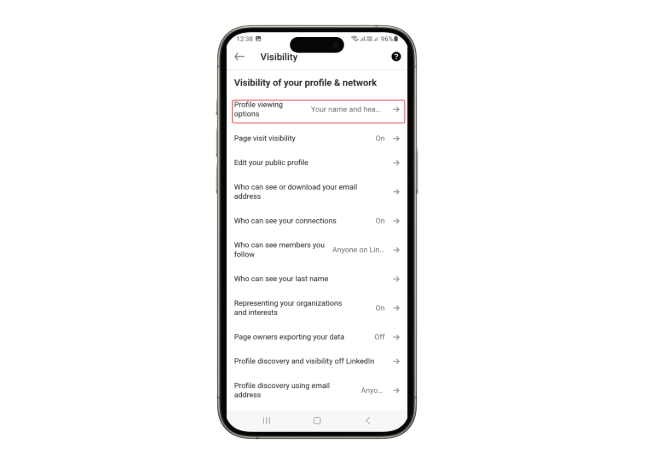
Tap on Visibility, and then select Profile viewing options:
Finally, choose Private Mode to browse anonymously:
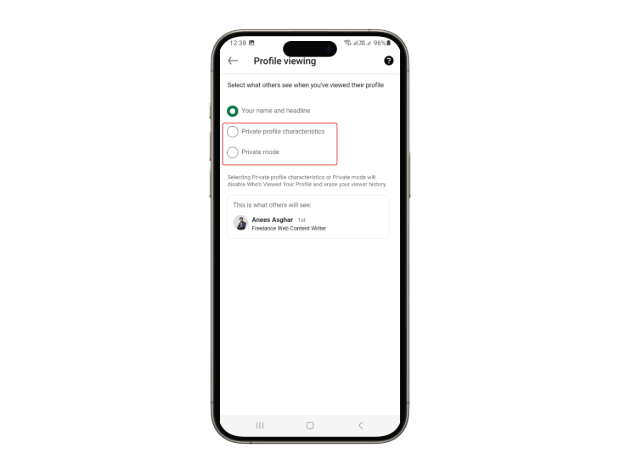
Alternatively, you can select the Private Profile Characteristics mode to browse in a semi-private mode.
How Private Mode Affects Your LinkedIn Experience
Private Mode lets you browse anonymously, but it also has some limitations, such as reduced visibility and fewer networking opportunities. When enabled, others won’t know you viewed their profile, but you also won’t see who viewed yours. This can make it harder to connect, as people are less likely to reach out if they don’t know you visited their profile. For jobseekers, recruiters won’t see that you checked their profile, which could reduce your chances of getting noticed. Additionally, Private Mode disables LinkedIn’s visitor insights, preventing you from seeing who is interested in your profile.
Additional Privacy Settings to Consider
LinkedIn offers some other privacy settings that can help us control our visibility and online presence. For example, we can manage our Active Status to hide when we’re online, adjust Profile Visibility to limit what others see, and restrict Connection Requests to avoid unwanted invites. Additionally, we can prevent search engines from indexing our profile for more privacy.
Don’t forget to enable two-step verification as it ensures better security for your LinkedIn profile and personal information.
How to Disable Private Mode if Needed
If you ever want to turn off Private Mode and make your profile visible again, it’s just as easy. Follow the same steps and choose Your Name and Headline under Profile viewing options:
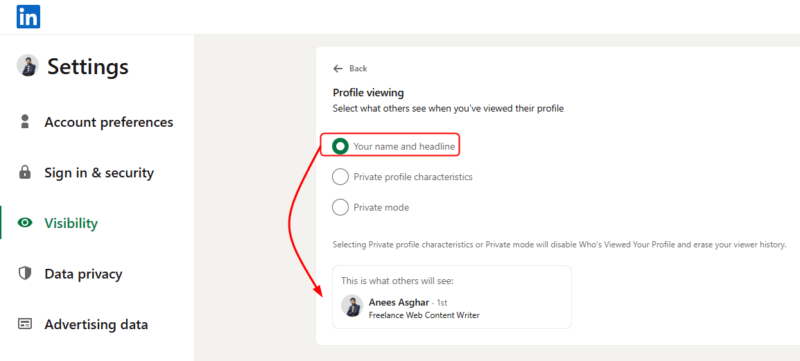
Disabling private mode will let others see when you’ve viewed their profiles.
If you prefer to browse LinkedIn discreetly, Private Mode is a great option to keep your profile views anonymous. However, if you want to build connections and get noticed by recruiters, consider switching back to public mode when needed. While privacy is important, optimizing your LinkedIn profile can help you stand out professionally, and exploring LinkedIn Premium may offer additional networking benefits.
Image credit: LinkedIn logo displayed on a MacBook Pro screen by DepositPhotos