Many apps in Windows have been deprecated due to the introduction of new apps or technology that do the job better. However, these old tools are still part of Windows, even if they aren’t shown in the spotlight. This guide highlights Windows tools that are decades old but still available in Windows 11.
Note: some of the tools listed here are no longer being updated. Although they may still receive security updates, they are prone to malfunctioning or not working with the latest technology.
1. Backup and Restore (Windows 7)
While the Windows Backup tool and File History are now commonly used for backup purposes, the Backup and Restore function in Windows 7 remains in Windows 11. It may not have the cloud storage functionality or automatically track and back up changes, but it’s still great for system image backups.
To access it, search for “control panel” in Windows search and open the Control Panel. Move to System and Security -> Backup and Restore (Windows 7), and click on Set up backup under the Backup section.
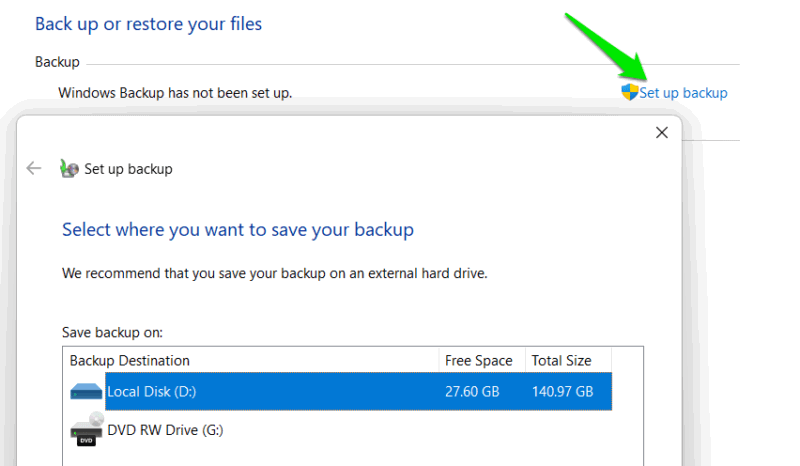
You can either create individual file/folder backups or full system image backups to restore the system in case it stops working. Unfortunately, the backups only happen at a set schedule and are limited to physical storage attached to the PC or over the network.
2. Windows Media Player Legacy
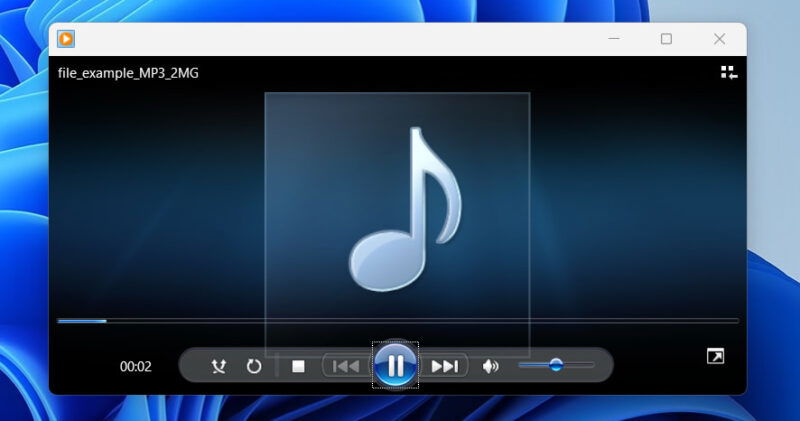
Honestly, the Media Player app in Windows 11 is great, with extensive support for formats, while still being simple to use. However, our favorite all-blue Windows Media Player is still functioning in Windows 11, albeit with the word “Legacy” appended to it. However, you’ll have to enable it first to start using it.
Search for “windows features” in Windows search, and open the Turn Windows features on or off Control Panel option. Expand the Media Features section, and enable the Windows Media Player Legacy (App) option.
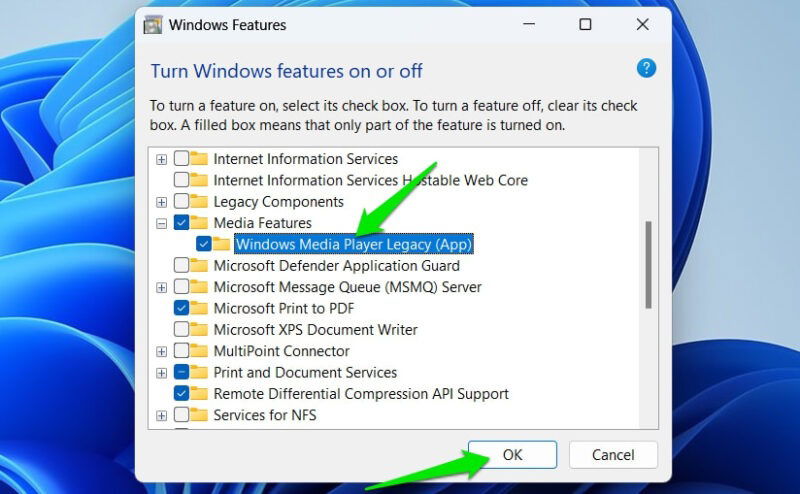
Once enabled, you’ll find the Windows Media Player Legacy option in the Open With media menu. You can even set it as the default app. Just keep in mind that it has limited format support and may not handle high-definition content properly.
3. Windows Photos Viewer
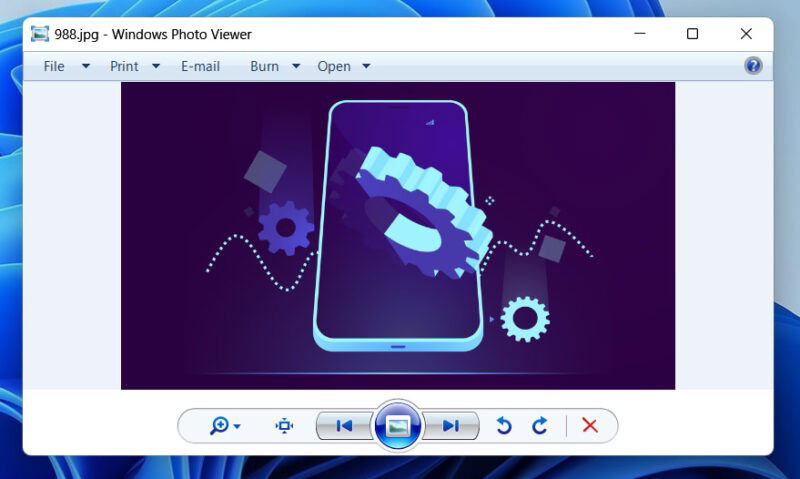
The Photos app in Windows is very powerful with advanced editing and image management features. However, the Windows Photos Viewer app found in Windows XP and up to Windows 7 is accessible in Windows 11 with a bit of tinkering.
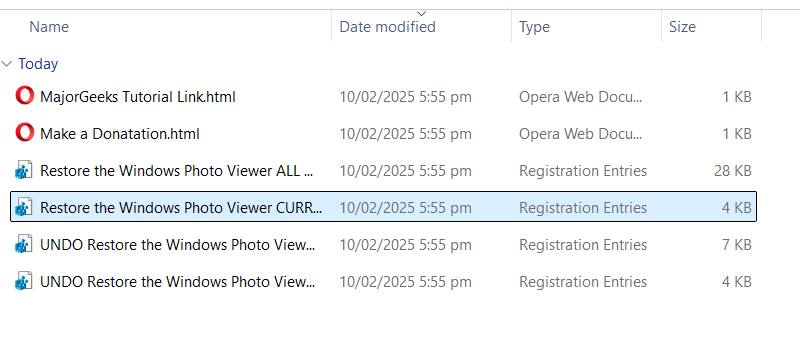
It may not be as powerful as the Photos app, but it’s fast, due to fewer features, and still great for basic image viewing. You’ll have to make extensive Registry edits to enable Windows Photo Viewer. Therefore, we recommend using a registry entry file instead.
Just unzip this file and open the Restore the Windows Photo Viewer file to automatically add the necessary edits. There is also an UNDO file in the zip file to hide the Windows Photo Viewer again.
You can either set Windows Photo Viewer as the default app or use the Open With option to open images in it.
4. Windows Remote Assistance
With the advent of screen-sharing apps with advanced features, the Windows Remote Assistance tool lost most of its popularity. The introduction of Quick Assist in Windows 10 took away most reasons to use it. Nonetheless, it’s still part of Windows 11, and you can use it if your grandpa sends an invite.
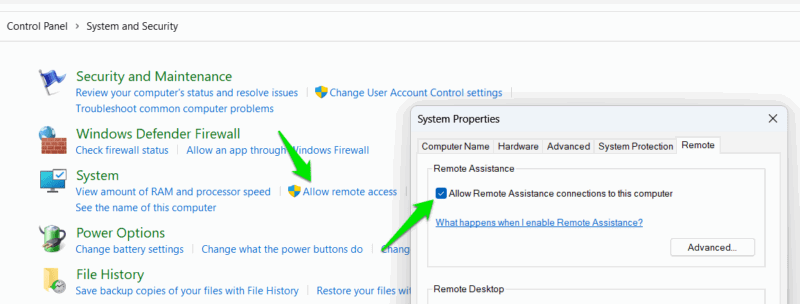
To access it, use Windows Search to open the Control Panel, and go to System and Security. Click on Allow remote access under the System section and enable the Allow Remote Assistance Connections to this computer option.
Click on Launch remote assistance under the same System section, and you’ll get options to create or accept invites.
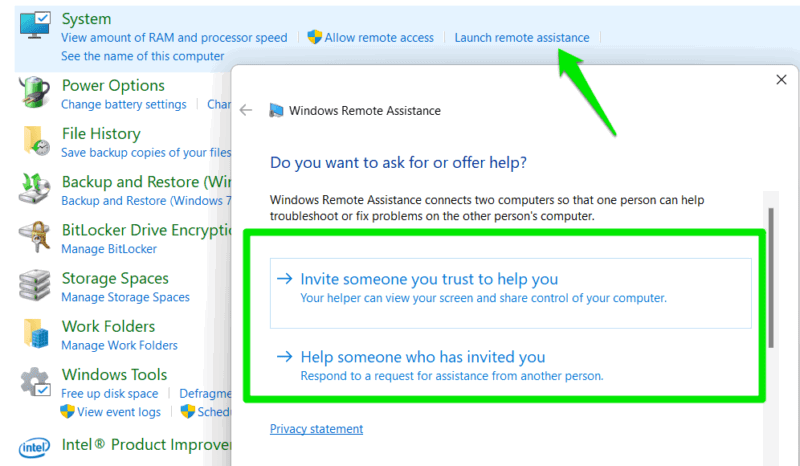
In most cases, you are better off using Quick Assist or a third-party screen-sharing app. However, Windows Remote Assistance can still be useful for security, as it has an option to create a peer-to-peer connection to keep the session limited to the same network.
5. Disk Cleanup
Storage Sense covers almost everything you’ll need to clean and free up disk space, making the good old Disk Cleanup tool redundant. Even after being replaced, the Disk Cleanup tool is still easily accessible in Windows 11, using the Search function without needing to go through any hoops.
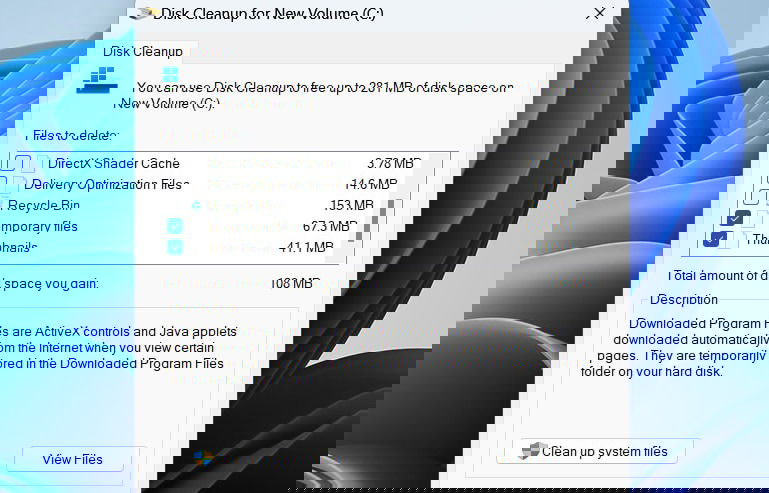
It works the same way as it did over 20 years ago. It will search for junk data and let you clean it up with a click. Unfortunately, of all the areas it searches, Storage Sense covers them and more, making it redundant.
It does allow you to delete old system restore points that Storage Sense doesn’t in More Options. However, you should manually delete restore points to avoid accidentally deleting an important one.
6. Snipping Tool
This is one of the tools that survived the test of time. Introduced in Windows Vista, the Snipping Tool is still the go-to tool in Windows for taking screenshots. While Microsoft did try to replace it with Snip & Sketch in Windows 10, it made a comeback in Windows 11 with enhanced features.
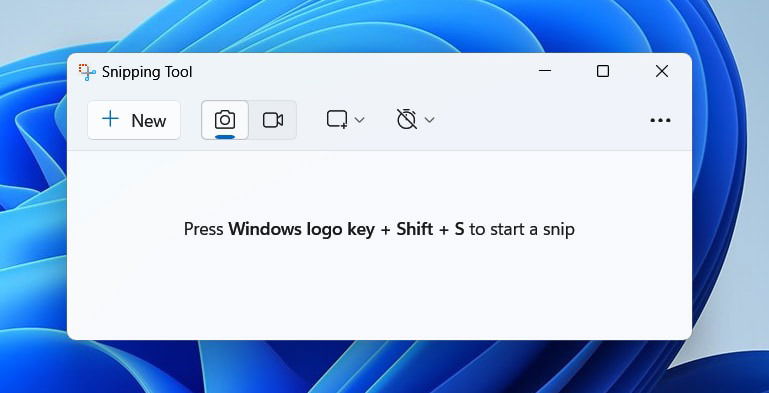
While it may not be as powerful as some feature-rich screenshot tools, it covers the basics well for most users. You can take screenshots in different modes, record the screen, and take delayed screenshots. There is also a nice editor to annotate, crop, add text, and do other basic edits.
You can search for Snipping Tool in Windows to open it, or press the Win + Shift + S shortcut to take a screenshot from anywhere.
7. Disk Defragmenter (Microsoft Drive Optimizer)
Introduced in Windows 95, Disk Defragmenter allowed users to defrag hard drives to improve hard drive performance. Since SSDs were negatively affected by defragmentation, Microsoft changed the tool to Microsoft Drive Optimizer, which functions differently for HDDs and SSDs.
Search for “optimize drive” in Windows search and click on Defragment and Optimize Drives to open it. Don’t worry, it won’t defragment your SSD, even if the name says that. It detects SSDs, then runs the TRIM command and other optimizations to increase SSD performance and lifespan.
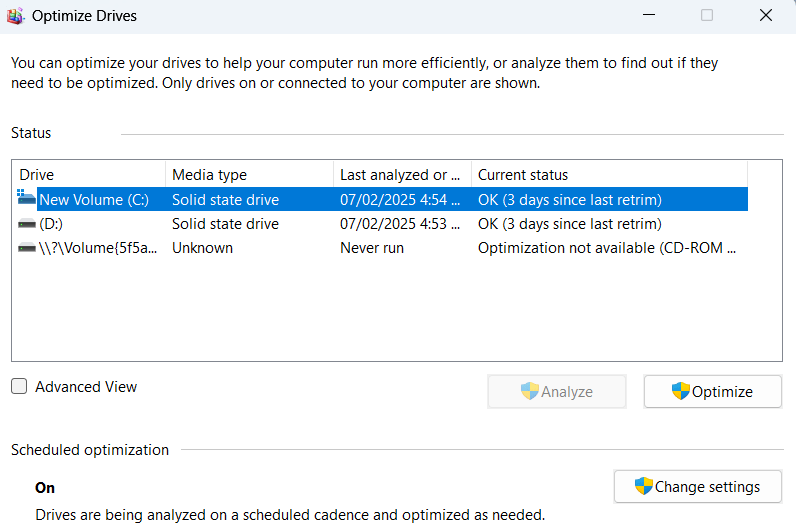
If it detects an HDD, it will defragment it instead. Overall, it’s a great tool that’s still in Windows for nearly 30 years, even if its name has changed over time.
8. Character Map
The oldest Windows tool in this list, Character Map, was added in Windows 3.1 with only minor updates since then. The last big update it received was the search function, which was added in Windows XP. Most people don’t use this tool, and many don’t even know it exists. Despite all that, it’s still available in Windows 11, and there seems to be no plans by Microsoft to get rid of it.
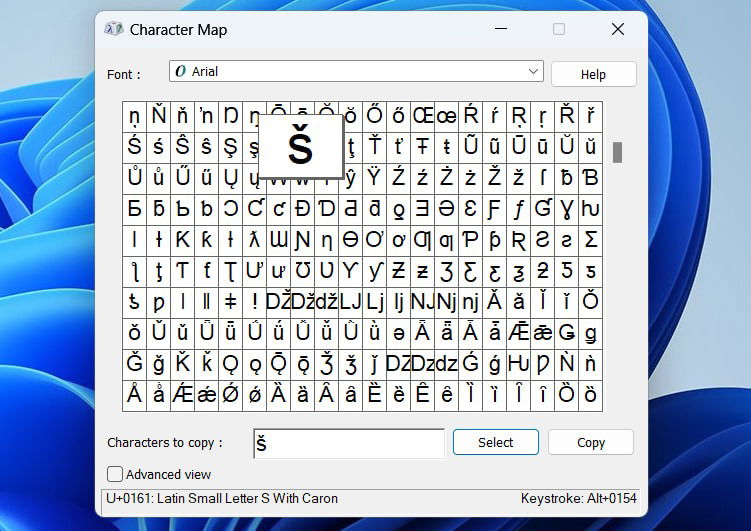
It allows you to view and use almost all glyphs available for a font. Using a scrolling window, you can view all characters in a single interface. While it looks like a very handy tool, writers and designers who need such an extensive list of characters usually have access to better tools that integrate well with their setup.
Windows 10 also introduced an emoji and symbol panel (Win + ;) to make it easier to add special characters and emojis, further decreasing the need for Character Map. Yet still, if you ever need access to all glyphs, search for “character map” in Windows Search to access this tool.
If you prefer simplicity and ease of access, you’ll find many of these old Windows tools still useful, even if you have to manually activate them in Windows 11. Additionally, if you are missing other old features, check out these tools to restore old Windows features.
Image credit: Freepik. All screenshots by Karrar Haider.