You might love using Google Assistant versus chatting with Gemini, but Google wants Gemini front and center. With Google removing Google Assistant settings in the Google app, you’ll now need to look elsewhere to change your assistant’s settings.
Why Google is Removing the Settings Link
Google announced in March 2025 that Gemini will be replacing Google Assistant later in 2025. In fact, Google plans to completely remove Google Assistant from app stores.
Why? Google wants to focus development on the more advanced Gemini AI versus trying to manage two AI assistants.
The problem is Google Assistant is still needed for some tasks, such as managing your smart home. Google’s working on upgrading smart home devices to Gemini. Until the full changeover, you may still need to have access to some Google Assistant settings. And, as we all know, Google does change its mind often, so Assistant could still be around longer than planned.
See if Google Assistant Settings Are Gone
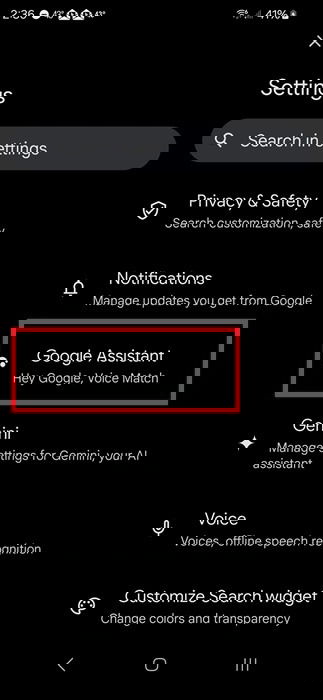
Depending on your device, the settings link may still be available in the Google app. Pixel devices are among the first ones losing access. To check, open the Google app, tap your profile icon in the top right corner, and select Settings. If you see Google Assistant, nothing’s changed for you just yet, but the next time the Google app updates, your settings could disappear.
Access Via Google Home App
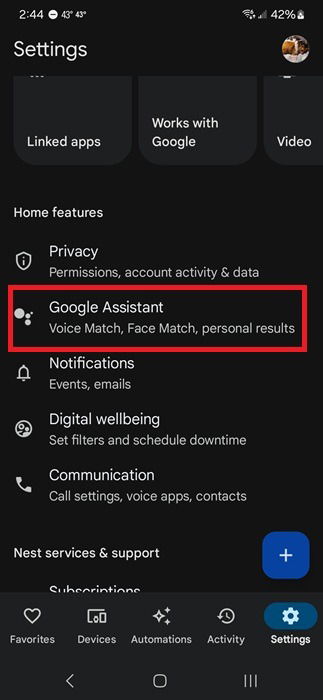
Since Google is replacing Google Assistant with Gemini on mobile apps first, smart home tech, like your TV and smart speaker, still use Assistant. Google’s leaving Google Assistant settings in the Google Home app for now.
Open the Google Home app and tap Settings at the bottom right. Tap Google Assistant under the Home features section.
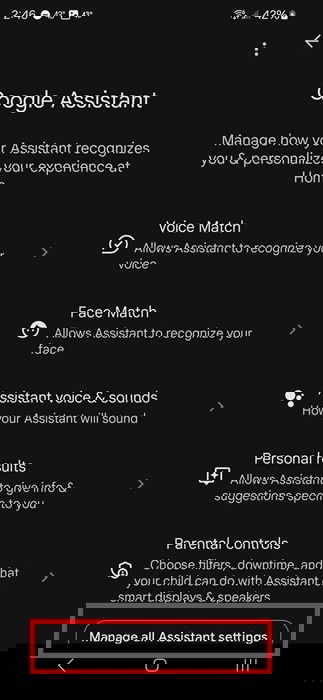
This gives you access to several settings, such as voice and face match, voice and sounds, personal results, and parental controls. If you need more settings, tap Manage all Assistant settings at the bottom of the screen.
Even if you don’t have any smart home devices with Google Assistant, you can still use this method to change the settings for use on your mobile device.
Access Via Google Assistant App
If you haven’t uninstalled the Google Assistant app, open it to access settings. For now, you can still reinstall it from the Google Play Store. If you’ve already switched to Gemini for your assistant, you’ll be prompted to switch to Google Assistant in order to use the app again.
If you’re not prompted to do so by default, open the Gemini app, tap your profile icon in the top right, and tap Switch to Google Assistant.
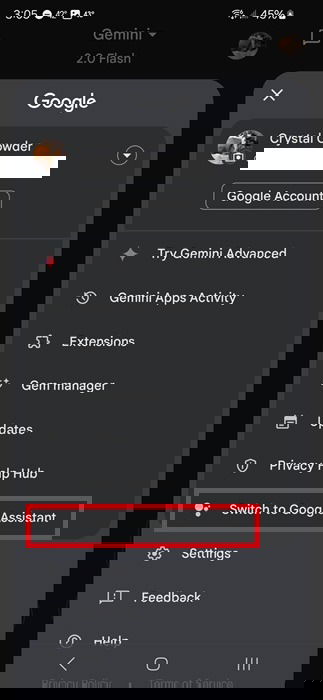
This option will likely disappear when Google officially replaces Google Assistant with Gemini.
If Google Assistant is still your default assistant, activate it by either saying “Hey Google” or pressing your Assistant shortcut button. Then, say “Open Assistant settings.”
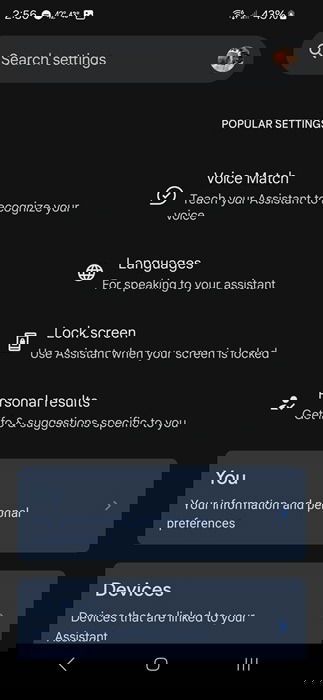
If you’re having trouble finding the Google Assistant app and you know it’s installed, open Settings on your device and select Apps -> Assistant. Tap Open and say “Open Assistant settings.”
When you’re ready to switch back to Gemini, just open the Gemini app and follow the prompts to make it your default voice assistant on your device.
Gemini Settings Missing in Google App
Even though Google wants you to switch, many users are dealing with another issue – Gemini and Google Assistant settings are missing in the Google app.
Google is testing out keeping settings separate between the various Google apps. This means placing the focus mainly on the search feature versus managing AI assistant settings.
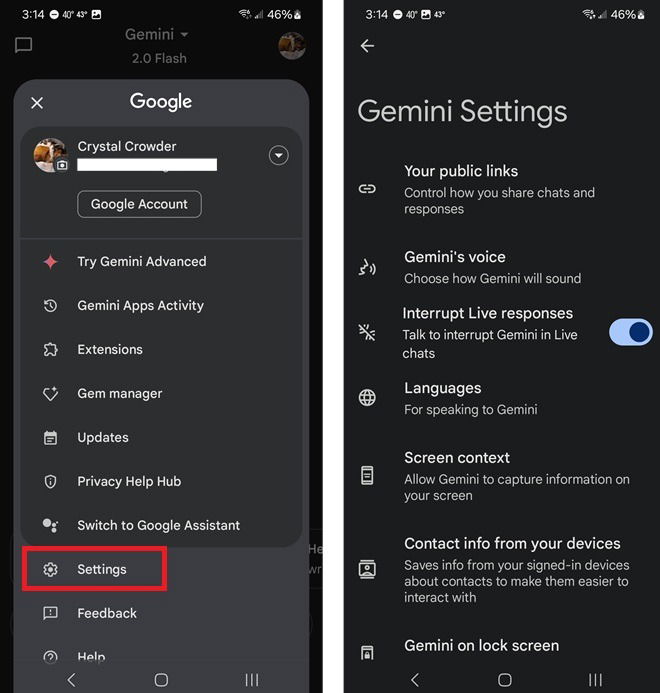
If you’re one of the “lucky” ones who have already lost access to all assistant settings in the Google app, there’s an easy workaround – use the Gemini app.
If you don’t already have the app, download it for free from the Google Play Store. Sign in using your Google account and follow any prompts to customize the app setup. Then, tap your profile icon in the top right corner and select Settings.
Gemini Not Required
If you’ve tried Gemini and aren’t a fan, you’re not required to use it. The only exception is if you have smart home devices that aren’t compatible with any other AI voice assistants.
Google Assistant is already being removed from some smart home TVs, leaving users to depend on any built-in voice controls. For LG smart TVs, Assistant is leaving as of May 1, 2025. But, both LG and Samsung are planning to add Microsoft Copilot for AI voice support later in 2025. However, they may support Gemini as Google changes things over.
For your smart home and mobile devices, you may have other options. Many smart home devices support Amazon Alexa, which also works on Android and iOS. You can even try out ChatGPT as your voice assistant.