There are many ways to optimize your Windows experience, from simple settings tweaks to registry hacks and optimization apps. However, there are some methods that can do more harm than good. You may initially notice improvements, but their consequences over time are far worse. This guide lists Windows optimization methods that in reality are detrimental.
Table of Contents
- 1. Disable Page File if You Have Sufficient RAM
- 2. UAC Isn’t Needed for the Administrator Account
- 3. Disable Windows Updates
- 4. Always Use the “Best Performance” Power Plan
- 5. Disable Superfetch (Sysmain) to Improve System Performance
- 6. Disable System Restore or Decrease Its Storage Size
- 7. Turn Off Hibernation to Save Disk Space
1. Disable Page File if You Have Sufficient RAM
The page file is the virtual memory that Windows depends on other than RAM to store processes that aren’t immediately required. People often recommend disabling it if you have enough RAM for your daily tasks. It can help decrease disk I/O, speed up responsiveness, and extend SSD lifespan.
While it sounds great to disable it, it can cause many system stability issues. First, you are never sure if the RAM is enough. You could open a heavy program/game later that may fill the RAM and lead to an instant system crash.
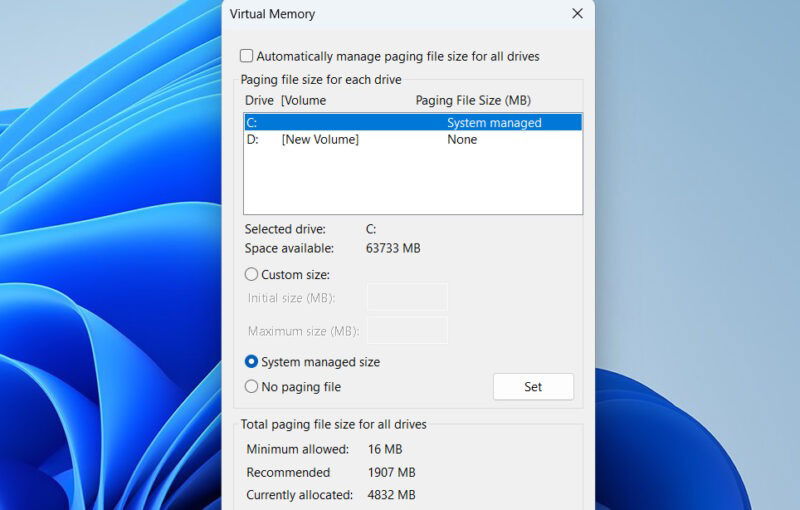
Furthermore, many apps, and even Windows components, work with the assumption that virtual memory is enabled, so they may not work as intended if it’s disabled. For example, Windows depends on the page file to save kernel memory dumps for critical errors like BSOD.
Besides, the advantages of disabling page files are no longer as important. If you have an SSD, the loading speed is fast enough that you won’t even notice improvements in responsiveness. Additionally, the impact on SSD lifespan is negligible, as modern SSDs have very high endurance.
If you must mess around with the page file, it’s better to move or resize the page file instead of disabling it.
2. UAC Isn’t Needed for the Administrator Account
Honestly, disabling User Account Control (UAC) makes sense, as it’s just a confirmation prompt in the end. When was the last time you clicked “No” on a UAC prompt? Probably never – it appears for every elevated action, but that doesn’t mean the action itself is malicious.
This is the reason some people advise disabling UAC: to avoid these annoying pop-ups on admin accounts, as they serve no other purpose than to confirm what you executed yourself.
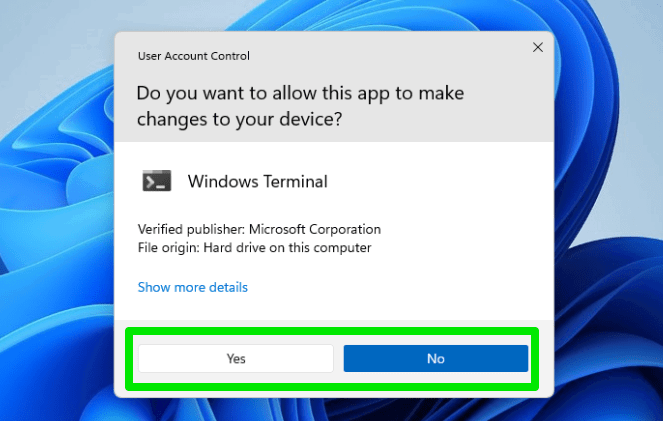
However, this annoying pop-up also works as a manual checkpoint for actions not executed by you. With UAC enabled, any malware will still have to get your manual permission to make any changes to your system. If you suddenly receive a UAC pop-up without executing anything yourself, you’ll surely become suspicious.
If UAC is disabled, malware can make any changes it wants without you finding out. For your PC’s security, it’s better to deal with this annoying pop-up than let a malware infection freely do whatever it wants.
3. Disable Windows Updates
Windows updates can download and install while you are using the PC and even restart the PC in the middle of your work. Not to mention, Windows update problems are common and can further disrupt your system. This is the reason some people recommend disabling them and only enabling them when you are ready to install them.
While Windows updates can be quite pushy, disabling them isn’t the right move. Apart from adding new features, these updates also come with security updates that fix vulnerabilities and bugs, including zero-day exploits. These vulnerabilities can do much more damage than any inconvenience the Windows update system can bring.
It’s better to manage Windows updates by adjusting active hours or delaying feature updates for a limited time. Completely disabling updates for the sake of Windows optimization will make your system extremely vulnerable.
4. Always Use the “Best Performance” Power Plan
One of the first tips you’ll get when asking for Windows optimization recommendations is to use the Best Performance power plan. While technically, it does put Windows in the best performance state, it’s not something most people need.
Using the Best Performance power plan won’t magically lead to faster loading of programs or higher FPS. Even in the Balanced power plan, your system is still able to reach its maximum potential when needed. The main difference between these modes is that Best Performance always runs the system near max speed, and the Balanced plan dynamically adjusts speed.
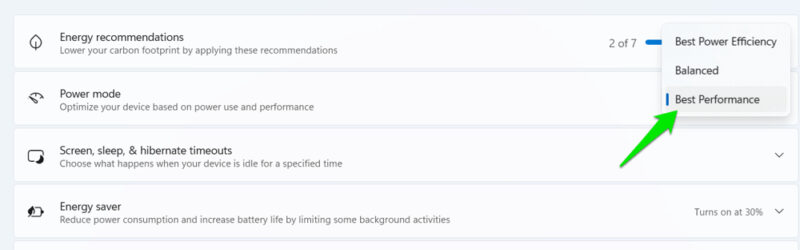
For regular tasks like browsing, streaming, and even casual gaming, the balanced mode is better, as it will save power and minimize heat generation when the extra power isn’t needed. The only downside is that the dynamic adjustments could introduce minor latency during sudden load changes, such as in heavy games.
In the Best Performance plan, the system fluctuates near max power, which can lead to a slightly smoother performance in heavy games and apps, as CPU power doesn’t drop. Therefore, unless you are playing a competitive game or running heavy audio/video apps, the Best Performance plan is bad for your PC.
5. Disable Superfetch (Sysmain) to Improve System Performance
Superfetch is a service in Windows that’s responsible for preloading frequently used programs’ data in the RAM to make program loading times faster. This process uses up more RAM and adds a slight CPU and disk I/O overhead, so sometimes it’s recommended to disable it to save system resources to improve performance.
In reality, Superfetch has minimal impact on performance, while its benefits are noticeable. Yes, it does fill up RAM quickly, but that’s a good thing. Free RAM is considered wasted RAM, as it doesn’t help the system in any way. When Superfetch utilizes this free RAM to preload data, it’s actually making use of that wasted RAM. If RAM gets lower for active programs, it can quickly flush all this data to free up RAM.
This service also has minimal impact on performance and usually works in a passive state. You can open Task Manager (Ctrl + Shift + Esc) and search “sysmain” to find its process. You will notice it will consume zero CPU power in regular use and only one to two percent when active.
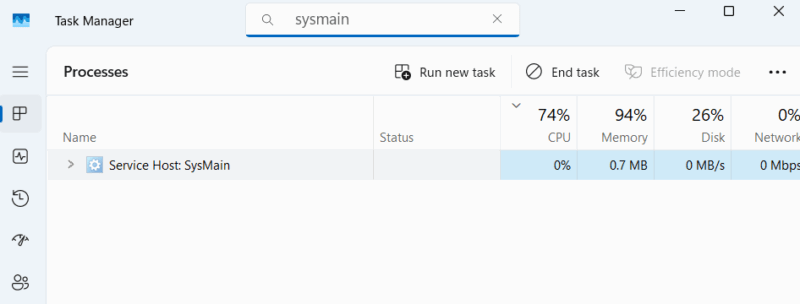
While it doesn’t consume as many resources, it does greatly improve app loading times and multitasking. Your commonly used apps – like browsers – should load almost instantly thanks to it.
6. Disable System Restore or Decrease Its Storage Size
If you are low on storage, you might get the advice to either disable system restore or decrease restore points storage size if you already have a reliable backup strategy. By default, it occupies five percent of your total available storage, which can be a lot, depending on your storage drive size, like 25 GB for 500 GB storage.
While gaining back dozens of GB of space may seem like a great idea, it’s not worth disabling system restore. System restore is your best bet to restore your system to a stable state if a critical problem occurs, like system corruption, malware infection, or driver corruption. Unlike backups, it will restore your system to an earlier state from before the problem occurred, including changes to system settings and apps.
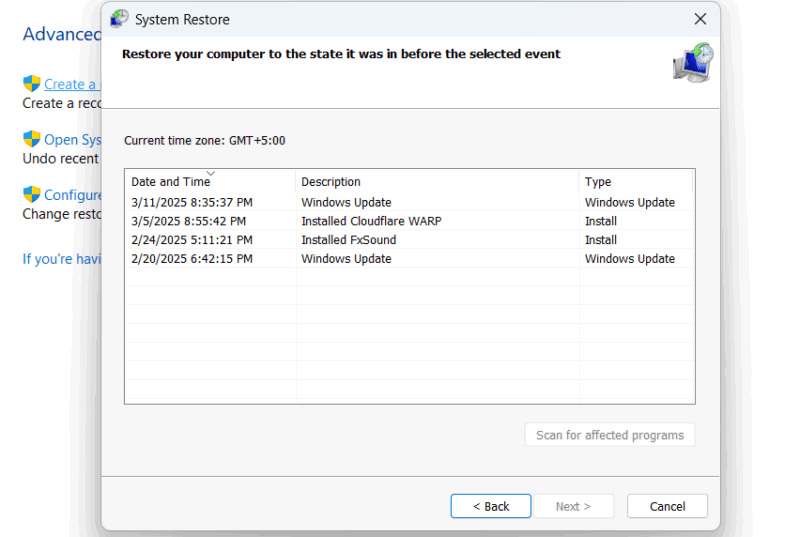
It’s also not recommended to decrease its storage space, as you’ll need a reliable restore point to restore the system properly. Less storage will lead to fewer restore points and faster deletion of older ones, so you may miss the restore point created before the problem occurred. If you can’t use system restore for any reason, you’ll have to reset Windows, which will delete all apps and reset settings.
7. Turn Off Hibernation to Save Disk Space
Other common Windows optimization advice is to disable the hibernation feature, as most people don’t use it. The hibernation feature takes space in your system drive equal to your RAM size, which can be a lot if you have lots of RAM. However, even if you don’t use the hibernation feature, you shouldn’t disable it, as it’s a core part of the system.
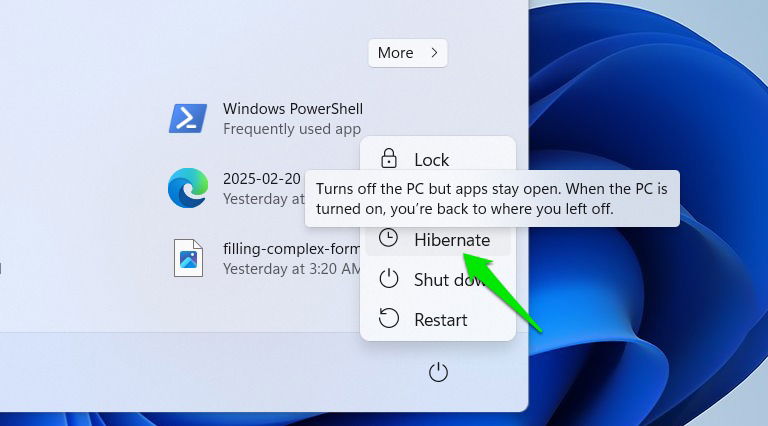
Disabling hibernation indirectly affects the following important features:
- Fast startup won’t work: the fast startup feature uses the hibernation feature to store data for quick startup. With no hibernation feature, it just won’t work, leading to slow boot times.
- Laptop will shut down when it reaches low battery: at critical battery levels, laptops save all the data and hibernate so that you don’t lose data. Without hibernation, it will abruptly shut down, and you’ll lose unsaved data.
- PC won’t hibernate due to inactivity: by default, laptops and desktops automatically enter hibernate mode from sleep mode after a few hours of inactivity. It’s an important feature to save battery in case the device goes unintended for an extended period, which won’t work without the hibernation feature.
Just because you don’t use the hibernate feature, doesn’t mean you should free up some space by disabling it.
This shouldn’t deter you from Windows optimization methods, as a whole – just ensure that you research thoroughly and weigh the hidden downsides. Since such drastic measures often target gaming, exploring better, safer methods to optimize Windows for gaming could be your next step.
Image credit: Freepik. All screenshots by Karrar Haider.